
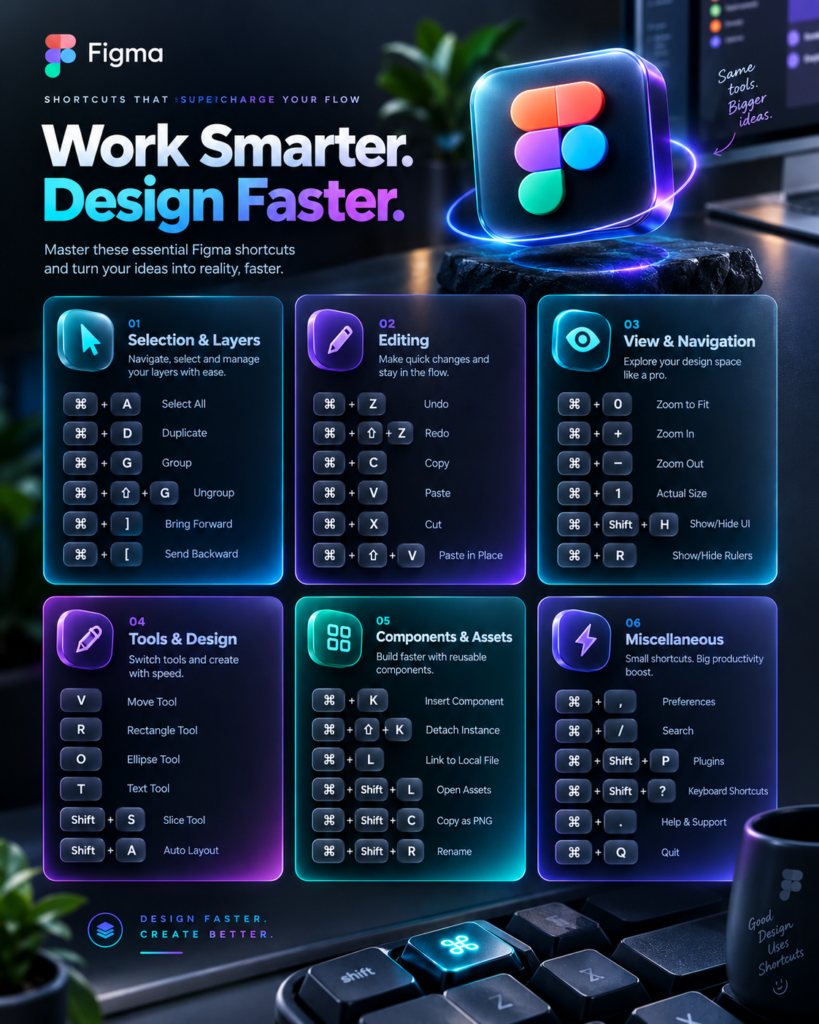
If you are Speed up your Design, Then Figma time-saving shortcuts is the secret to a stress-free and highly productive method.
Have you ever looked at a blank digital canvas and felt overwhelmed by the sheer number of clicks it takes to build a complete website layout? You are definitely not alone. Every day, thousands of creative professionals spend hours navigating drop-down menus, dragging elements, and clicking through complex interface panels. But what if you could cut your design time in half?
This guide is entirely dedicated to helping you speed up your creative process. Whether you are a complete beginner opening the software for the first time or a seasoned professional looking to refine your daily habits, knowing the right tricks changes everything. By the end of this post, you will understand exactly how to navigate your workspace like a true professional. Read on to transform your daily workflow and take back hours of your valuable time.
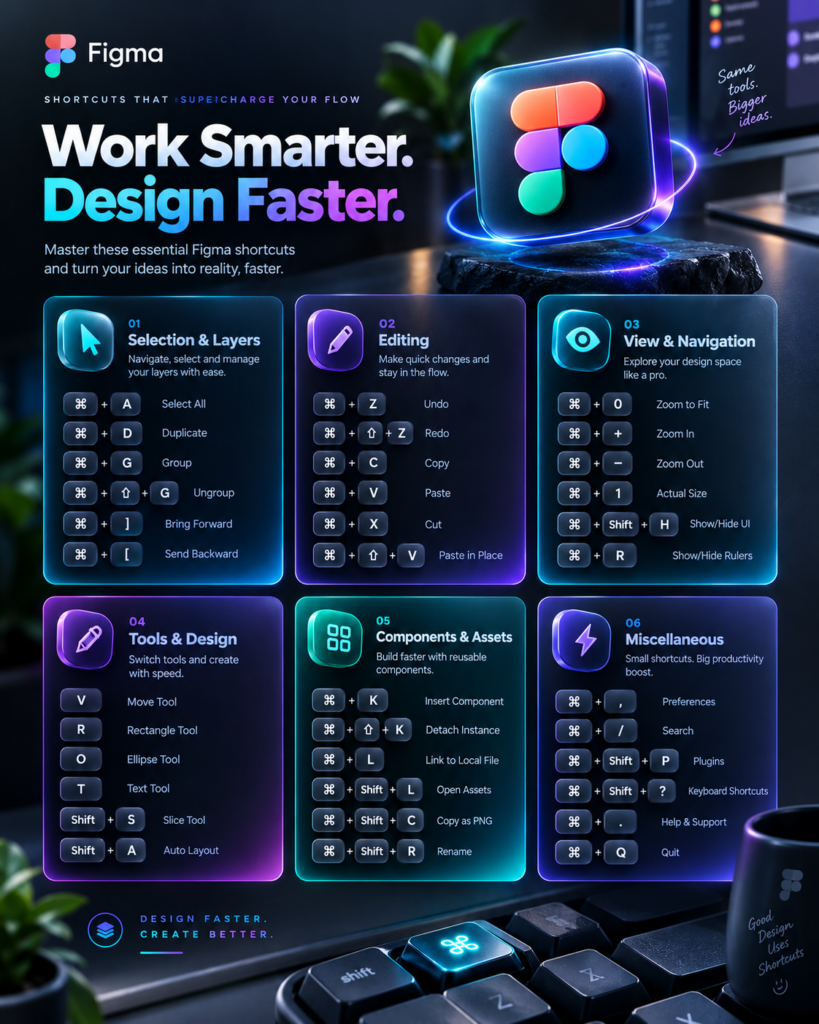
A design shortcut is a simple keyboard combination or mouse action that performs a software task instantly, bypassing the need to navigate through visual menus. In the context of interface design, a shortcut allows you to quickly group items, copy visual styles, or measure the exact distance between two shapes without lifting your hands from the keyboard.
When we talk about Figma time-saving shortcuts, we are referring to the specific built-in commands that developers created to help you work faster. Instead of moving your cursor to the top of the screen to find the “Create Component” button, you simply press a few keys. It might seem like a small detail, but these micro-interactions add up.
Think of it like learning to type without looking at the keyboard. At first, it takes a little bit of conscious effort to remember where the keys are. But once it becomes muscle memory, your thoughts flow directly onto the screen. Figma time-saving shortcuts do the exact same thing for visual design, removing the friction between your creative ideas and the final product.
In the world of user interface and user experience design, time is your most valuable asset. Deadlines are often tight, and clients expect high-quality results delivered quickly. Relying solely on your mouse to click through every single menu option slows you down and interrupts your creative focus.
This is exactly why Figma time-saving shortcuts are so incredibly important. They keep you in the “flow state.” When you do not have to pause to search for a tool, your brain stays entirely focused on solving the design problem in front of you. You stop thinking about how to use the software and start focusing on what you are creating.
Furthermore, industry standards are constantly rising. Design teams collaborate in real-time, and being able to iterate quickly during a live team review is a massive advantage. If you can instantly duplicate screens, adjust spacing, and apply color styles while your project manager is speaking, you immediately establish yourself as a highly competent professional.
Adopting Figma time-saving shortcuts offers far more than just shaving a few seconds off your clock. The advantages ripple throughout your entire career and daily well-being.
Here are the most essential commands you need to know. Practice these step-by-step until they become second nature.
This is arguably the most powerful command in the entire software. Instead of looking for a specific plugin or menu item, you can just search for it.
Command + / (Mac) or Control + / (Windows). A search bar will appear on your screen.Enter. The software performs the action immediately.Forget trying to manually match the exact hex code, border radius, and drop shadow from one button to another.
Option + Command + C (Mac) or Alt + Ctrl + C (Windows).Option + Command + V (Mac) or Alt + Ctrl + V (Windows) to paste the exact look.Perfect alignment is crucial for professional design. You need to know exactly how much space is between your text and your images.
Option key (Mac) or Alt key (Windows).Auto layout is a feature that lets your designs stretch and compress automatically. It is a must-learn for modern web design.
Shift + A.Having a messy layers panel makes handing off your file to a developer very difficult. Cleaning it up usually takes forever, unless you use this trick.
Shift and clicking them.Command + R (Mac) or Control + R (Windows).While learning Figma time-saving shortcuts is exciting, beginners often fall into a few predictable traps. Knowing what to watch out for will make your learning process much smoother.
Everyone involved in the digital product creation process can benefit from these techniques.
If you are a freelance designer, speeding up your workflow means you can take on more clients and increase your income. If you are an in-house UX researcher, knowing how to navigate the software quickly helps you organize your wireframes and sticky notes with ease.
Even project managers and developers who only open the software occasionally should learn basic Figma time-saving shortcuts. Being able to quickly measure spacing or export an image without having to ask the design team for help makes the entire company run more smoothly.
FAQs
Currently, the software does not have a built-in feature to remap the default keys directly within the app. However, if you are using a Mac, you can use your computer’s System Preferences to create custom app shortcuts. Many designers also use programmable mice or external keyboards to map specific commands to a single button press.
Yes! One of the best things about this software is that the experience is nearly identical whether you are using the downloaded desktop application or working directly inside your web browser (like Chrome or Safari). Your favorite Figma time-saving shortcuts will work perfectly in both environments.
You can easily view a complete visual map of every command by pressing Control + Shift + ? on Windows or Command + Shift + ? on a Mac while you are inside a project file. This will open a helpful panel at the bottom of your screen showing which commands you have already used and which ones you still need to learn.
Mastering your daily workflow does not have to be a complicated or stressful process. By slowly integrating these Figma time-saving shortcuts into your routine, you will immediately notice a reduction in busywork and a massive increase in your creative output.
Remember, the goal is not perfection on day one. Start by practicing the quick search and auto-layout commands today. As you build muscle memory, you will naturally become faster, more confident, and more professional in your design career. Open up a blank canvas right now, try out the top five commands we discussed, and watch your productivity soar!