
Chrome only screenshots what fits on your screen. If the page is longer than the window, and most are, you end up taking five or six separate shots and stitching them together by hand.
This guide shows how to take a full page screenshot in Chrome three different ways. Two of them are free and built into the browser you already have. It covers the exact steps for each, when each one works, and where each one falls apart.

Chrome has a full page screenshot tool built in. It is buried in the Chrome developer tools, which is why most people never find it, but it needs no extension and no account.
Chrome scrolls the page internally, renders the whole thing, and downloads a PNG. No watermark, no limit, no software.
It works well on short, simple, static pages. It struggles everywhere else:
If you want a document rather than an image, Chrome’s print dialog will capture the whole page as a PDF.
Printing applies the site’s print stylesheet, which is often nothing like what you were looking at. Navigation vanishes, layouts collapse to a single column, and page breaks land wherever they land, frequently through the middle of a sentence or a table row. It is fine for archiving an article. It is poor for anything where the visual layout matters.
An extension captures the page the way you actually see it: scrolling in steps, taking a screenshot at each one, and compositing them into a single image. That sounds like what DevTools does, but the difference is in the handling.
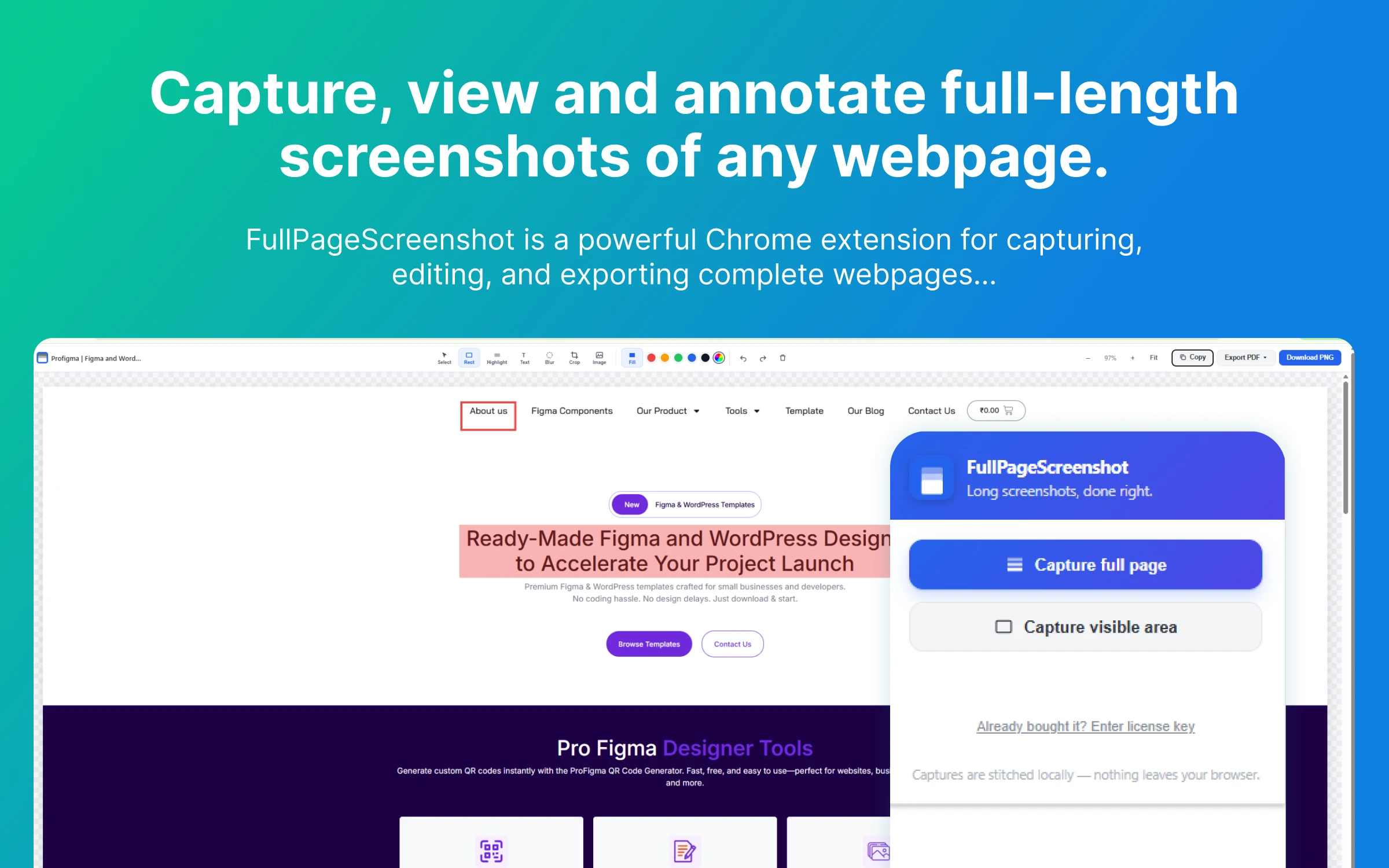
Because the page scrolls for real, lazy-loaded images have time to appear. And because the tool controls each step, it can hide sticky headers and cookie banners before every frame, which is what stops your navigation bar repeating six times down the finished image.
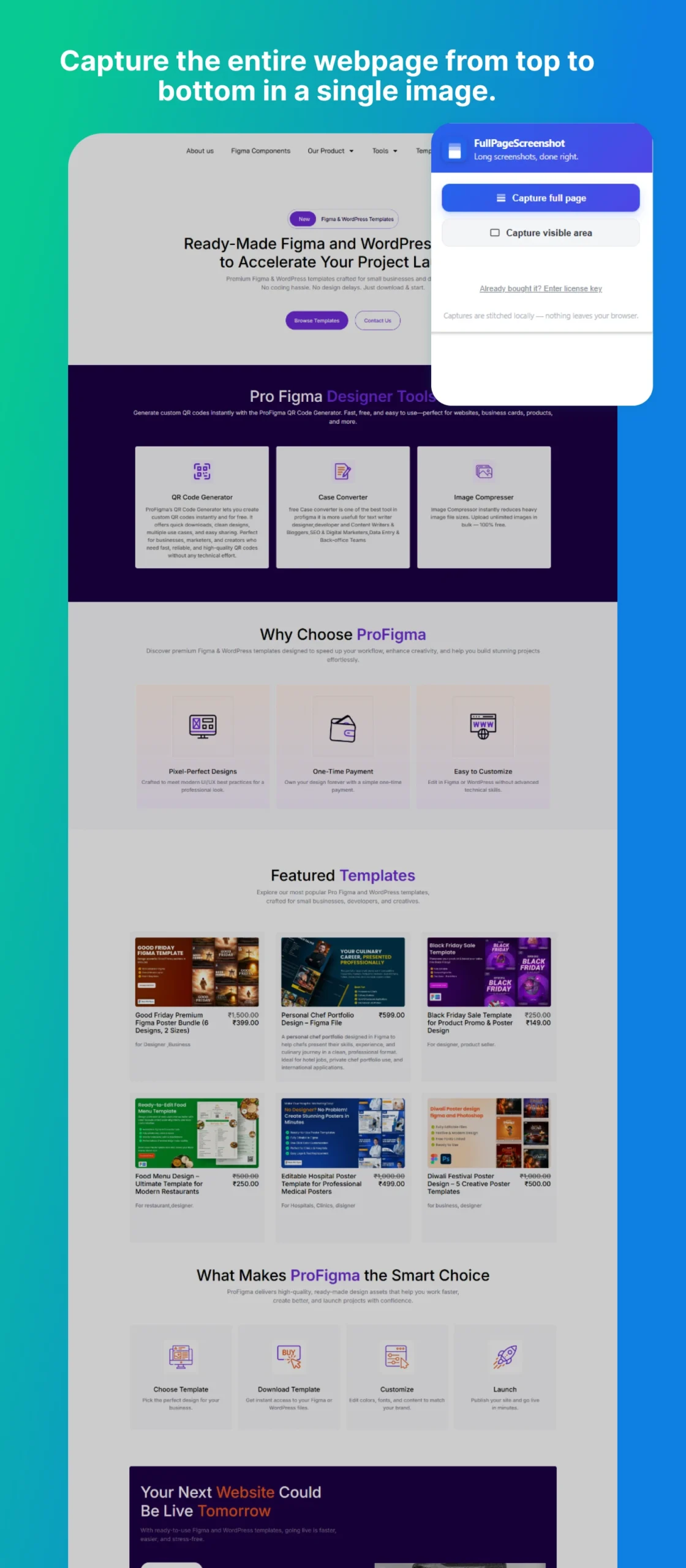
We build one of these, FullPageScreenshot, so treat the next few sections as a demonstration of what the approach makes possible rather than a neutral review.
This is the case neither free method can handle, and it comes up constantly in web apps.
A support thread, a message list, a Jira backlog or an embedded table scrolls inside its own box while the page around it stays still. Ask DevTools for a full page screenshot and you get the page, with that panel showing only the sliver that happened to be visible.
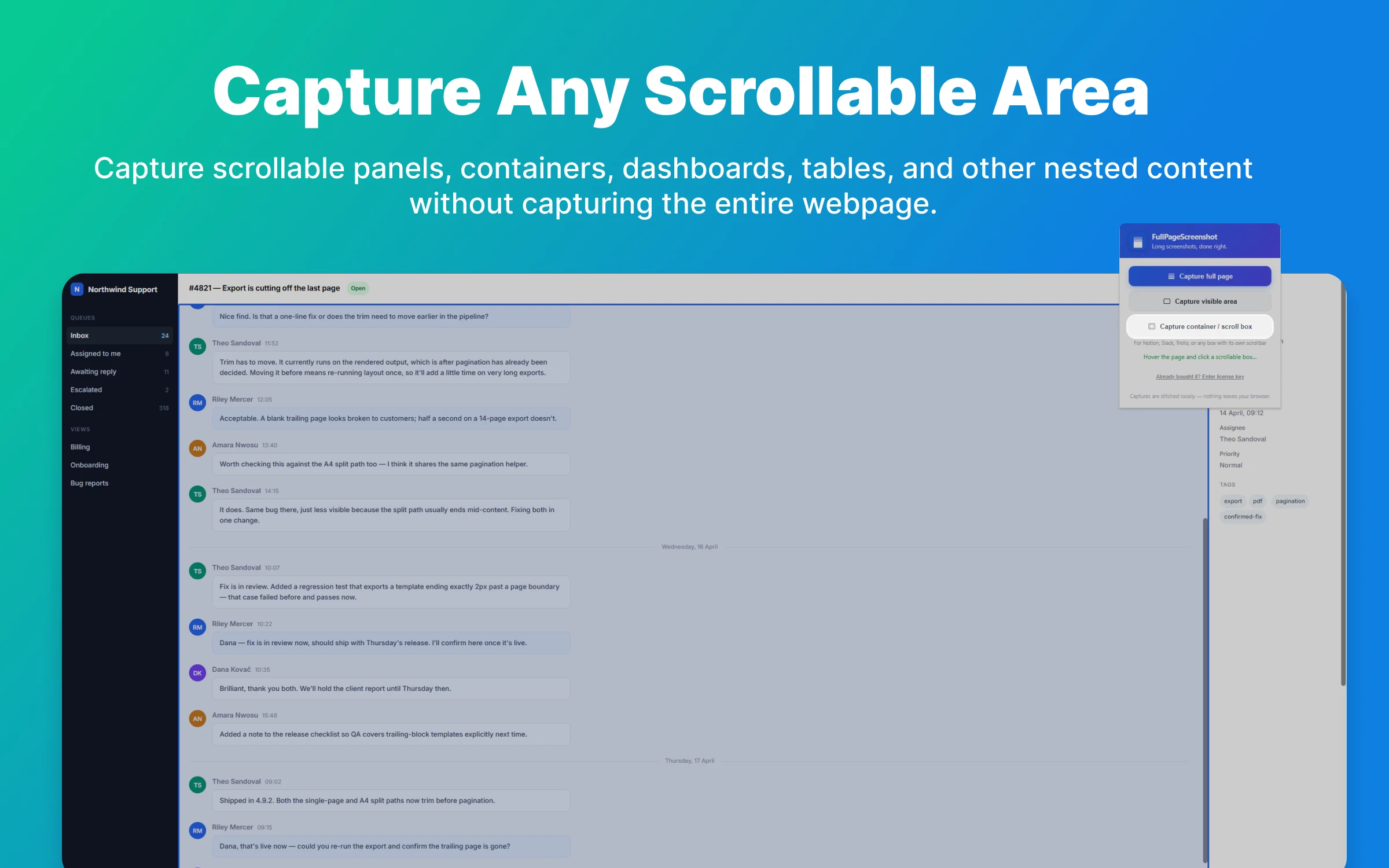
A container picker solves this: hover the page, and any independently scrolling element lights up. Click it and you get that panel scrolled through its full internal height, cropped to its own edges rather than the whole page around it.
Need to capture a panel that scrolls on its own?
Chrome’s built-in screenshot cannot reach it, and neither can most extensions. FullPageScreenshot can, and it is free to start with no account.See how container capture works
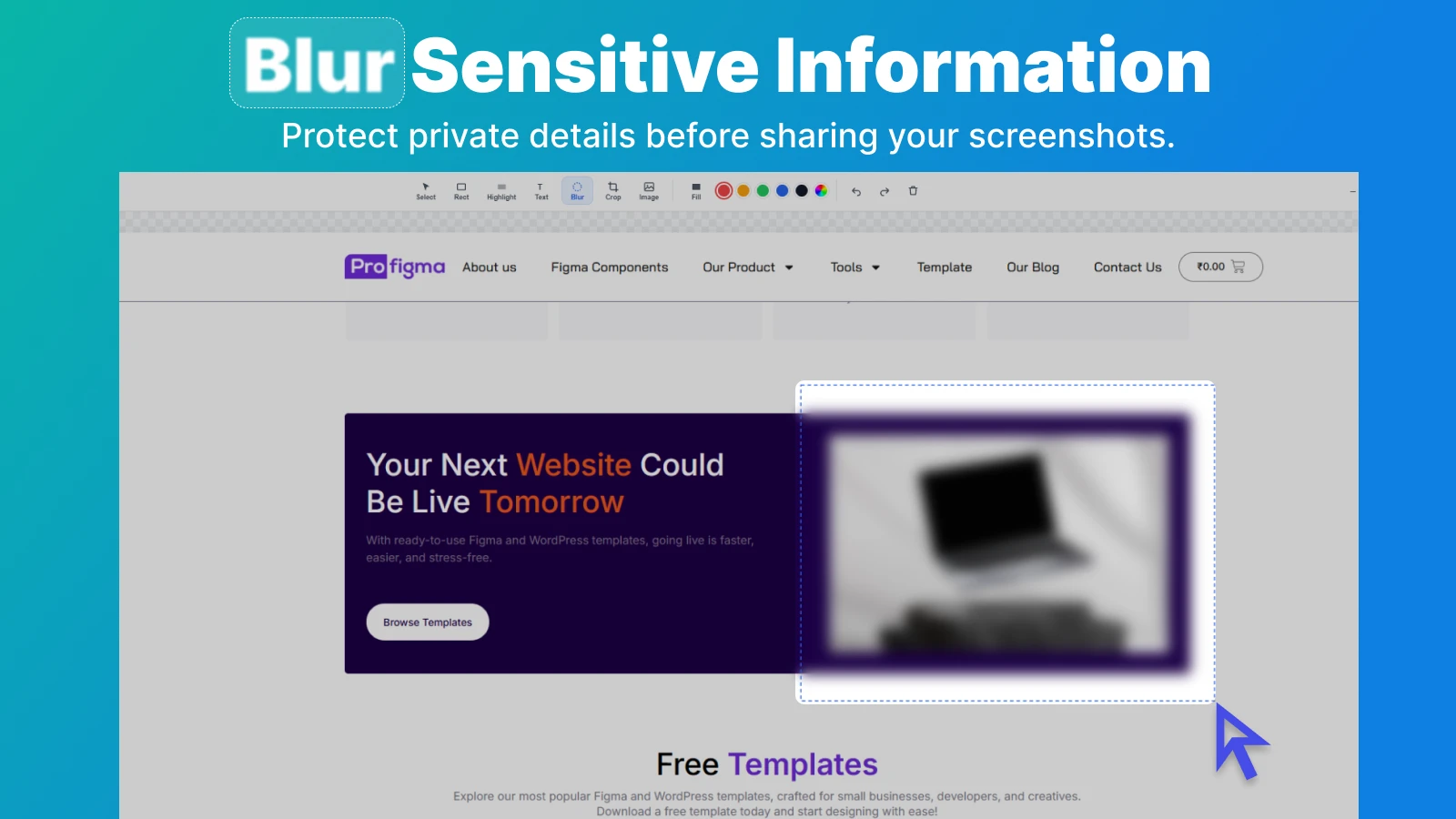
Most screenshots get sent to someone. That usually means pointing at something, and often means hiding something.
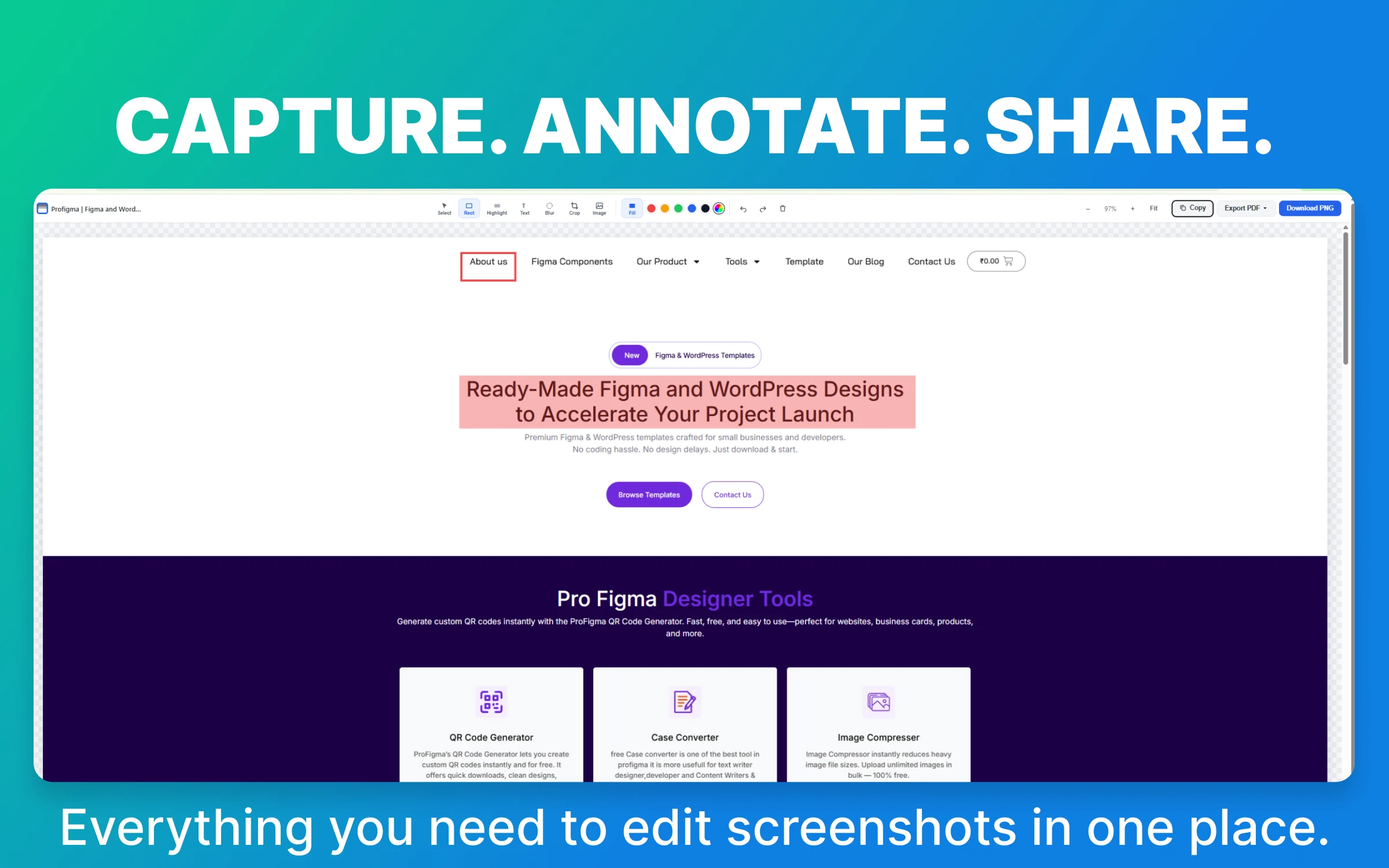
Redaction is the part worth being careful about. Cropping is not redaction, and neither is drawing a solid box in a tool that keeps layers. Blur the pixels, flatten the image, and check the exported file rather than the editing view.
Long screenshots and PDFs do not naturally get along. Split a 6,000 pixel image across A4 pages at fixed intervals and the breaks land mid-sentence.
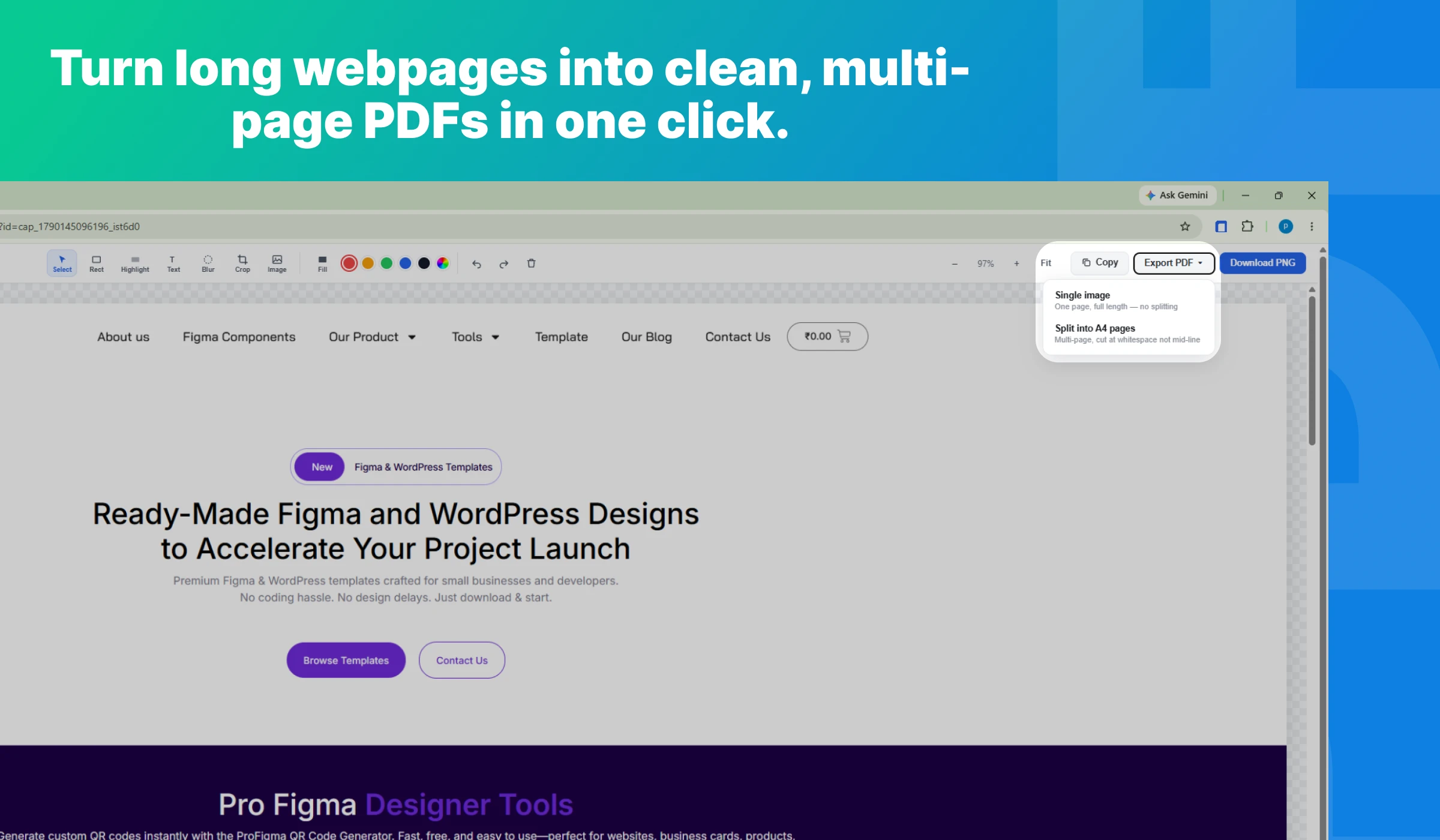
The better approach scans for a near-flat row of pixels near each break, the whitespace between paragraphs, and cuts there instead. On text-heavy pages the result is clean. On dense photo collages with no natural gaps, no method saves you.
| What you need | Best method |
|---|---|
| A quick capture of a simple page | DevTools |
| An article saved for reading later | Print to PDF |
| A page with lazy-loaded images | Extension |
| A page with sticky headers or cookie banners | Extension |
| A chat thread, table or panel that scrolls on its own | Extension |
| Anything you need to annotate or redact | Extension |
| You cannot install anything on this machine | DevTools |
If you only capture a page occasionally, learn the DevTools shortcut and stop there. It is genuinely good and it costs nothing. If you are capturing pages weekly, for bug reports, client approvals, documentation or support tickets, the friction of the free methods adds up fast.
On Android 12 and later the operating system handles it: take a normal screenshot and tap Capture more to extend it down the page. On iPhone, screenshot a page in Safari, tap the preview, then choose Full Page, which saves as a PDF. Chrome extensions do not run on mobile, so the built-in options are what you have.
Yes. Open DevTools with F12, press Ctrl + Shift + P, type “screenshot” and choose “Capture full size screenshot”. It works well on simple static pages, and struggles with lazy-loaded images, sticky headers and panels that scroll independently.
Because the header is fixed or sticky, so it stays on screen while the page scrolls underneath. Anything capturing frame by frame without hiding those elements first will include the header in every frame. Tools that re-scan and hide fixed elements before each capture avoid this.
The site lazy-loads them, meaning they only start downloading when you scroll near them. If the capture renders faster than the images arrive, you get empty space. Scrolling slowly through the whole page once before capturing usually fixes it.
Built-in methods cannot do it. You need a tool with a container or element picker, which captures that specific element’s full internal height rather than the page it sits in.
Practically, yes. Very tall pages produce very large images, and infinite-scroll feeds have no end at all, so most tools cap the number of scroll steps. For an endless feed, capture what you need and stop rather than expecting to capture everything.
That is how to take a full page screenshot in Chrome three different ways. For a straightforward page, use the built-in DevTools method and stop there. The moment sticky headers, lazy-loaded images, scrolling panels or redaction enter the picture, the free methods run out of road.
If that is the kind of page you are capturing regularly, our full page screenshot Chrome extension handles all of it, and everything happens locally in your browser. It is free on the Chrome Web Store. You might also find our free image compressor useful afterwards, since full length captures get heavy quickly.
Stop working around broken screenshots
Sticky headers hidden automatically. Panels that scroll on their own captured in full. PDFs that break at whitespace instead of mid-sentence.Get FullPageScreenshot
Free to start · No account · Nothing leaves your browser