
Capture any webpage
from top to bottom
FullPageScreenshot is a full page screenshot Chrome extension that scrolls the whole page for you, stitches it into one image, and opens it in a built-in editor so you can annotate, blur and export, all without leaving the tab.
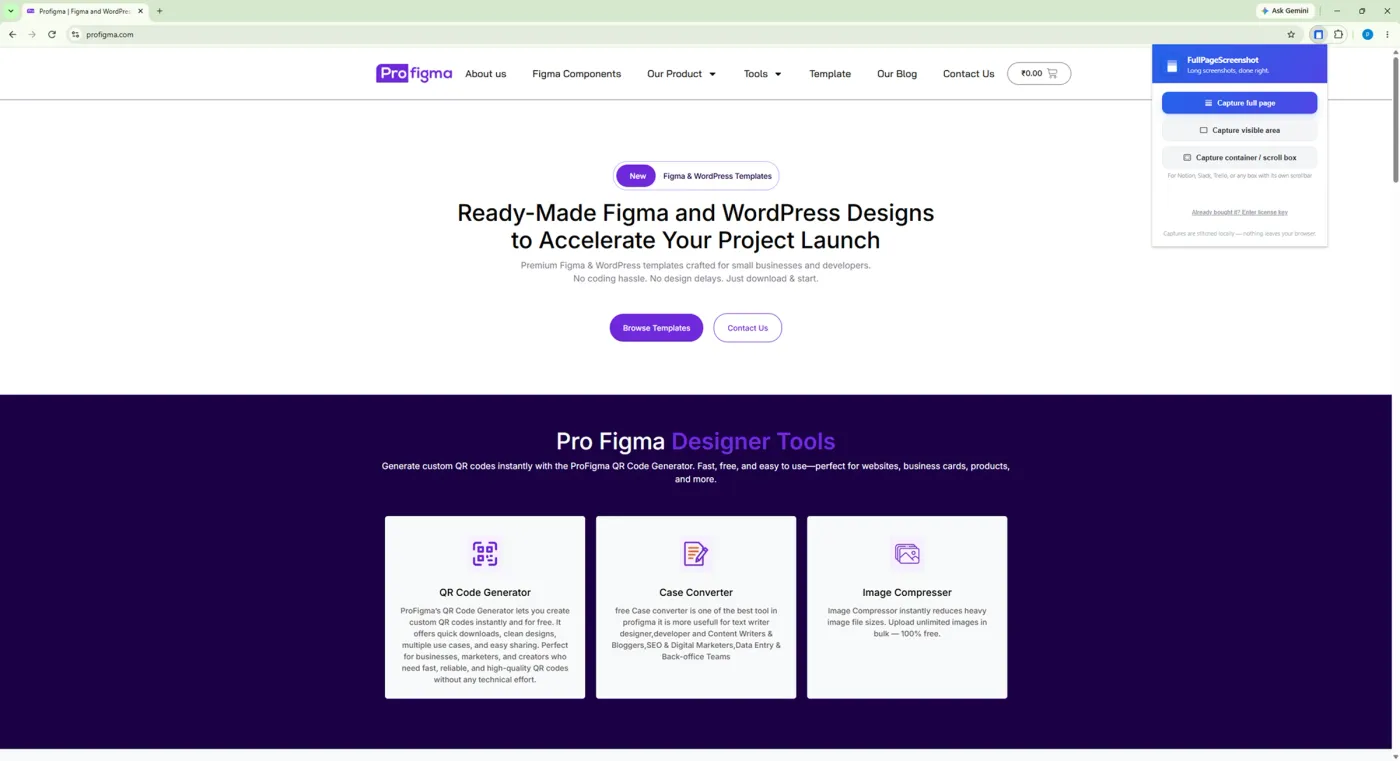
Stop stitching screenshots by hand
Chrome only captures what fits on screen. So a long page becomes six screenshots, a folder full of files, and ten minutes in an image editor lining them all up. One click replaces the whole ritual.
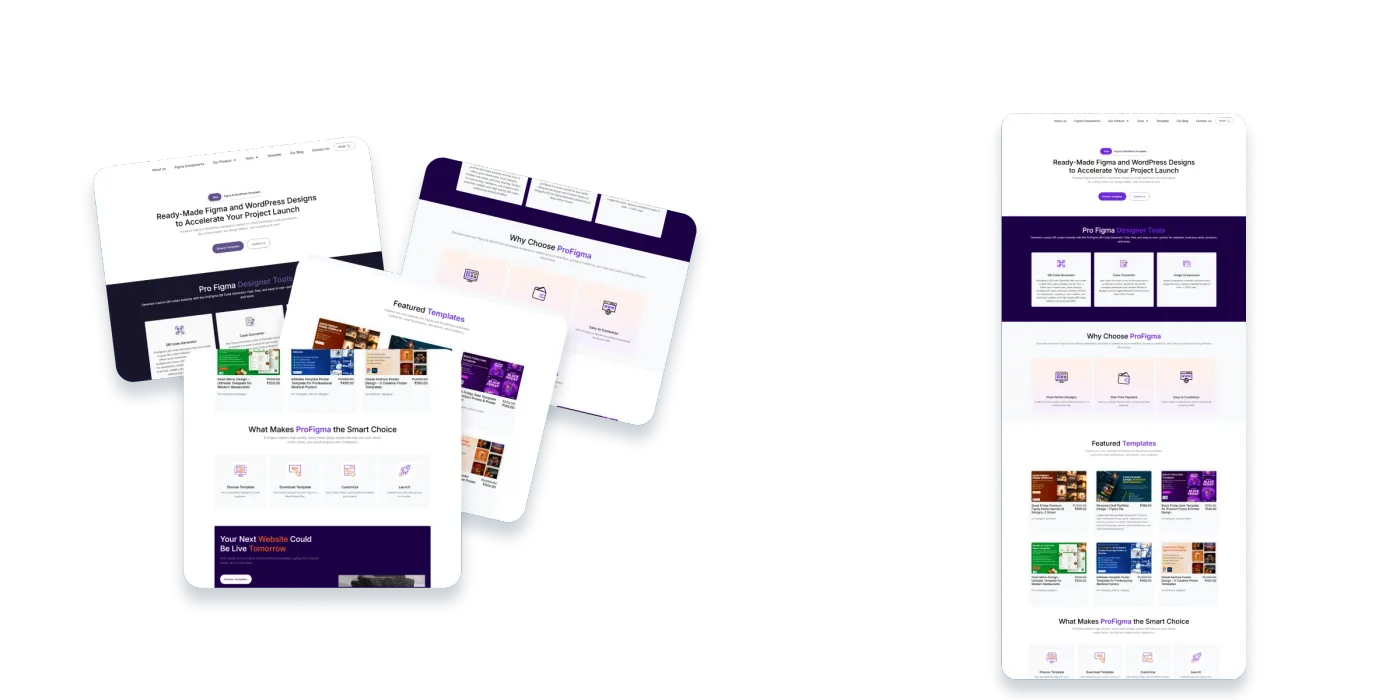
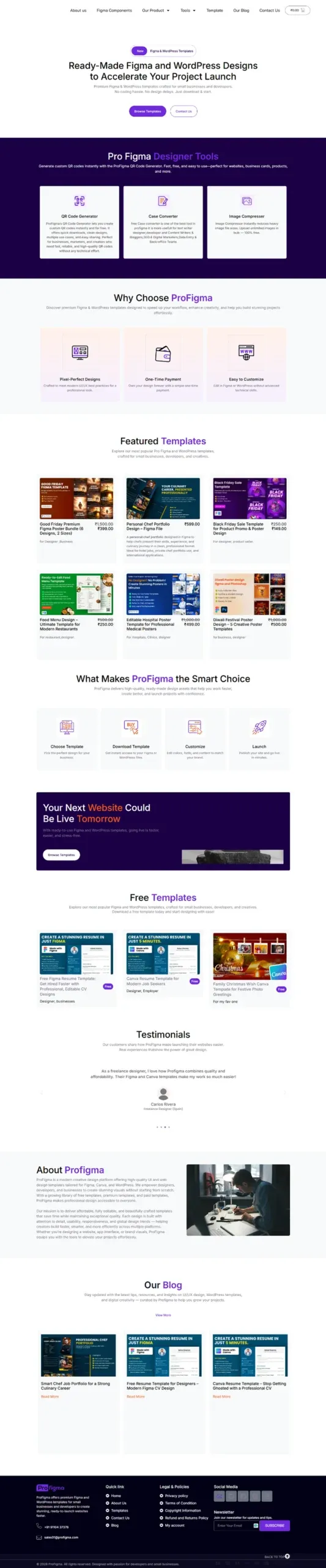
The entire page in a single image
FullPageScreenshot scrolls the page in steps, captures each screen, and composites them into one continuous image at full resolution.
Before every frame it re-scans the page (and any iframes on it) for sticky headers and cookie banners, and hides them. That is why your navigation bar does not repeat six times down the finished capture.
On endless feeds, a Stop button sits on the page itself. Press it whenever you have captured enough and you still keep everything up to that point.
Capture a panel that scrolls on its own
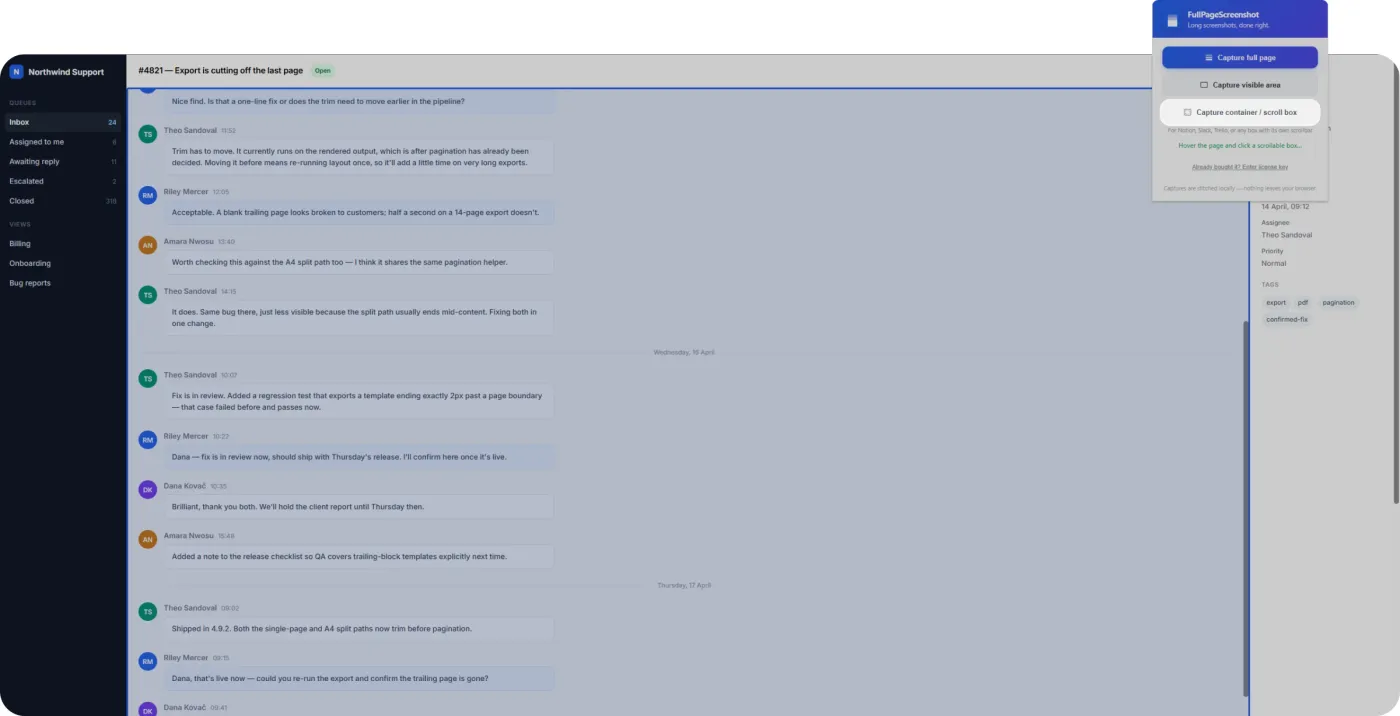
Web apps do not scroll like websites. A chat thread, a message list or a data table scrolls inside its own box while the page around it stays put, and ordinary screenshot tools capture only the sliver that is visible.
Pick Capture container / scroll box, hover the page, and any independently scrolling element lights up in blue. Click it and you get that panel's full internal height, cropped to its edges rather than the rest of the page.
Built for support threads, chat logs, admin dashboards, long tables and sidebars in tools like Notion, Slack and Trello.
Mark it up without opening another app
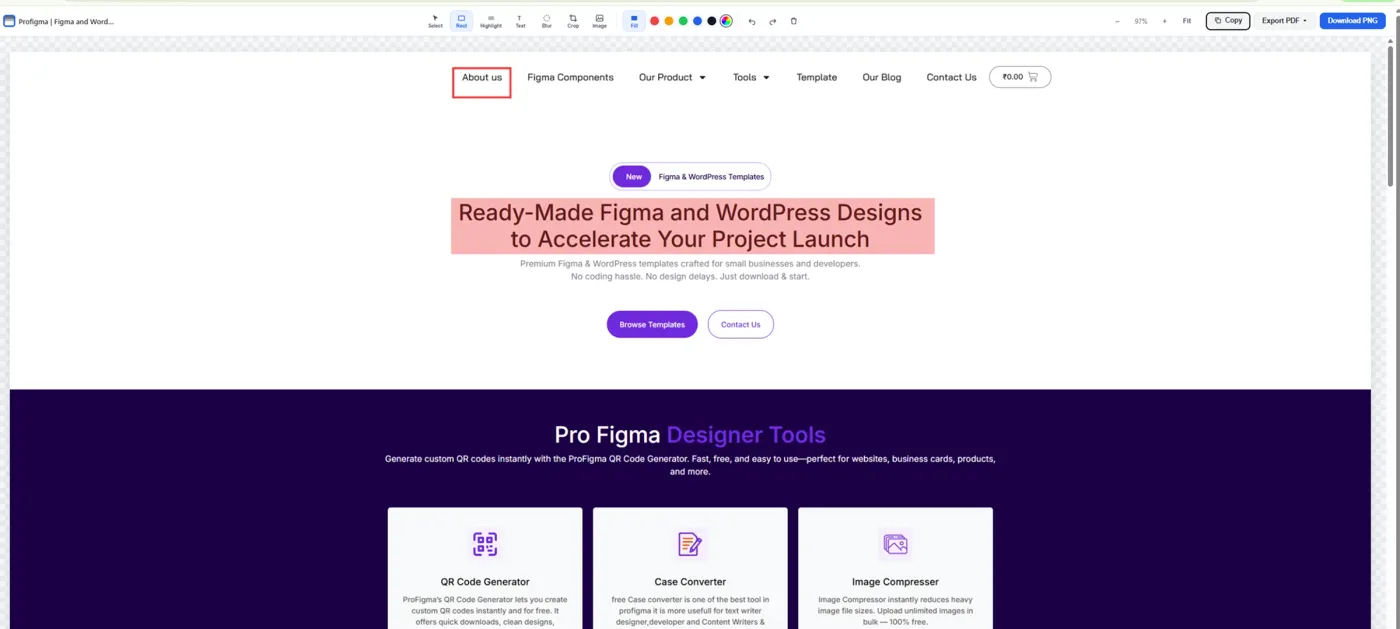
Every capture opens in its own tab with a full editor. No export, no round trip through Photoshop, no uploading to some web tool.
Draw rectangles filled or outlined, highlight a section, drop a text label, crop from the full image inward, or add your own image and resize it. Everything you place can be selected, dragged and deleted afterwards.
Blur anything you should not be sharing
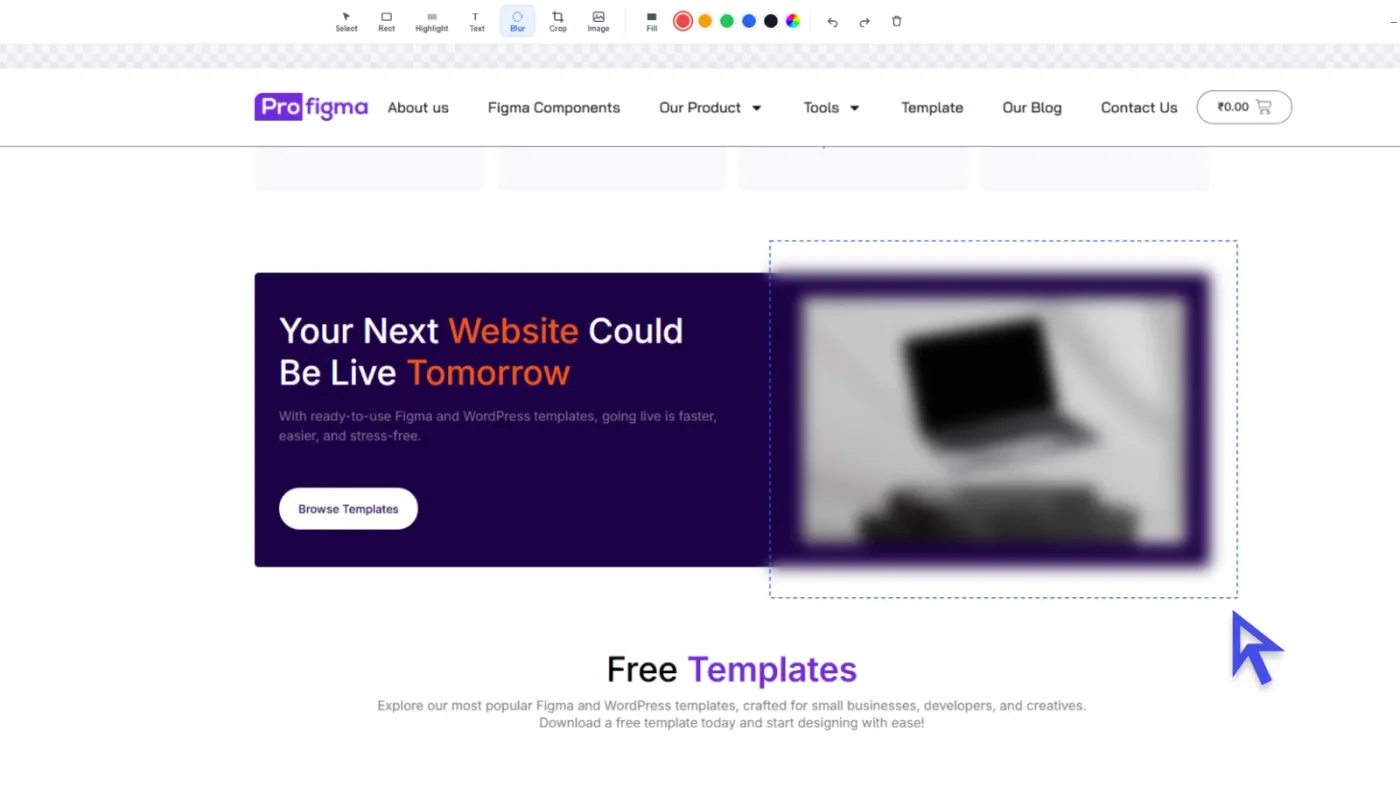
Drag over an email address, an account number or a customer's name and it blurs straight into the image.
A dashed outline shows exactly what you are covering while you drag, then disappears the moment you release, so the finished screenshot shows blurred pixels, not a box drawing attention to whatever you hid.
PNG, PDF, or straight to your clipboard
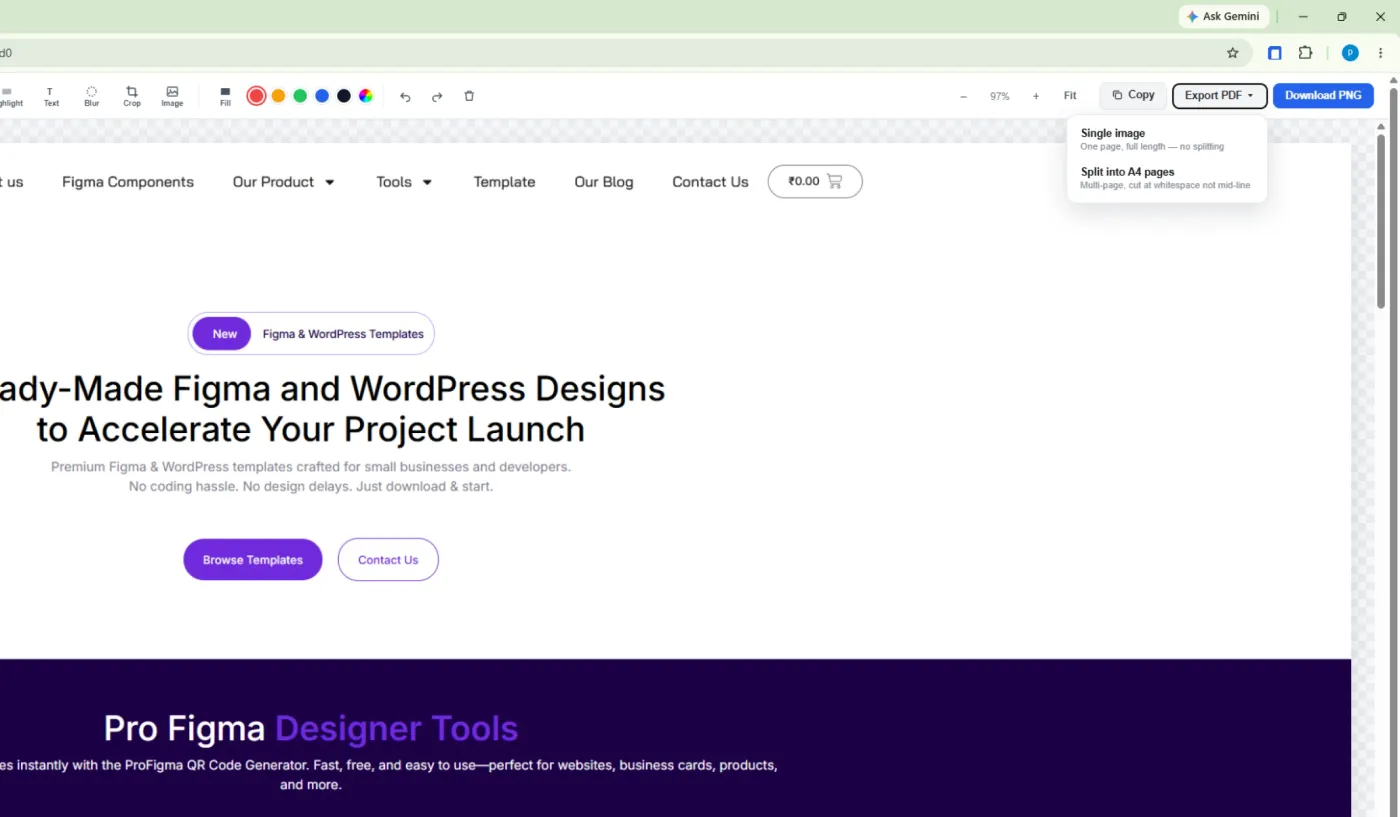
Download the flattened image as a full-resolution PNG, copy it to the clipboard for an instant paste, or export a PDF.
The PDF export is the interesting one. Printing a long screenshot normally slices it at fixed intervals and cuts straight through a line of text. FullPageScreenshot scans for a near-flat row of pixels (the whitespace between paragraphs) near each page break, and cuts there instead.
Choose one continuous page, or a real multi-page A4 document. Both are generated on your machine, with no internet connection required.
A full-length PNG of a long page can get heavy. If you are emailing it or putting it on a website, run it through our free online image compressor first.
Three ways to capture
The full page screenshot Chrome extension gives you three modes. Pick whichever matches what you are looking at.
Full page
Scrolls and stitches the whole page into one continuous image, however long it runs.
Visible area
A single frame of exactly what is on screen right now. No scrolling, no waiting.
Container / scroll box
Captures one panel's full internal height: a chat pane, a table, a sidebar.
How the full page screenshot Chrome extension works
Install once. Three clicks from a live page to a finished file.
Open the extension
Click the FullPageScreenshot icon on any page you want to capture, and choose a mode.
Let it capture
The page scrolls itself while sticky bars stay hidden. Press Stop any time to finish early.
Edit and export
The result opens in the editor. Annotate, blur, crop, then save as PNG or PDF.
Simple, and mostly free
Start free with every feature included. If it earns a place in your workflow, go monthly or save with two years up front.
Free
15 captures total
- All three capture modes
- Full editor: annotate, blur, crop
- PNG, PDF and clipboard export
- No account, no sign-up
Pro 2 Years
Works out at $1.63 a month
- Unlimited captures
- Every feature in Free
- Use on up to 3 devices
- Saves $8.76 against paying monthly
Pro Monthly
Cancel any time
- Unlimited captures
- Every feature in Free
- Use on up to 3 devices
- Best for short projects
Payments are handled by Gumroad. You will receive a licence key by email. Paste it into the extension to activate Pro.
Your screenshots never leave your browser
Capturing, stitching, annotating, blurring and exporting all happen locally on your own machine. Captured webpage content is not uploaded to our servers, because there is no server involved in taking a screenshot.
The only network request the extension makes is verifying a Pro licence key with Gumroad. Nothing else is sent anywhere.
Questions people actually ask
Is FullPageScreenshot free?
Yes. You get 15 captures free, with every feature included: all three capture modes, the full editor, and PNG, PDF and clipboard export. After that, Pro is $1.99 a month or $39 for two years, both with unlimited captures.
Do I need to create an account?
No. There is no sign-up, no login and no profile. Install the extension and start capturing. If you buy Pro, you activate it by pasting the licence key Gumroad emails you.
Are my screenshots uploaded anywhere?
No. Capture, stitching and editing all run inside your browser on your own machine. The extension's only outgoing request is a licence check to Gumroad when you activate Pro.
How is this different from other full page screenshot tools?
Two things. Unlike most tools, this full page screenshot Chrome extension captures panels that scroll independently inside a page, such as a chat thread or a data table. And its PDF export looks for whitespace near each page break so text is not sliced in half.
Does it work on infinite-scroll pages?
Partly. It captures what loads into the page as it scrolls past, and stops after 120 steps so a genuinely endless feed cannot run forever. A Stop button sits on the page so you can end a capture whenever you have enough, and you still keep everything captured up to that point.
Why do sticky headers disappear from my capture?
That is deliberate. Fixed and sticky elements are hidden before each frame, otherwise your navigation bar and cookie banner would repeat every screen-height down the finished image. The trade-off is that they do not appear in the capture at all.
Can I use one licence on more than one computer?
Yes, up to three devices per licence key. If you reinstall often and hit the limit, get in touch and we will reset the count.
Which pages cannot be captured?
Chrome blocks all extensions from chrome:// pages, the Chrome Web Store and other extensions' pages. That is a browser restriction, not something any extension can work around. Local files also need "Allow access to file URLs" enabled on the extension's details page.
Does it work in Edge, Brave or Opera?
It is published on the Chrome Web Store and built for Chrome. Other Chromium browsers can usually install from the Chrome Web Store and work the same way, but Chrome is what it is tested against.
What happens if I cancel the monthly plan?
The extension re-checks your licence with Gumroad about once a day. When a subscription ends, it returns to the free tier. Your existing screenshots and exported files are yours and stay on your machine.
Capture your first full page in about ten seconds
Install the full page screenshot Chrome extension, open any long article, and click once. Free to start, no account required.
Made by ProFigma · More free tools · MeshShot · Blog · Support
Frequently asked questions
Is FullPageScreenshot free?
You get 15 captures free with every feature included: all three capture modes, the full editor, and PNG, PDF and clipboard export. After that, Pro is $1.99 per month or $39 for two years, both with unlimited captures.
Do I need an account?
No. There is no sign-up or login. Install the extension and start capturing. If you buy Pro, you activate it by pasting the licence key that Gumroad emails to you.
Are my screenshots uploaded anywhere?
No. Capturing, stitching, annotating and exporting all run in your browser on your own machine. The extension's only outgoing request is the licence check with Gumroad, which happens when you activate Pro.
Can it capture a scrolling panel inside a page?
Yes. The container mode lets you hover a chat thread, table or sidebar that scrolls on its own, click it, and capture that panel's full internal height instead of the surrounding page.
Why do sticky headers disappear from the capture?
That is deliberate. Fixed and sticky elements are hidden before each frame so a navigation bar or cookie banner does not repeat down the finished image. The trade-off is that they do not appear in the capture.