How to use it in Figma, even if you have never used Figma
Four steps. You do not need to draw anything, and a free Figma account is enough (Pro components need a ProFigma Pro plan).
Fill
Export
- Press Copy to FigmaClick the button on this page. The design is copied, like text you copy with Ctrl + C.
- Paste it in FigmaOpen Figma, open any file and press Ctrl + V (Cmd + V on Mac). You get real, editable layers.
- Make it yoursDouble-click a text to type your own words. Click a shape and change its color under Fill. Drag your own photo onto an image box.
- Export itClick the design. In the right panel, scroll to Export, choose PNG, JPG, SVG or PDF, then click Export.
Tip: install the free Google Fonts used in the design (the name shows when you click a text) so the text looks the same on your computer.
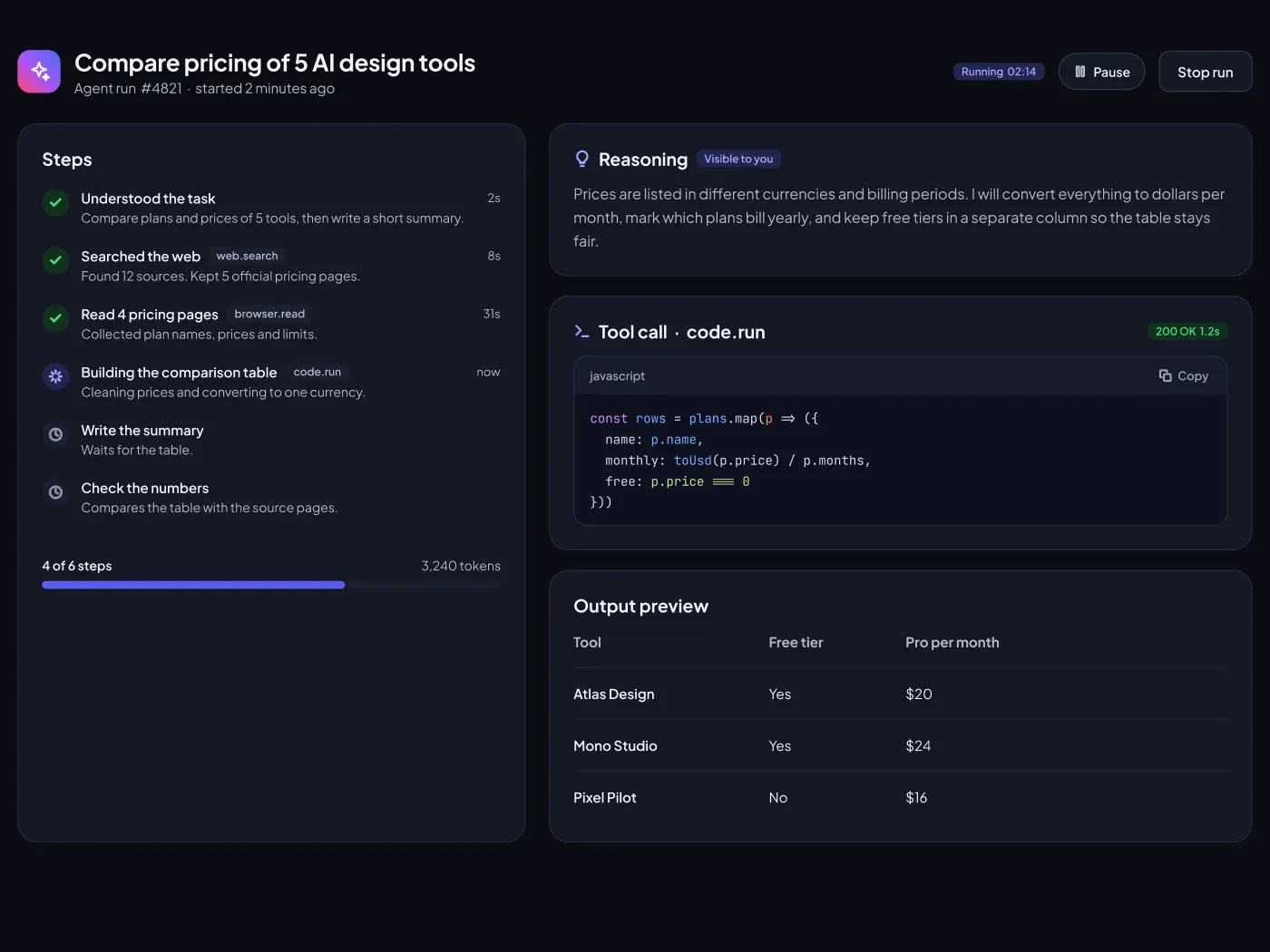
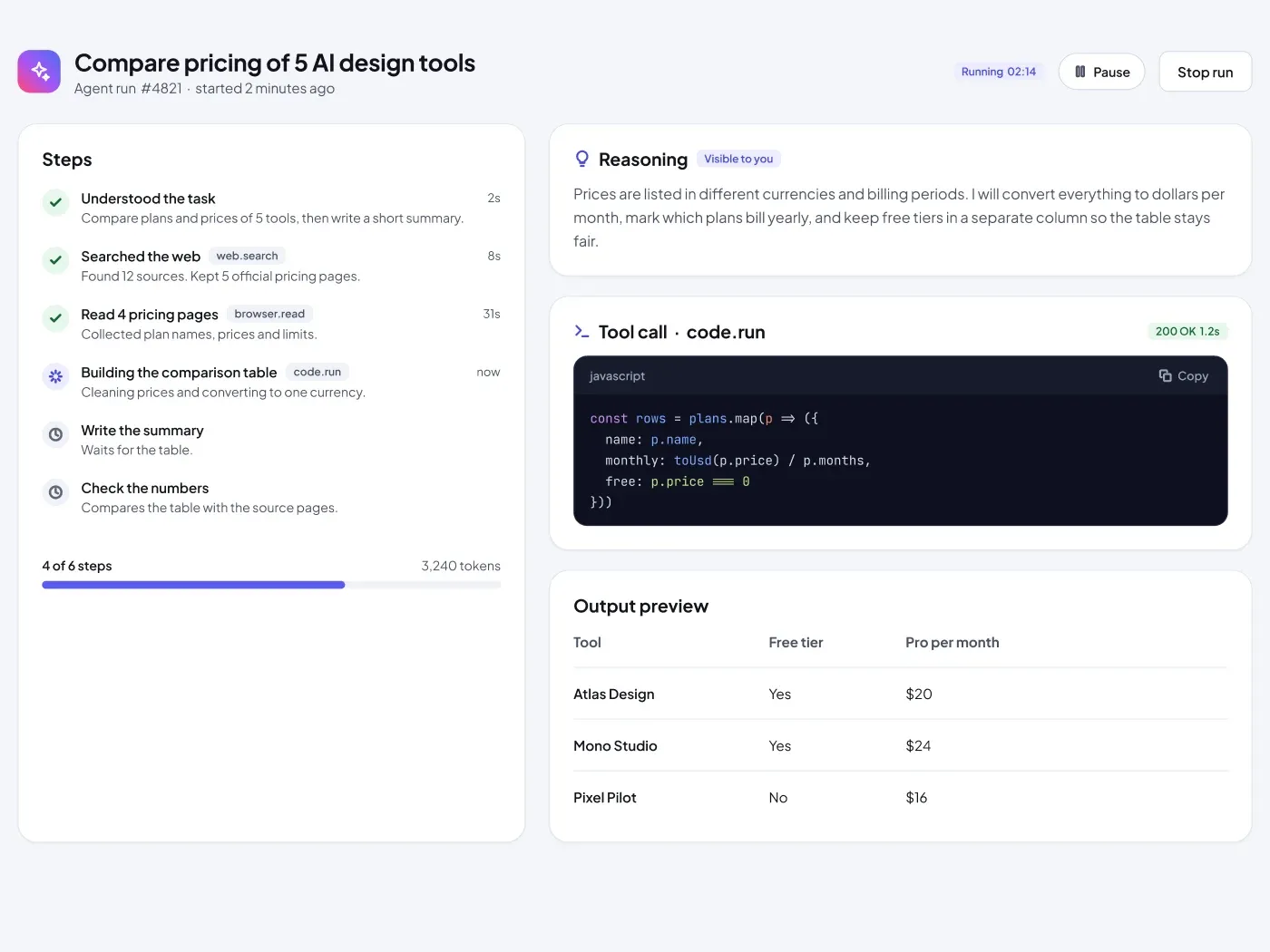
This AI agent run view UI for Figma shows people what an agent is doing right now: the steps, its reasoning, one tool call and the output so far. This is the light version, with a soft grey page and white cards.
What is included
- A header with the task name, a running timer, Pause and Stop run buttons
- A step list with done, running and waiting states, tool tags and time per step
- A reasoning card that explains the plan in plain words
- A tool call card with a status tag and a syntax colored code block
- An output table and a progress bar showing steps and tokens used
Where to use it
Use it for agent platforms, automation tools, research assistants and internal dashboards where people need to trust and check what an AI did.
Design notes
Each step has an icon and a label, so the state is readable without color. The code block stays dark in both themes, which keeps code easy to scan. The left card stretches to the height of the right column, so the layout stays balanced. The light theme uses a #F4F5F9 background, white cards, #12141C text and an indigo #5B5BF0 accent.
Built for editing
Spacing follows a 4 point scale and layers have clear names, so developers can find what they need. The file uses Plus Jakarta Sans for the interface and JetBrains Mono for code, both free on Google Fonts, and every color is a fill you can change in the fill panel. Text pairs stay above 4.5 to 1 contrast.
How to use it
Copy the component with the copy button and paste it into Figma with Ctrl+V or Cmd+V. The layers keep their auto layout, so you can edit text, colors and spacing. Install the free Google Fonts first so the text looks the same. All names and numbers in the file are sample content.