
How to use it in Figma, even if you have never used Figma
Four steps. You do not need to draw anything, and a free Figma account is enough.
Fill
Export
- Press Copy to FigmaClick the button on this page. The design is copied, like text you copy with Ctrl + C.
- Paste it in FigmaOpen Figma, open any file and press Ctrl + V (Cmd + V on Mac). You get real, editable layers.
- Make it yoursDouble-click a text to type your own words. Click a shape and change its color under Fill. Drag your own photo onto an image box.
- Export itClick the design. In the right panel, scroll to Export, choose PNG, JPG, SVG or PDF, then click Export.
Tip: install the free Google Fonts used in the design (the name shows when you click a text) so the text looks the same on your computer.
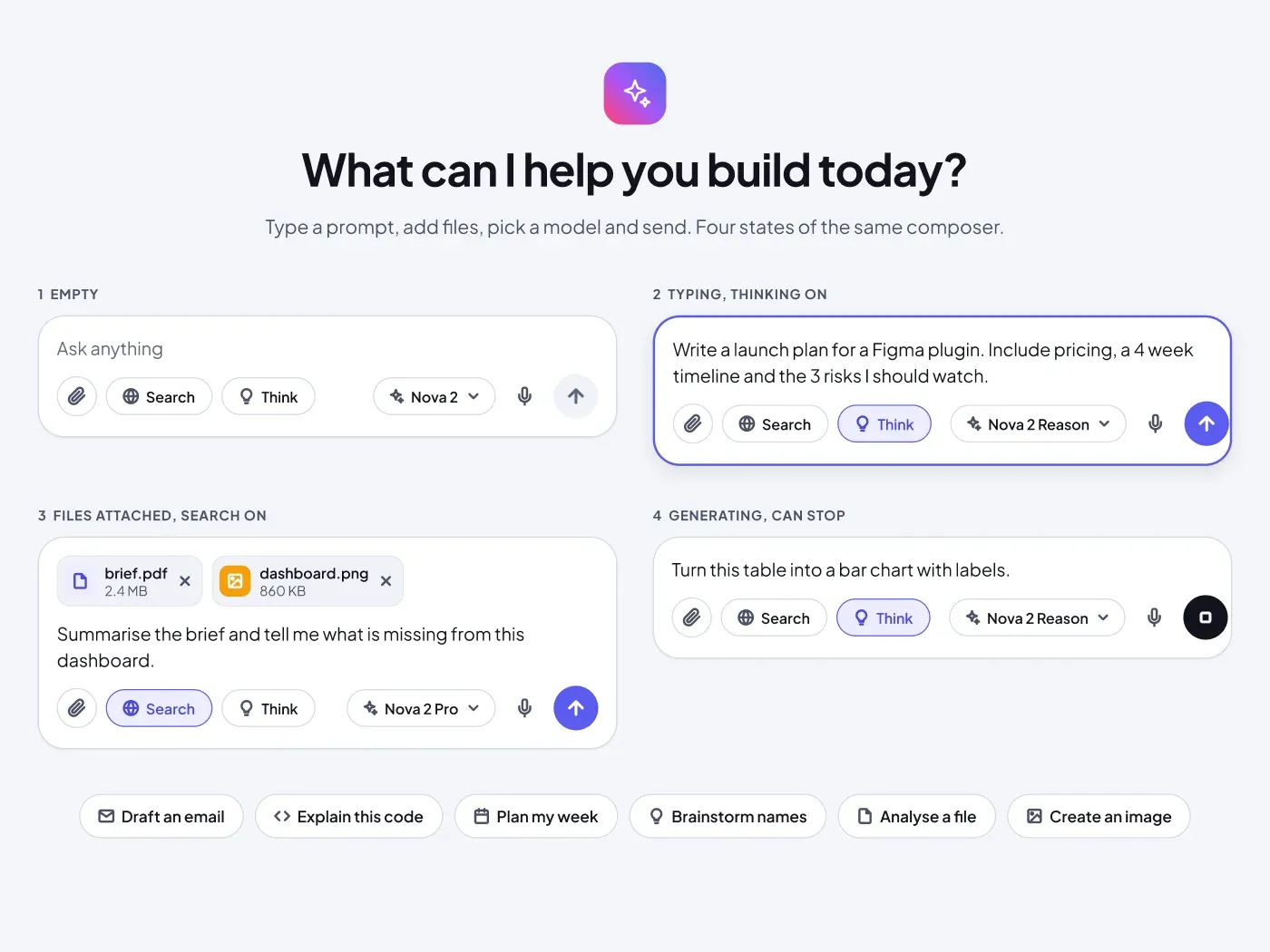
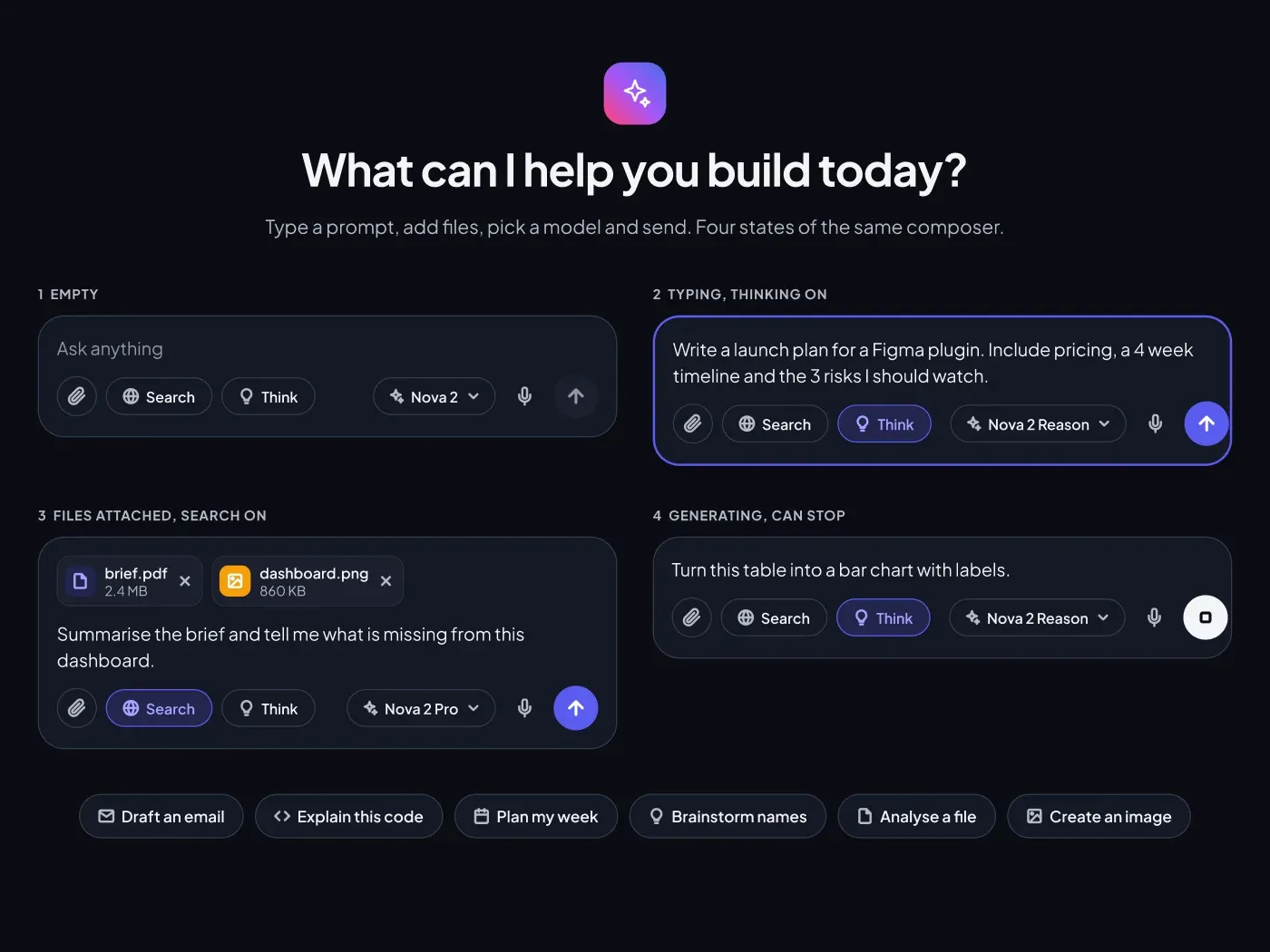
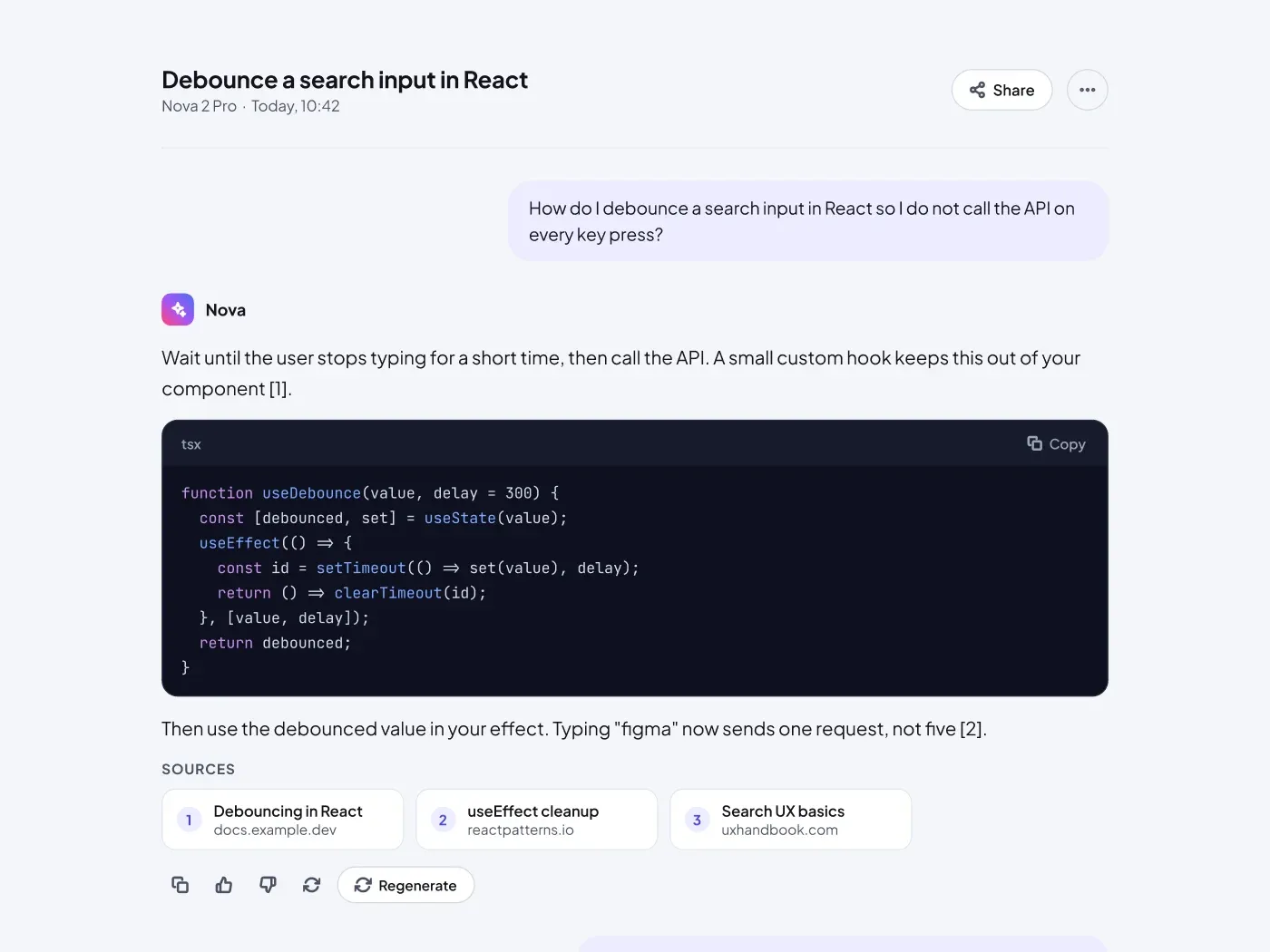
These AI empty loading and error states for Figma cover eight moments every AI product has, with a clear message and one next step on each card. This is the dark version, made for products that live in dark mode.
What is included
- An empty chat with a gradient mark and two suggestion chips
- A thinking state with a skeleton and a Stop button
- A something went wrong card with Try again and an error code
- An offline card, a rate limit card with a countdown ring and a no results card
- A can not help with this card with two safe options, and a model is busy card with a switch button
Where to use it
Use it for chat apps, AI tools and any product that waits on a model and sometimes fails.
Design notes
Every card says what happened and what to do next in one or two short sentences. Icons use a soft tinted circle, red for errors, amber for waiting and indigo for neutral help. The dark theme uses a #0B0D14 background, #141824 cards, #F3F4F8 text and the same indigo #5B5BF0 accent.
Built for editing
Spacing follows a 4 point scale and layers have clear names, so developers can find what they need. The file uses Plus Jakarta Sans, both free on Google Fonts, and every color is a fill you can change in the fill panel. Text pairs stay above 4.5 to 1 contrast.
How to use it
Copy the component with the copy button and paste it into Figma with Ctrl+V or Cmd+V. The layers keep their auto layout, so you can edit text, colors and spacing. Install the free Google Fonts first so the text looks the same. All names and numbers in the file are sample content.