How to use it in Figma, even if you have never used Figma
Four steps. You do not need to draw anything, and a free Figma account is enough.
Fill
Export
- Press Copy to FigmaClick the button on this page. The design is copied, like text you copy with Ctrl + C.
- Paste it in FigmaOpen Figma, open any file and press Ctrl + V (Cmd + V on Mac). You get real, editable layers.
- Make it yoursDouble-click a text to type your own words. Click a shape and change its color under Fill. Drag your own photo onto an image box.
- Export itClick the design. In the right panel, scroll to Export, choose PNG, JPG, SVG or PDF, then click Export.
Tip: install the free Google Fonts used in the design (the name shows when you click a text) so the text looks the same on your computer.
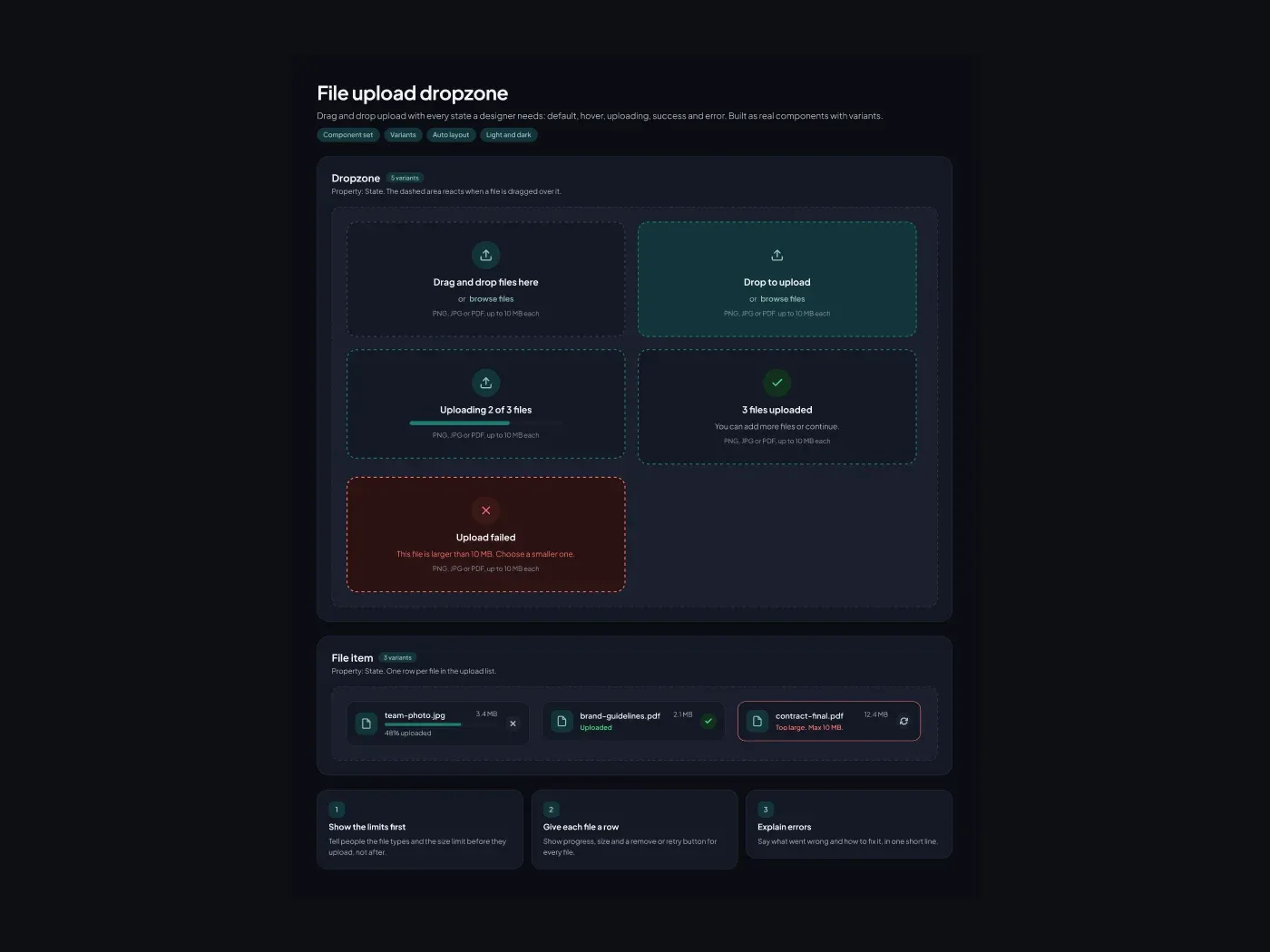
The dark version uses deep panels with soft borders, so content stands out. A drag and drop upload with every state a designer needs. The dropzone has default, hover, uploading, success and error. The file row shows progress, done and error.
What is included
- A dashed dropzone with five states
- A file item with progress bar
- Error text for files that are too large
- Retry and remove buttons
- Usage tips
Where to use it
Use it for image, document or avatar uploads.
Design notes
This file upload dropzone follows a simple rule: Real components save time because you change a property and the whole set updates. Rename the variants to match your design system and connect the colors to your own styles. It includes a dashed dropzone with five states, a file item with progress bar, error text for files that are too large, so you can start from a finished layout and change only what you need.
Built for editing
Spacing follows a 4 point scale and layers have clear names, so developers can find what they need. Fonts are free on Google Fonts, and every color can be changed from the fill panel. You also get retry and remove buttons and usage tips.
How to use it
Copy the component with the copy button and paste it into Figma with Ctrl+V or Cmd+V. The layers keep their auto layout, so you can edit text, colors and spacing. The text uses Plus Jakarta Sans and a few free Google Fonts. Install them first so the text looks the same.
Dark version
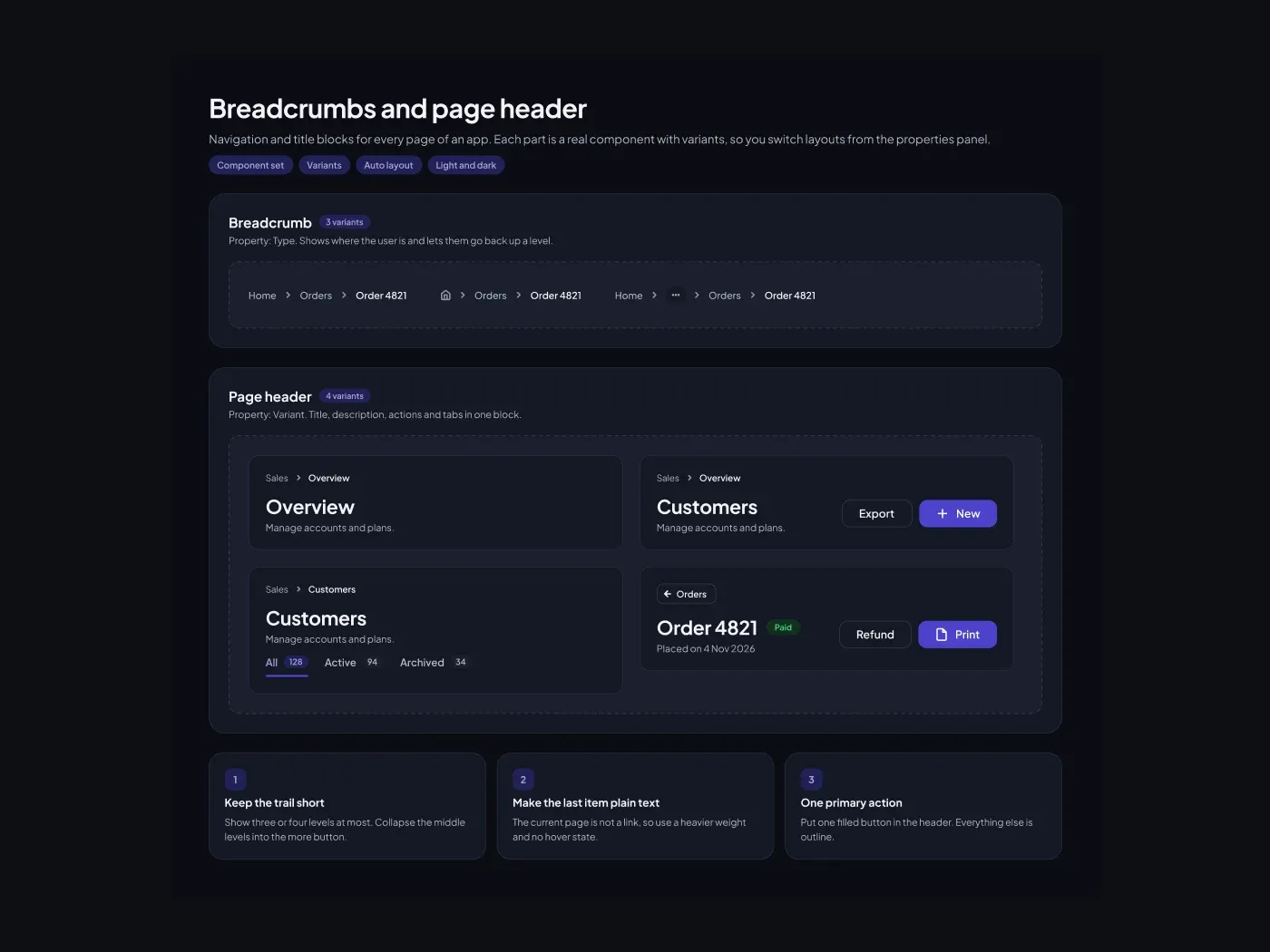
This listing is the dark version. The light version is listed separately.