How to use it in Figma, even if you have never used Figma
Four steps. You do not need to draw anything, and a free Figma account is enough.
Fill
Export
- Press Copy to FigmaClick the button on this page. The design is copied, like text you copy with Ctrl + C.
- Paste it in FigmaOpen Figma, open any file and press Ctrl + V (Cmd + V on Mac). You get real, editable layers.
- Make it yoursDouble-click a text to type your own words. Click a shape and change its color under Fill. Drag your own photo onto an image box.
- Export itClick the design. In the right panel, scroll to Export, choose PNG, JPG, SVG or PDF, then click Export.
Tip: install the free Google Fonts used in the design (the name shows when you click a text) so the text looks the same on your computer.
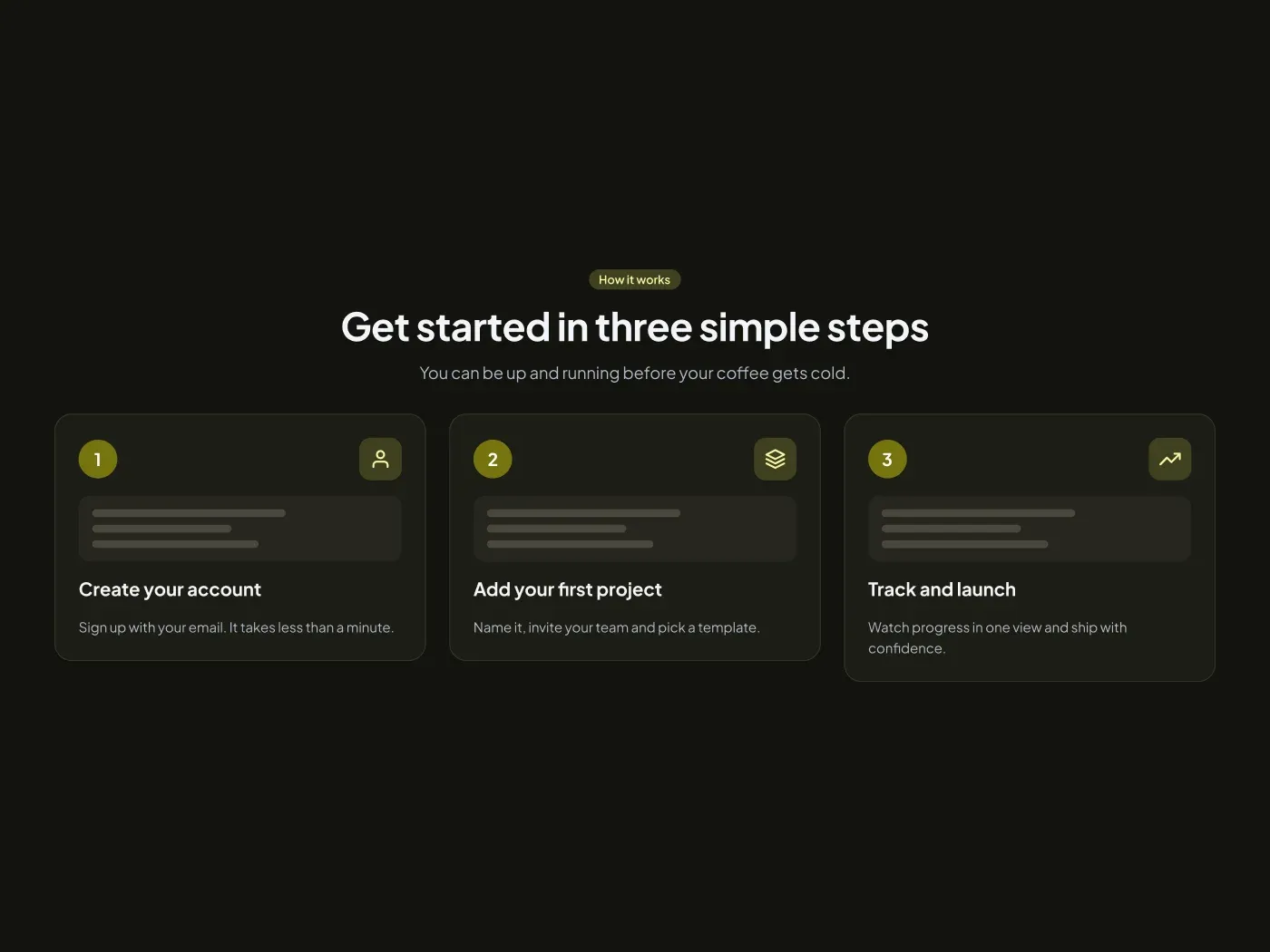
The dark how it works steps section comes with a soft charcoal page and bright accents. Show visitors how simple it is to start. This how it works steps section has three numbered cards, each with a small preview and one line of text. The dark version keeps the number badges bright against the dark cards.
What is included
- A heading with a badge and a short intro
- Three step cards with number badges
- A small preview block inside each card
- Icon tiles for quick scanning
Where to use it
Use it to explain onboarding, a booking process or a three step service. Change the numbers, titles and text.
Design notes
Three cards share the width with a 24 px gap. The number badge is a 40 px circle in the accent color, each card has a small preview block made of three gray lines, and the card title is 19 px Bold. The text is short on purpose, one sentence per step.
This dark version uses an accent of #76730f on a page of #13130e, with cards in #1d1d16 and a soft accent fill of #404021. The light version of this design is a separate listing: How It Works Steps Section UI for Figma.
Questions
Can I use four steps instead of three?
Yes. Duplicate a card and the row shares the width between four cards. Shorten the text so each card stays under three lines.
What is the small block inside each card?
It is a placeholder preview. Replace it with a screenshot or an icon of the real step, or delete it to get a shorter card.
Is there a light version?
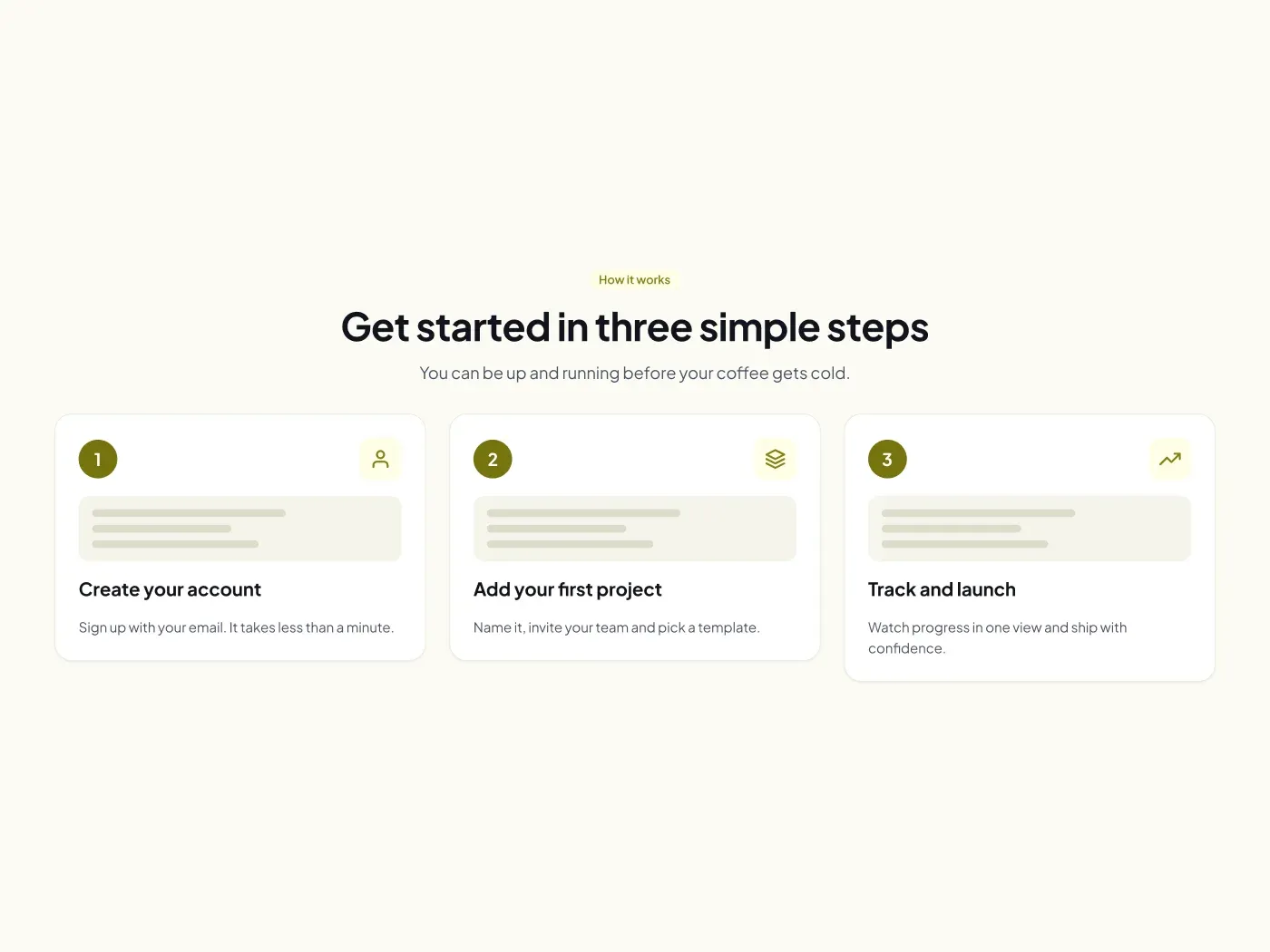
Yes. How It Works Steps Section UI for Figma has the same layout on a light page.
How to use it
Copy the component with the copy button and paste it into Figma with Ctrl+V or Cmd+V. The text uses Plus Jakarta Sans, which is free on Google Fonts.