How to use it in Figma, even if you have never used Figma
Four steps. You do not need to draw anything, and a free Figma account is enough.
Fill
Export
- Press Copy to FigmaClick the button on this page. The design is copied, like text you copy with Ctrl + C.
- Paste it in FigmaOpen Figma, open any file and press Ctrl + V (Cmd + V on Mac). You get real, editable layers.
- Make it yoursDouble-click a text to type your own words. Click a shape and change its color under Fill. Drag your own photo onto an image box.
- Export itClick the design. In the right panel, scroll to Export, choose PNG, JPG, SVG or PDF, then click Export.
Tip: install the free Google Fonts used in the design (the name shows when you click a text) so the text looks the same on your computer.
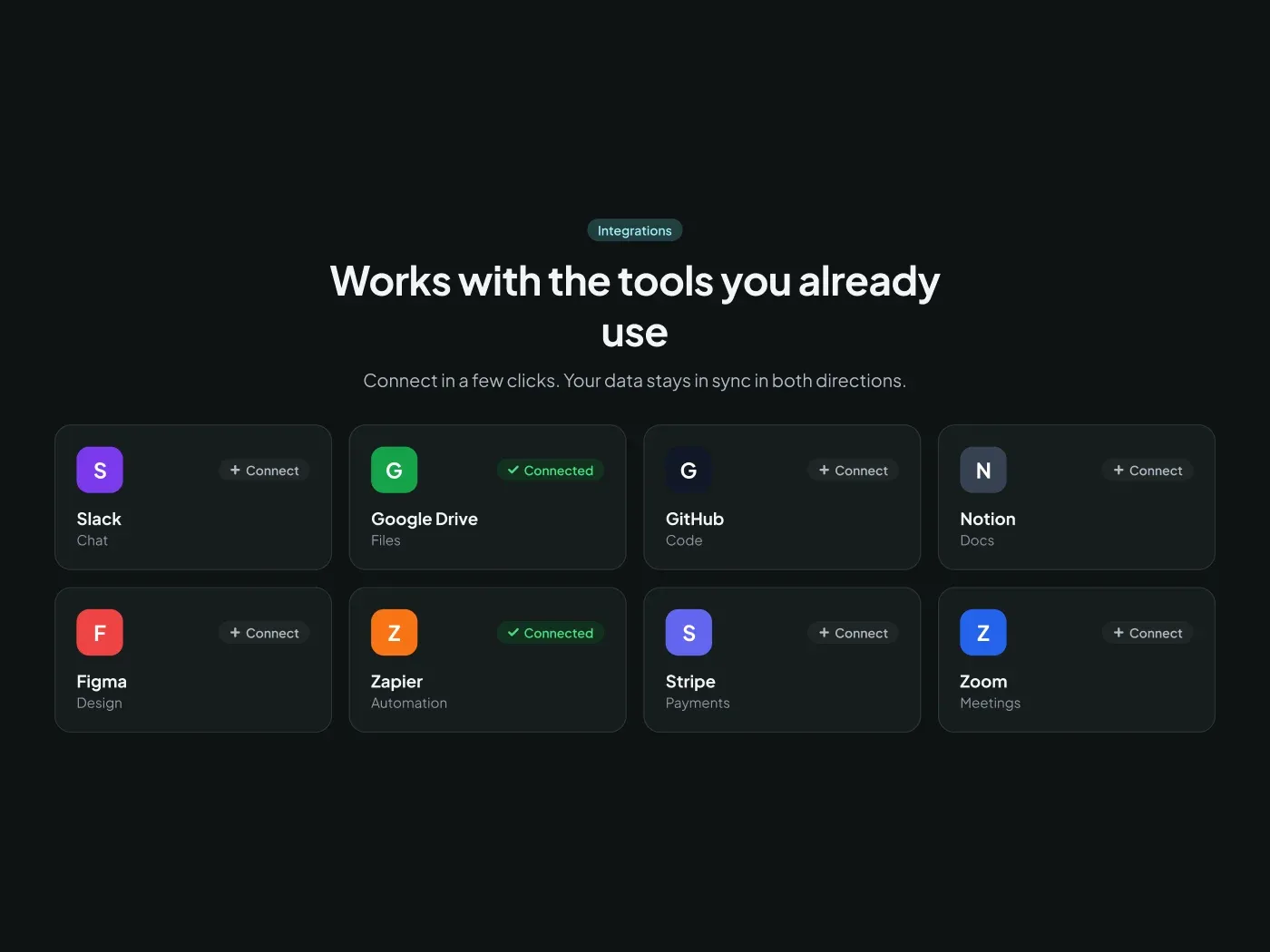
The dark integrations grid section comes with a soft charcoal page and bright accents. List the tools your product works with. This integrations grid section shows eight apps with a clear connect state, so visitors see what fits their stack. The dark version makes the connected badge easy to spot.
What is included
- Eight app cards in two rows of four
- A logo tile, name and category on every card
- Connected and Connect states
- A heading and short intro above the grid
Where to use it
Use it on an integrations page, a pricing page or a product page. Replace the logo tiles with your own logos.
Design notes
Eight cards sit in two rows of four with a 16 px gap. Each card has 20 px padding, a 44 px logo tile with a 12 px radius, a name in 16 px Bold and a category in 13 px. The Connected badge uses the green status color, and Connect uses the neutral gray badge.
This dark version uses an accent of #128091 on a page of #0e1313, with cards in #161c1d and a soft accent fill of #213d40. The light version of this design is a separate listing: Integrations Grid Section UI for Figma.
Questions
How do I use real logos?
Select a logo tile, remove the letter, and place your logo inside it. Keep the tile at 44 px, and use a square or round version of the logo.
Can I show more than eight apps?
Yes. Duplicate a row. For a long list, group the apps by category and add a small heading above each group.
Is there a light version?
Yes. Integrations Grid Section UI for Figma has the same layout on a light page.
How to use it
Copy the component with the copy button and paste it into Figma with Ctrl+V or Cmd+V. The text uses Plus Jakarta Sans, which is free on Google Fonts.