How to use it in Figma, even if you have never used Figma
Four steps. You do not need to draw anything, and a free Figma account is enough.
Fill
Export
- Press Copy to FigmaClick the button on this page. The design is copied, like text you copy with Ctrl + C.
- Paste it in FigmaOpen Figma, open any file and press Ctrl + V (Cmd + V on Mac). You get real, editable layers.
- Make it yoursDouble-click a text to type your own words. Click a shape and change its color under Fill. Drag your own photo onto an image box.
- Export itClick the design. In the right panel, scroll to Export, choose PNG, JPG, SVG or PDF, then click Export.
Tip: install the free Google Fonts used in the design (the name shows when you click a text) so the text looks the same on your computer.
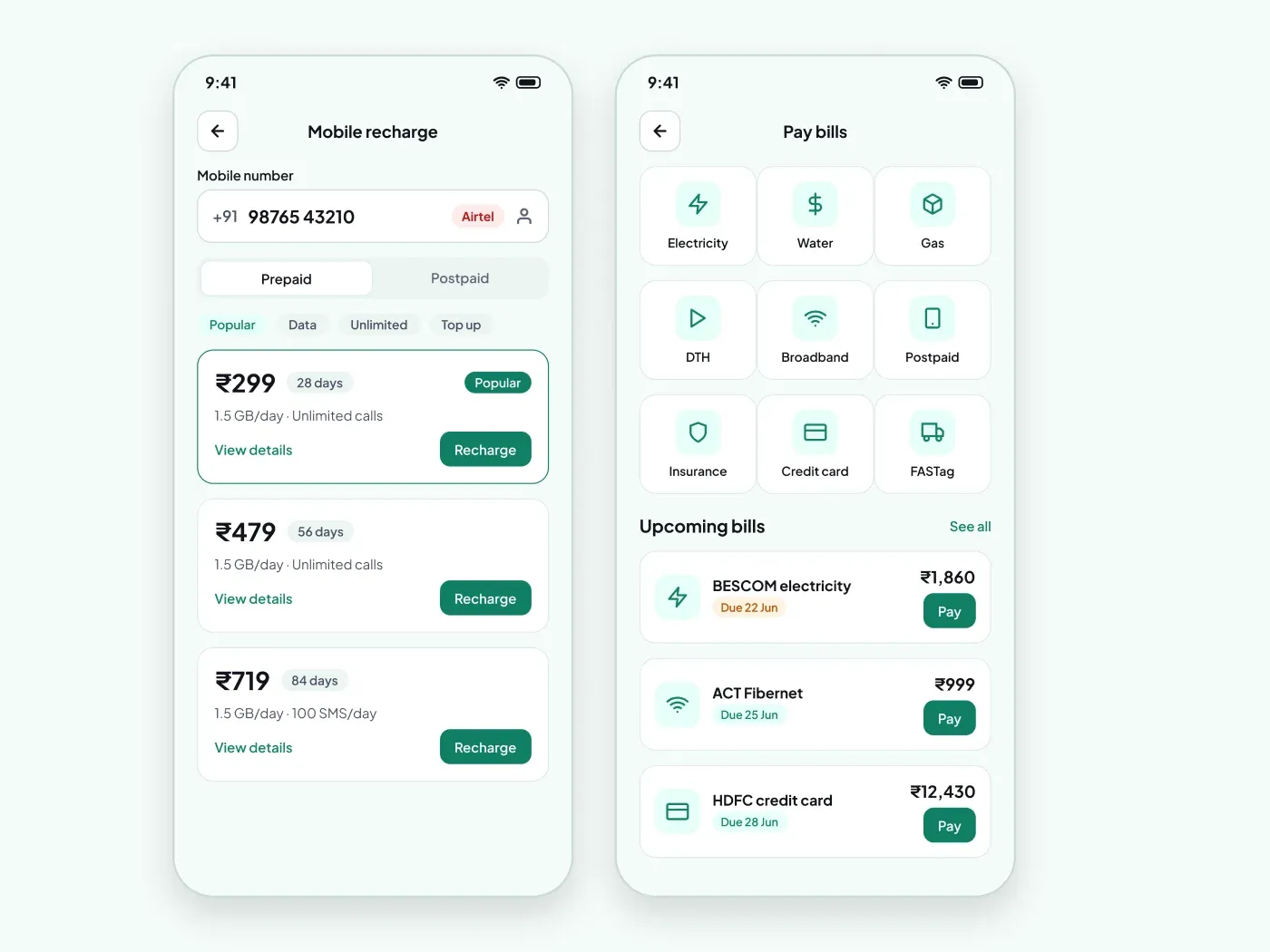
Cover everyday payments in one app. These recharge and bill payment screens have plans, categories and due dates.
What is included
- A number field with operator and plan tabs
- Plan cards with price, validity and benefits
- A grid of nine bill categories
- Upcoming bills with Pay buttons
Where to use it
Use them for a payment app or a super app in India. Edit the plans and bills.
Design notes
The recharge phone has a 52 px number field with an operator badge, prepaid and postpaid tabs, and plan cards with a 24 px price and a validity badge. The bills phone has a three by three grid of category tiles, and upcoming bills with a Pay button and a due date badge.
This light version uses an accent of #107f65 on a page of #f4fbf9, with white cards. A dark version of this design is a separate listing: Dark Recharge and Bill Payment Screens UI for Figma.
Questions
How do I add another bill category?
Duplicate a tile in the grid. A fourth row works, and the tiles keep their size.
Can I show an overdue bill?
Change the due date badge to the red one and the amount to Bold, so overdue bills stand out at the top of the list.
Is there a dark version?
Yes. Dark Recharge and Bill Payment Screens UI for Figma has the same layout on a soft charcoal page, with the same accent color.
How to use it
Copy the component with the copy button and paste it into Figma with Ctrl+V or Cmd+V. The text uses Plus Jakarta Sans, which is free on Google Fonts.