
How to use it in Figma, even if you have never used Figma
Four steps. You do not need to draw anything, and a free Figma account is enough.
Fill
Export
- Press Copy to FigmaClick the button on this page. The design is copied, like text you copy with Ctrl + C.
- Paste it in FigmaOpen Figma, open any file and press Ctrl + V (Cmd + V on Mac). You get real, editable layers.
- Make it yoursDouble-click a text to type your own words. Click a shape and change its color under Fill. Drag your own photo onto an image box.
- Export itClick the design. In the right panel, scroll to Export, choose PNG, JPG, SVG or PDF, then click Export.
Tip: install the free Google Fonts used in the design (the name shows when you click a text) so the text looks the same on your computer.
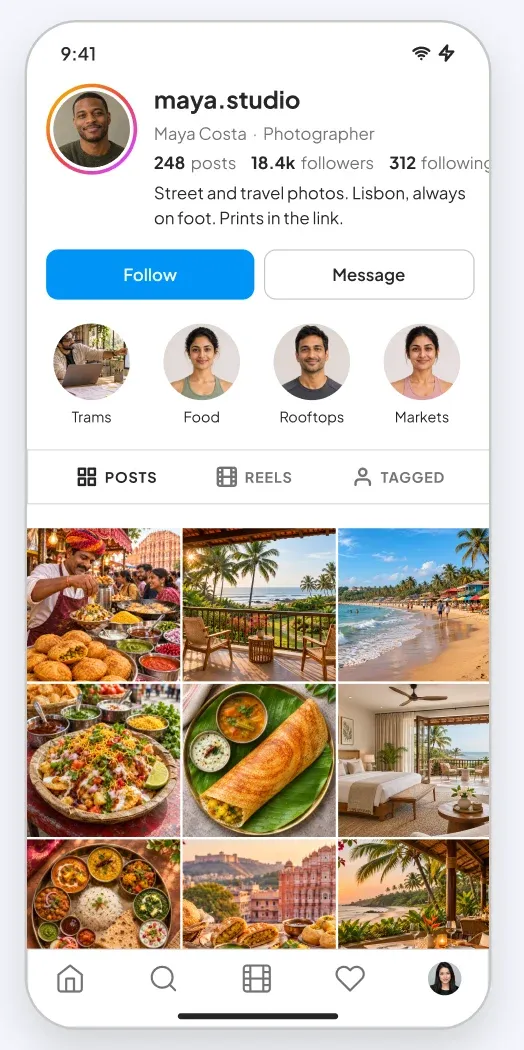
This social photo feed tablet UI for Figma shows a home feed with a stories bar, a photo post and the actions around it.
What is included
- A stories bar with gradient rings for new stories and grey rings for seen ones
- A post card with avatar, location, photo, caption and time
- Four icon actions under every post: like, comment, share and save
- Like count, a liked by line and a link to all comments
- The tablet layout is 834 px wide with a slim icon rail and a wide content column
Where to use it
Use it for social app prototypes, creator tools, community apps and pitch decks that need a believable photo feed. It is made for iPad and tablet apps.
Design notes
New stories get a warm gradient ring and seen stories a plain grey ring, so the state is clear at a glance. It uses a light theme: white and near-white cards, dark text and a pink and blue accent, so it reads like a real app screen rather than a wireframe.
Built for editing
Spacing follows a 4 point scale and layers have clear names, so developers can find what they need. Every color is a fill you can change in the fill panel, and the whole screen uses auto layout. Text pairs stay above 4.5 to 1 contrast, except white text that sits on a photo.
How to use it
Copy the component with the copy button and paste it into Figma with Ctrl+V or Cmd+V. This is the Light version. Photo spots are rectangles with a real sample picture already placed as a fill, so you can swap in your own picture in one click. Install the free Plus Jakarta Sans font first. All names, handles and numbers are sample content.