How to use it in Figma, even if you have never used Figma
Four steps. You do not need to draw anything, and a free Figma account is enough (Pro components need a ProFigma Pro plan).
Fill
Export
- Press Copy to FigmaClick the button on this page. The design is copied, like text you copy with Ctrl + C.
- Paste it in FigmaOpen Figma, open any file and press Ctrl + V (Cmd + V on Mac). You get real, editable layers.
- Make it yoursDouble-click a text to type your own words. Click a shape and change its color under Fill. Drag your own photo onto an image box.
- Export itClick the design. In the right panel, scroll to Export, choose PNG, JPG, SVG or PDF, then click Export.
Tip: install the free Google Fonts used in the design (the name shows when you click a text) so the text looks the same on your computer.
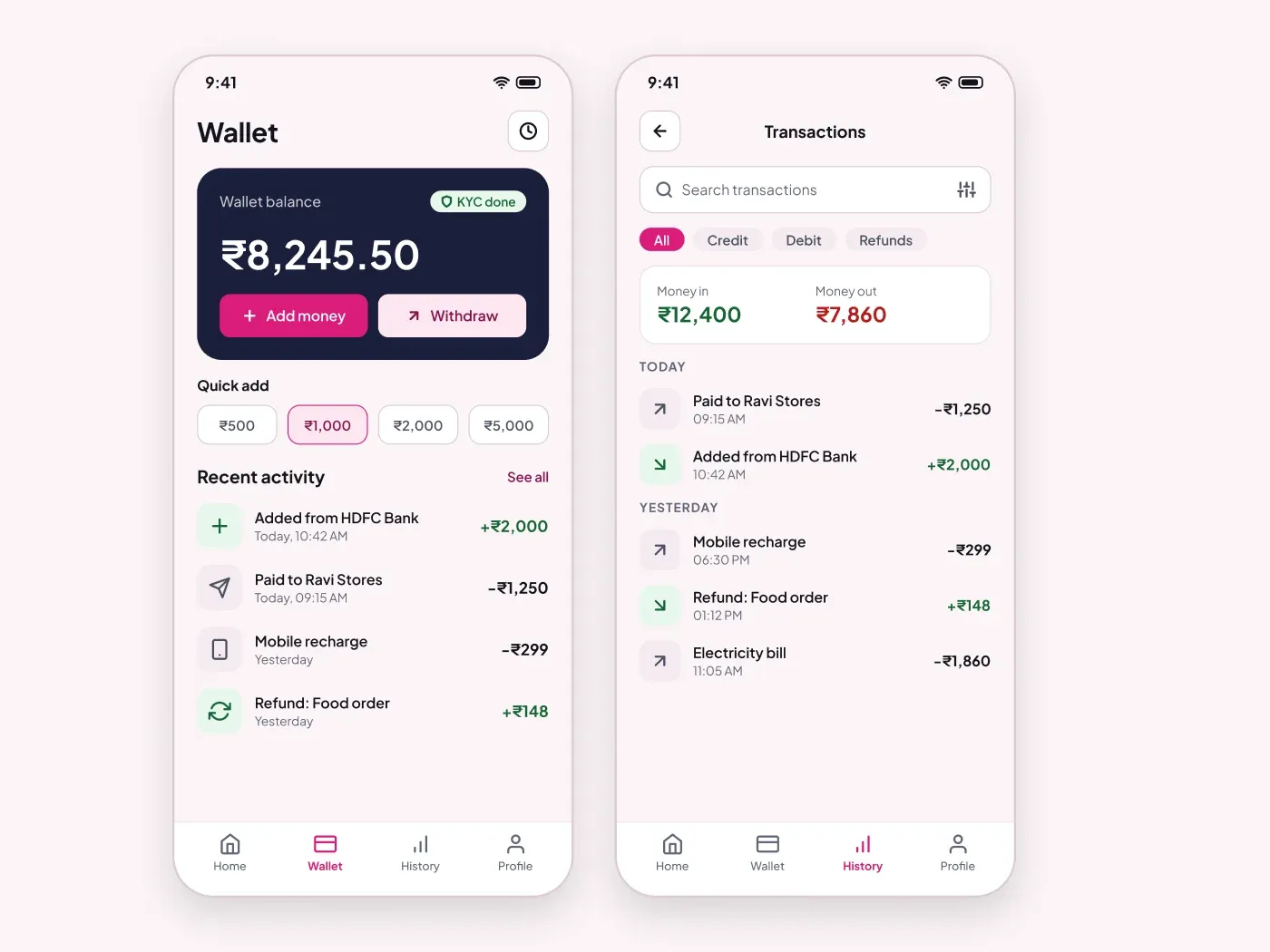
Keep money simple to track. These wallet and transaction screens show the balance, quick top ups and every payment.
What is included
- A wallet card with add money and withdraw
- Quick add amount chips
- A recent activity list
- A history screen with filters and totals
Where to use it
Use them for a payment app, a gift card app or a loyalty wallet. Replace the amounts.
Design notes
The balance card has a 24 px radius and a 38 px balance with Add money and Withdraw buttons. Quick add amounts are four chips with a 12 px radius. The history phone has a search field, four filter pills, a money in and money out summary, and rows grouped by day.
This light version uses an accent of #da1b7a on a page of #fbf4f7, with white cards. A dark version of this design is a separate listing: Premium Dark Wallet and Transaction Screens UI for Figma.
Questions
How do I mark a pending payment?
Add a small gray Pending badge under the amount, and use the neutral icon tile color for the row.
Can I show a daily limit?
Add a small progress bar under the balance card with the used and the total limit, in the same 8 px style.
Is there a dark version?
Yes. Premium Dark Wallet and Transaction Screens UI for Figma has the same layout on a soft charcoal page, with the same accent color.
How to use it
Copy the component with the copy button and paste it into Figma with Ctrl+V or Cmd+V. The text uses Plus Jakarta Sans, which is free on Google Fonts.