How to use it in Figma, even if you have never used Figma
Four steps. You do not need to draw anything, and a free Figma account is enough (Pro components need a ProFigma Pro plan).
Fill
Export
- Press Copy to FigmaClick the button on this page. The design is copied, like text you copy with Ctrl + C.
- Paste it in FigmaOpen Figma, open any file and press Ctrl + V (Cmd + V on Mac). You get real, editable layers.
- Make it yoursDouble-click a text to type your own words. Click a shape and change its color under Fill. Drag your own photo onto an image box.
- Export itClick the design. In the right panel, scroll to Export, choose PNG, JPG, SVG or PDF, then click Export.
Tip: install the free Google Fonts used in the design (the name shows when you click a text) so the text looks the same on your computer.
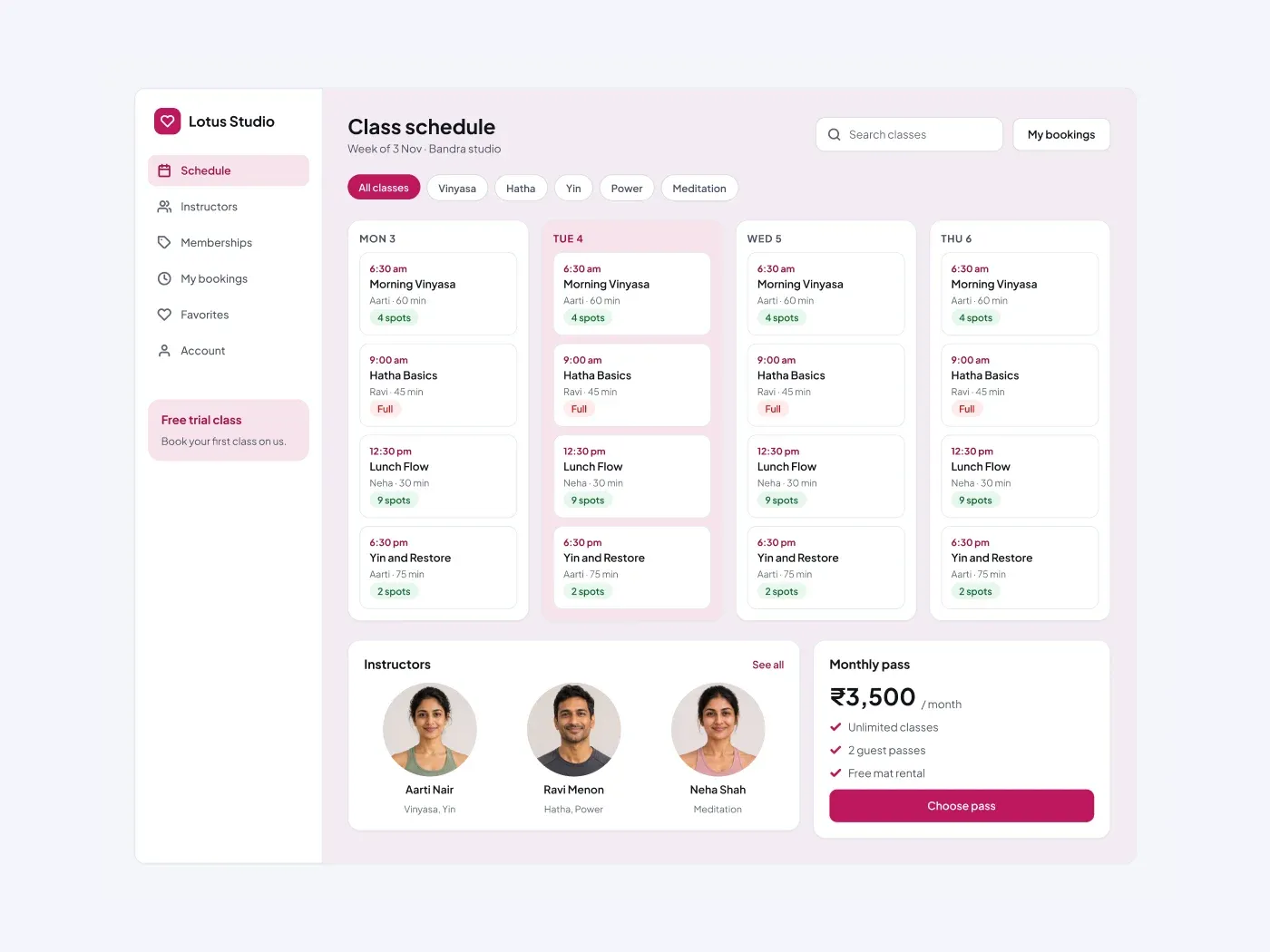
Show a studio week in a clear grid. Each day is a column of class cards with a time, a teacher and a badge that says how many spots are left or that the class is full.
What is included
- Category chips from Vinyasa to Meditation
- Four day columns with class cards
- Green and red spot badges
- Instructor portraits with their styles
- A monthly pass card with a price and a button
Where to use it
Use it for a yoga studio, a gym with group classes or a dance school. Edit the class names, times and prices.
How to use it
Copy the component with the copy button and paste it into Figma with Ctrl+V or Cmd+V. The layers keep their auto layout, so you can edit text, colors and spacing. The text uses Plus Jakarta Sans, a free font on Google Fonts. Install it first so the text looks the same.
Light version
This listing is the light version. The dark version is listed separately, so you can pick the one that fits your project.