How to use it in Figma, even if you have never used Figma
Four steps. You do not need to draw anything, and a free Figma account is enough.
Fill
Export
- Press Copy to FigmaClick the button on this page. The design is copied, like text you copy with Ctrl + C.
- Paste it in FigmaOpen Figma, open any file and press Ctrl + V (Cmd + V on Mac). You get real, editable layers.
- Make it yoursDouble-click a text to type your own words. Click a shape and change its color under Fill. Drag your own photo onto an image box.
- Export itClick the design. In the right panel, scroll to Export, choose PNG, JPG, SVG or PDF, then click Export.
Tip: install the free Google Fonts used in the design (the name shows when you click a text) so the text looks the same on your computer.
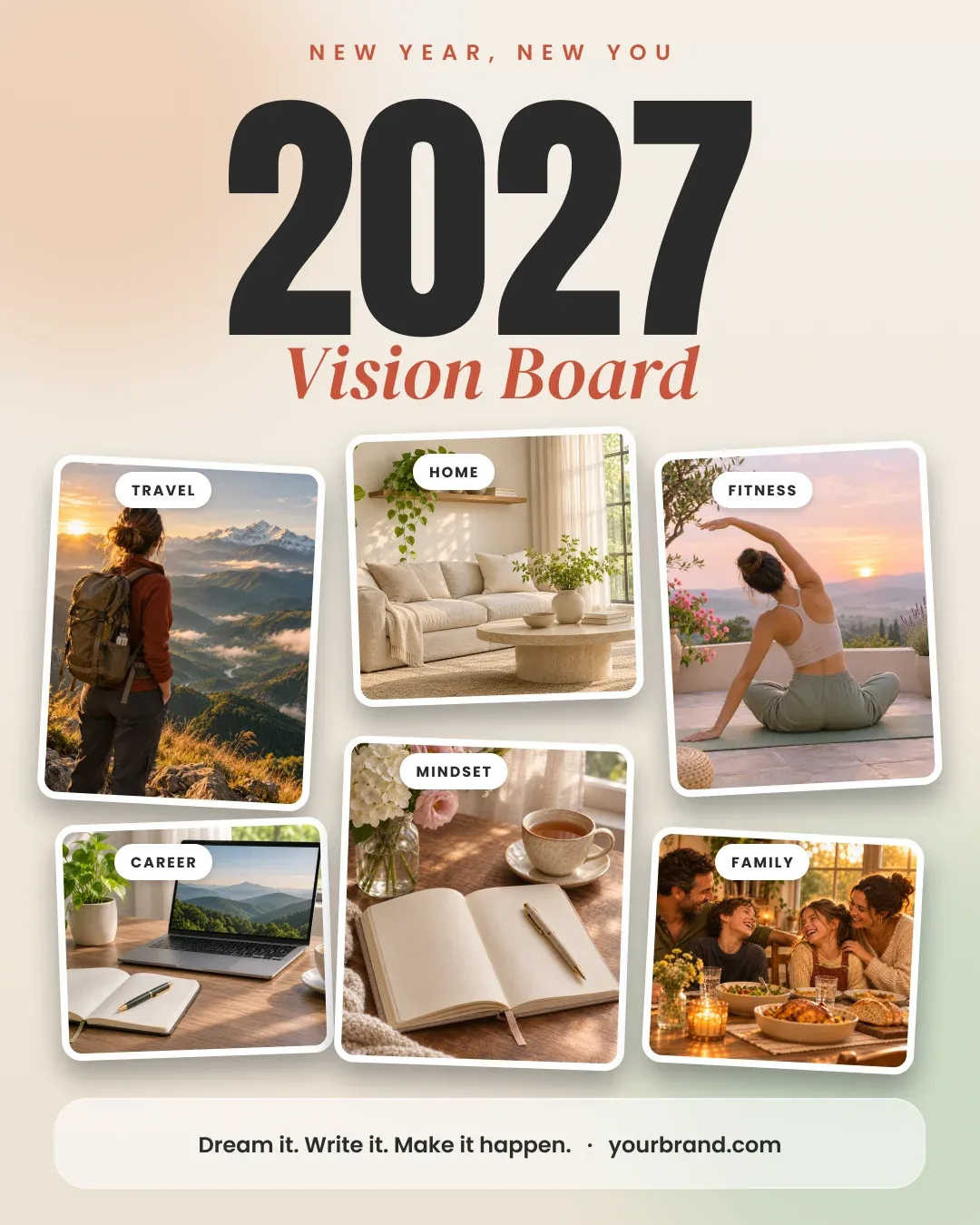
A goal setting poster. It has a giant year, a script style title and six tilted photos with labels such as travel and fitness.
What is included
- A 1080 by 1350 poster
- Anton year and DM Serif title
- Six labeled photo slots
- Soft warm gradients
- A closing line bar
Where to use it
Use it for a new year post, a planner brand or a coaching page.
Design notes
This 2027 vision board poster template follows a simple rule: A poster has one job, to be understood at a glance. The headline, the date and one call to action are the only things that need to be read. It includes a 1080 by 1350 poster, anton year and dm serif title, six labeled photo slots, so you can start from a finished layout and change only what you need.
Built for editing
Spacing follows a 4 point scale and layers have clear names, so developers can find what they need. Fonts are free on Google Fonts, and every color can be changed from the fill panel. You also get soft warm gradients and a closing line bar.
How to use it
Copy the template with the copy button and paste it into Figma with Ctrl+V or Cmd+V. Drop your own photo into the image rectangle, then edit the text and colors. The fonts are free on Google Fonts. Install them first so the text looks the same.