
How to use it in Figma, even if you have never used Figma
Four steps. You do not need to draw anything, and a free Figma account is enough.
Fill
Export
- Press Copy to FigmaClick the button on this page. The design is copied, like text you copy with Ctrl + C.
- Paste it in FigmaOpen Figma, open any file and press Ctrl + V (Cmd + V on Mac). You get real, editable layers.
- Make it yoursDouble-click a text to type your own words. Click a shape and change its color under Fill. Drag your own photo onto an image box.
- Export itClick the design. In the right panel, scroll to Export, choose PNG, JPG, SVG or PDF, then click Export.
Tip: install the free Google Fonts used in the design (the name shows when you click a text) so the text looks the same on your computer.
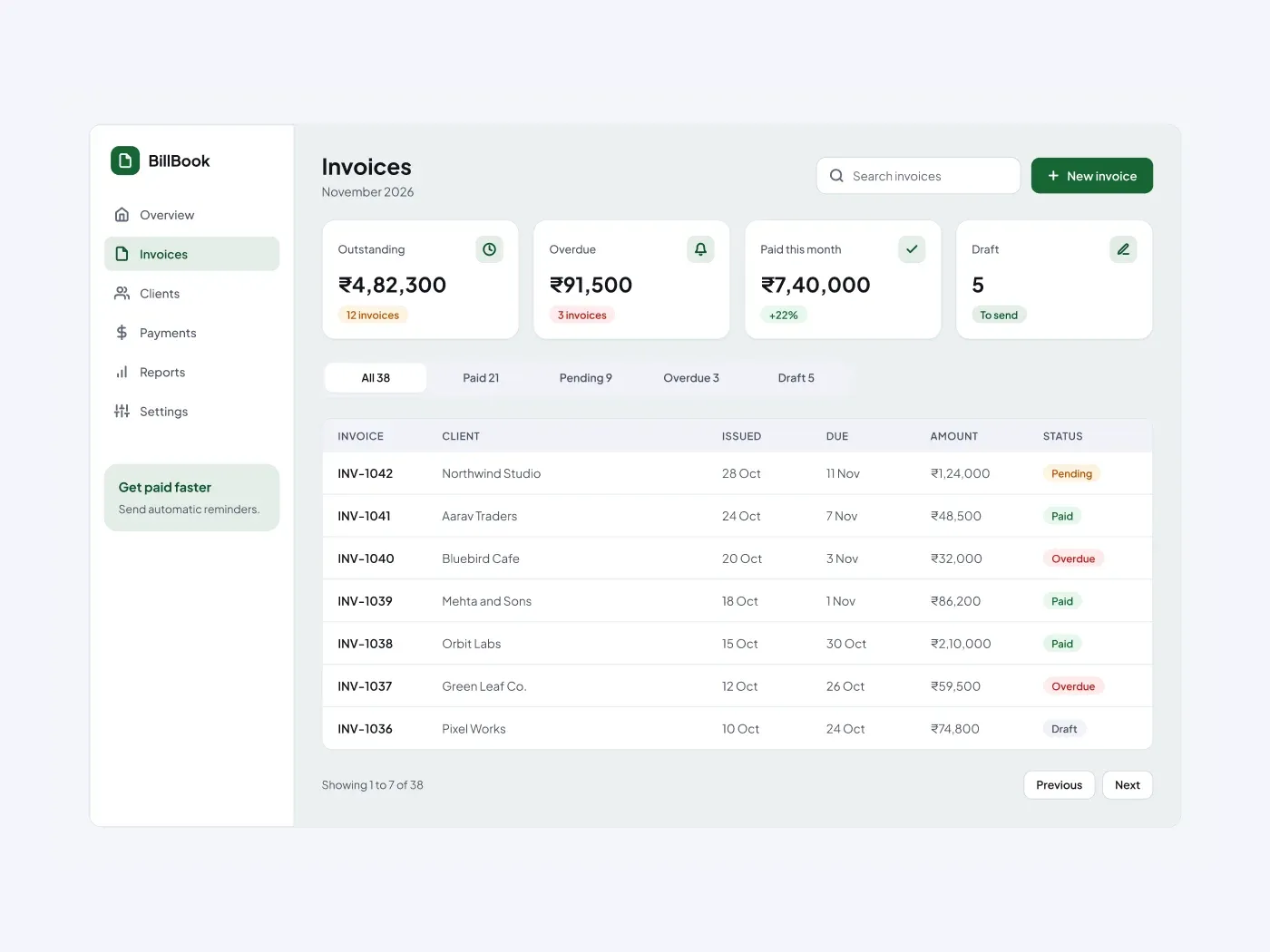
The dark version puts the layout on a near black page and keeps the same accent color. See who owes what at a glance. The cards add up outstanding, overdue and paid amounts, and the table lists each invoice with a colored status.
What is included
- Four stat cards for outstanding, overdue, paid and draft
- Status tabs with counts
- A table with invoice, client, dates and amount
- Paid, pending, overdue and draft badges
- A search field, a new invoice button and pagination
Where to use it
Use it for an accounting app, a freelancer tool or a billing portal. Replace the clients and the amounts.
How to use it
Copy the component with the copy button and paste it into Figma with Ctrl+V or Cmd+V. The layers keep their auto layout, so you can edit text, colors and spacing. The text uses Plus Jakarta Sans, a free font on Google Fonts. Install it first so the text looks the same.
Dark version
This listing is the dark version. The light version is listed separately, so you can pick the one that fits your project.