How to use it in Figma, even if you have never used Figma
Four steps. You do not need to draw anything, and a free Figma account is enough (Pro components need a ProFigma Pro plan).
Fill
Export
- Press Copy to FigmaClick the button on this page. The design is copied, like text you copy with Ctrl + C.
- Paste it in FigmaOpen Figma, open any file and press Ctrl + V (Cmd + V on Mac). You get real, editable layers.
- Make it yoursDouble-click a text to type your own words. Click a shape and change its color under Fill. Drag your own photo onto an image box.
- Export itClick the design. In the right panel, scroll to Export, choose PNG, JPG, SVG or PDF, then click Export.
Tip: install the free Google Fonts used in the design (the name shows when you click a text) so the text looks the same on your computer.
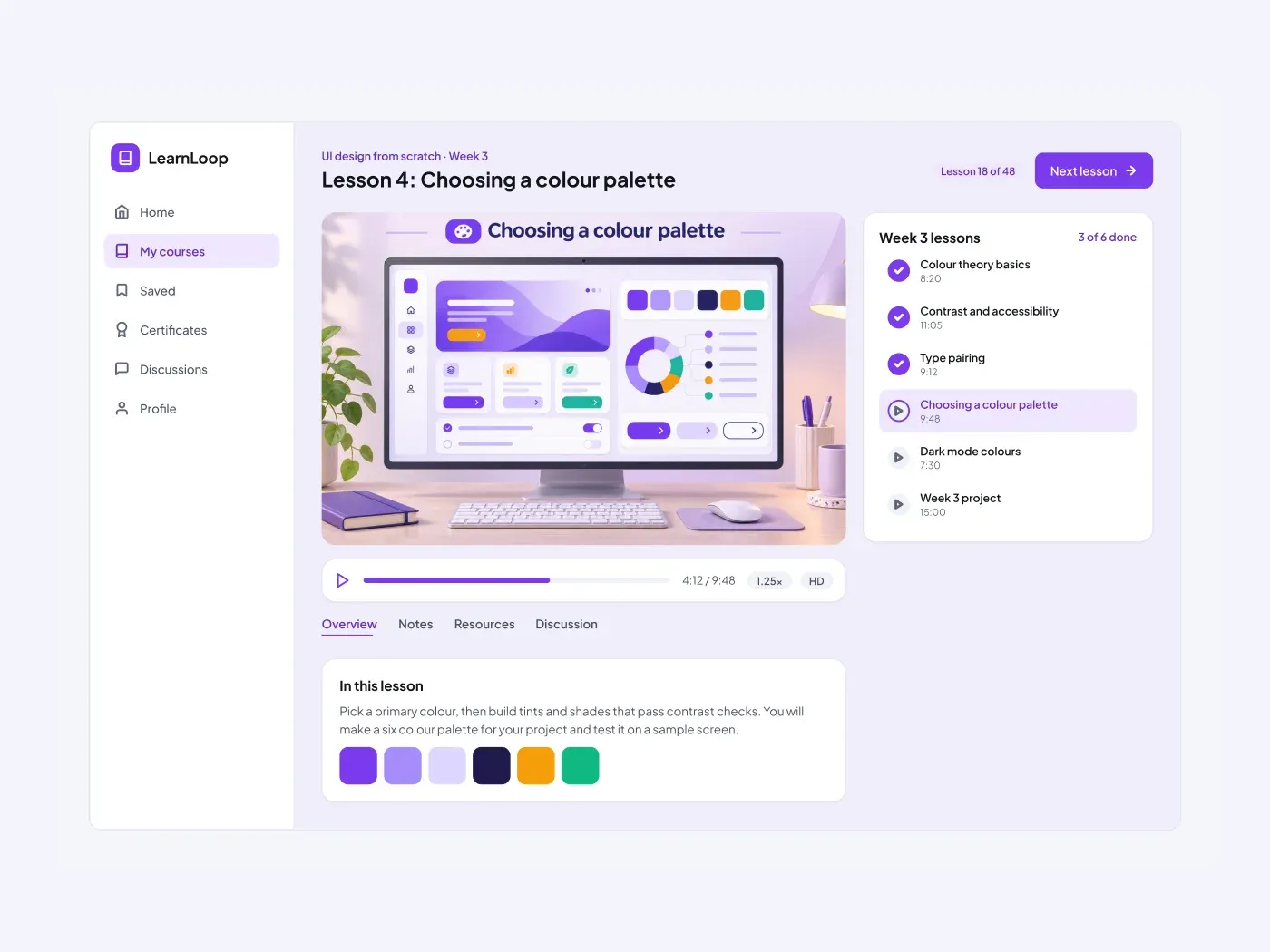
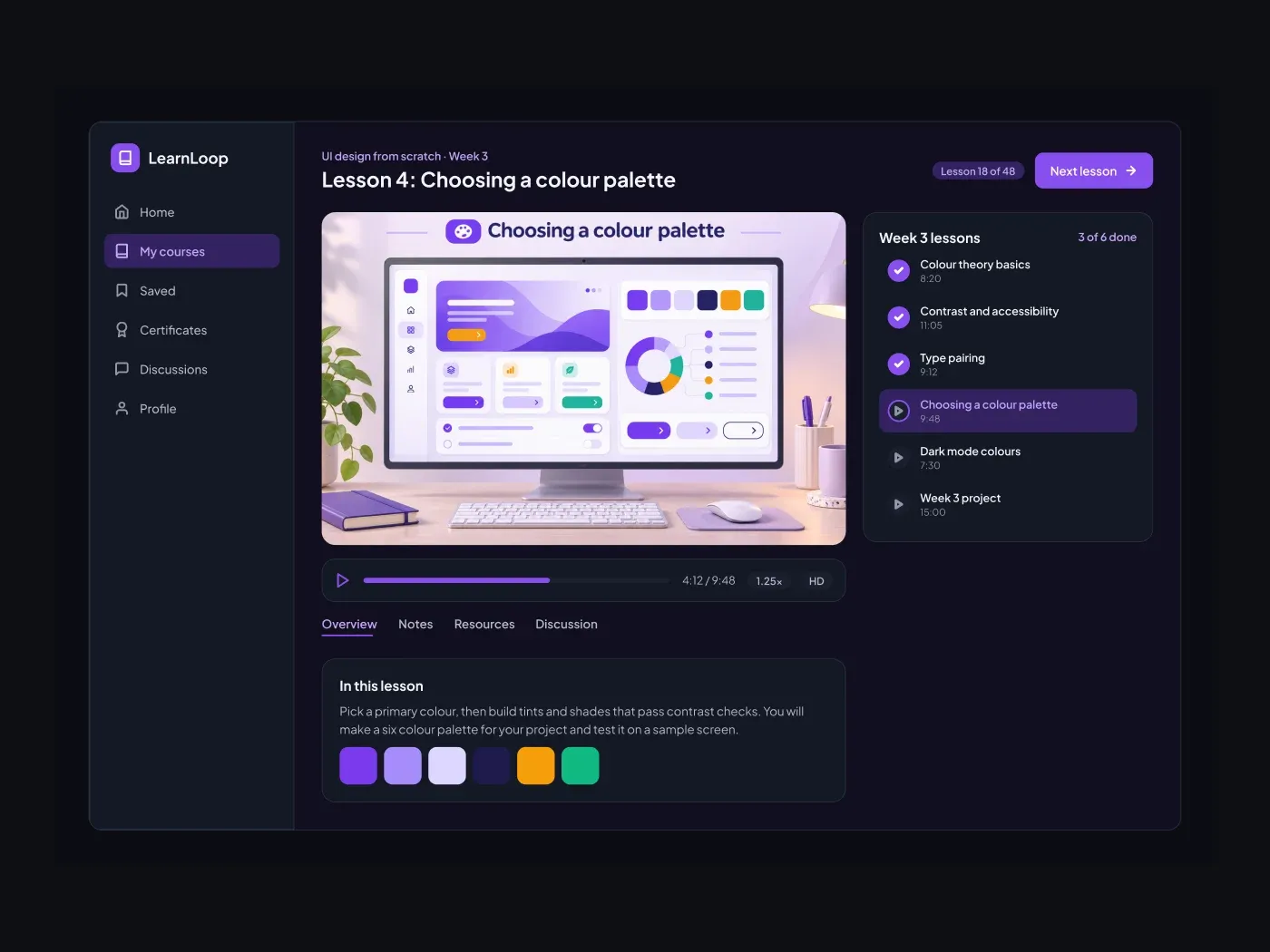
The dark version swaps the light surfaces for charcoal cards and keeps the accent bright. Keep a learner focused on the lesson. The video takes the main area, the progress bar sits under it, and the list on the right shows which lessons are done and which one is playing.
What is included
- A header with the course, the lesson title and a next button
- A video frame with a control bar and speed badge
- Tabs for overview, notes, resources and discussion
- A lesson description with a swatch row
- A lesson list with done, playing and locked states
Where to use it
Use it for an online academy, a training portal or a video course. The video frame is ready for your own image or embed.
How to use it
Copy the component with the copy button and paste it into Figma with Ctrl+V or Cmd+V. The layers keep their auto layout, so you can edit text, colors and spacing. The text uses Plus Jakarta Sans, a free font on Google Fonts. Install it first so the text looks the same.
Dark version
This listing is the dark version. The light version is listed separately, so you can pick the one that fits your project.