
How to use it in Figma, even if you have never used Figma
Four steps. You do not need to draw anything, and a free Figma account is enough (Pro components need a ProFigma Pro plan).
Fill
Export
- Press Copy to FigmaClick the button on this page. The design is copied, like text you copy with Ctrl + C.
- Paste it in FigmaOpen Figma, open any file and press Ctrl + V (Cmd + V on Mac). You get real, editable layers.
- Make it yoursDouble-click a text to type your own words. Click a shape and change its color under Fill. Drag your own photo onto an image box.
- Export itClick the design. In the right panel, scroll to Export, choose PNG, JPG, SVG or PDF, then click Export.
Tip: install the free Google Fonts used in the design (the name shows when you click a text) so the text looks the same on your computer.
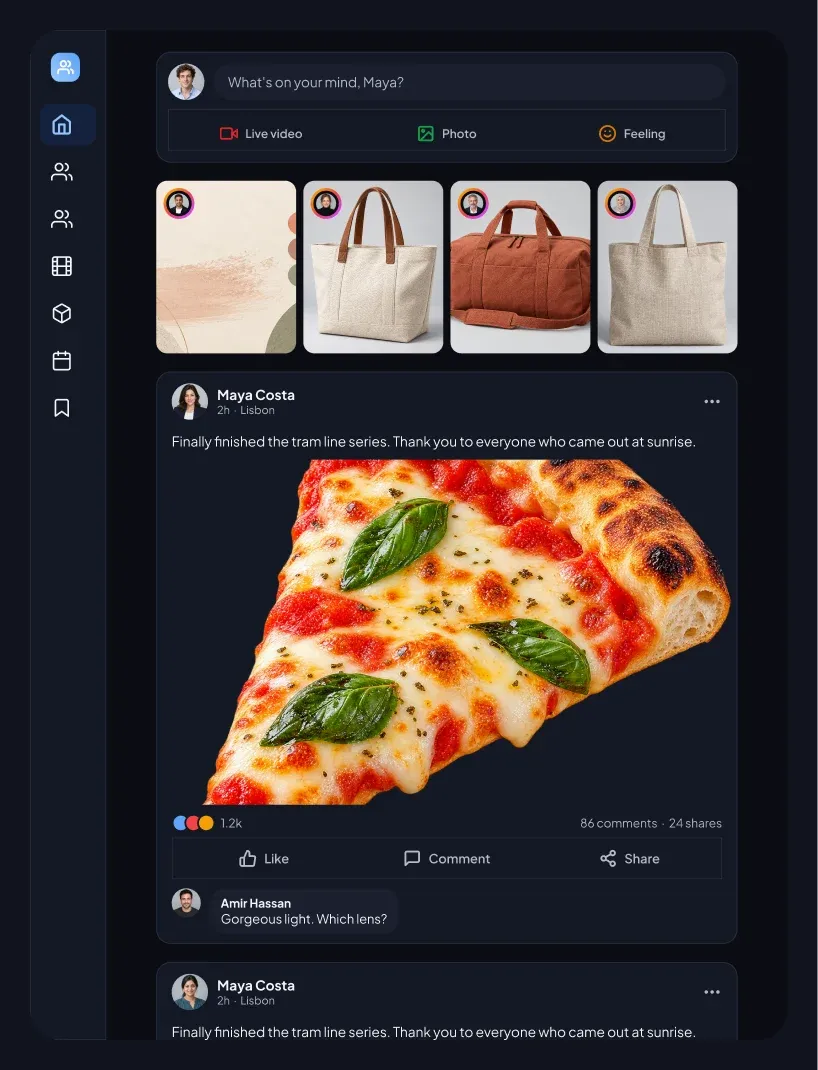
This social community feed tablet UI for Figma gives you a community feed with a post composer, story cards and a post with reactions and a comment.
What is included
- A composer with an avatar, a prompt line and Live video, Photo and Feeling buttons
- Four tall story cards with small avatar rings
- A post with author, text, large photo and a reaction summary
- Like, Comment and Share buttons in one row
- A top comment bubble and a contacts list with online dots
- The tablet layout is 834 px wide with a slim icon rail and a wide content column
Where to use it
Use it for community apps, neighbourhood networks, clubs and any product with a shared feed. It is made for iPad and tablet apps.
Design notes
The reaction summary uses three overlapping colored dots, and the action row is split into three equal buttons. Green dots mark contacts who are online. It uses a dark theme: near-black cards, light text and the same blue accent, so it reads like a real app screen rather than a wireframe.
Built for editing
Spacing follows a 4 point scale and layers have clear names, so developers can find what they need. Every color is a fill you can change in the fill panel, and the whole screen uses auto layout. Text pairs stay above 4.5 to 1 contrast, except white text that sits on a photo.
How to use it
Copy the component with the copy button and paste it into Figma with Ctrl+V or Cmd+V. This is the Dark version. Photo spots are rectangles with a real sample picture already placed as a fill, so you can swap in your own picture in one click. Install the free Plus Jakarta Sans font first. All names, handles and numbers are sample content.