How to use it in Figma, even if you have never used Figma
Four steps. You do not need to draw anything, and a free Figma account is enough.
Fill
Export
- Press Copy to FigmaClick the button on this page. The design is copied, like text you copy with Ctrl + C.
- Paste it in FigmaOpen Figma, open any file and press Ctrl + V (Cmd + V on Mac). You get real, editable layers.
- Make it yoursDouble-click a text to type your own words. Click a shape and change its color under Fill. Drag your own photo onto an image box.
- Export itClick the design. In the right panel, scroll to Export, choose PNG, JPG, SVG or PDF, then click Export.
Tip: install the free Google Fonts used in the design (the name shows when you click a text) so the text looks the same on your computer.
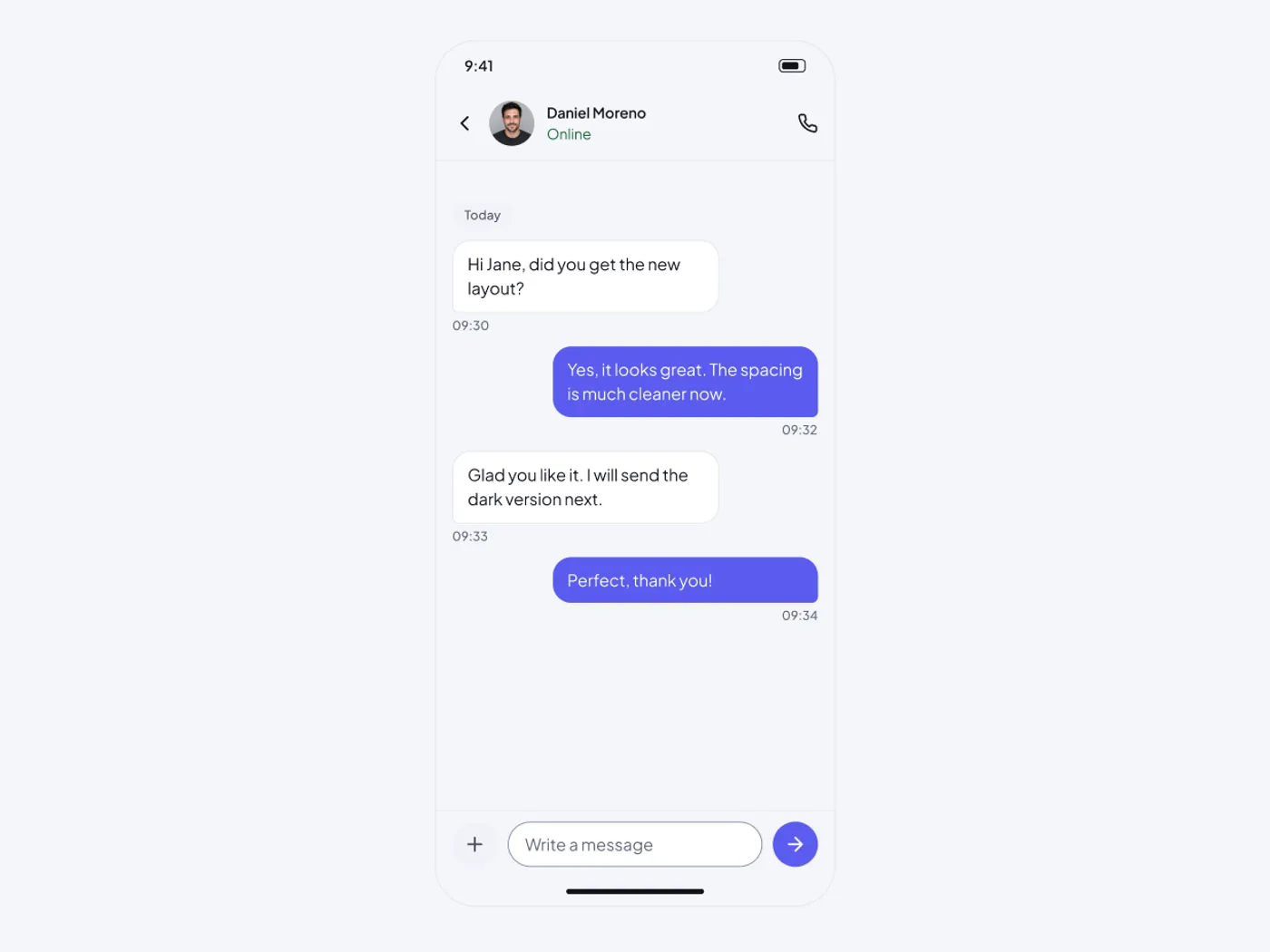
Chat needs clear bubbles and a simple input. Sent messages are in the accent color, and received ones are on a light card.
What is included
- Header with back arrow, avatar, name and online status
- Received and sent bubbles with different corners
- Times under each message
- Date chip
- Input bar with add, text field and send button
Where to use it
Use it for messaging, support and marketplace apps.
Design notes
The frame is 486 px wide and 940 px tall. The header has a back arrow, an avatar, a name and an online status. Received and sent bubbles have different corners, times sit under each message, a date chip separates days, and the input bar has an add button, a text field and a send button.
Questions
How do I add more messages?
Duplicate a bubble. Received messages align left in the neutral color and sent ones align right in the accent color.
Can I show a typing state?
Yes. Add a small bubble with three dots under the last message.
How to use it
Copy this mobile chat screen with the copy button and paste it into Figma with Ctrl+V or Cmd+V. The copy has a Light and a Dark frame, so use the one that fits your project. The text uses Plus Jakarta Sans, which is free on Google Fonts.