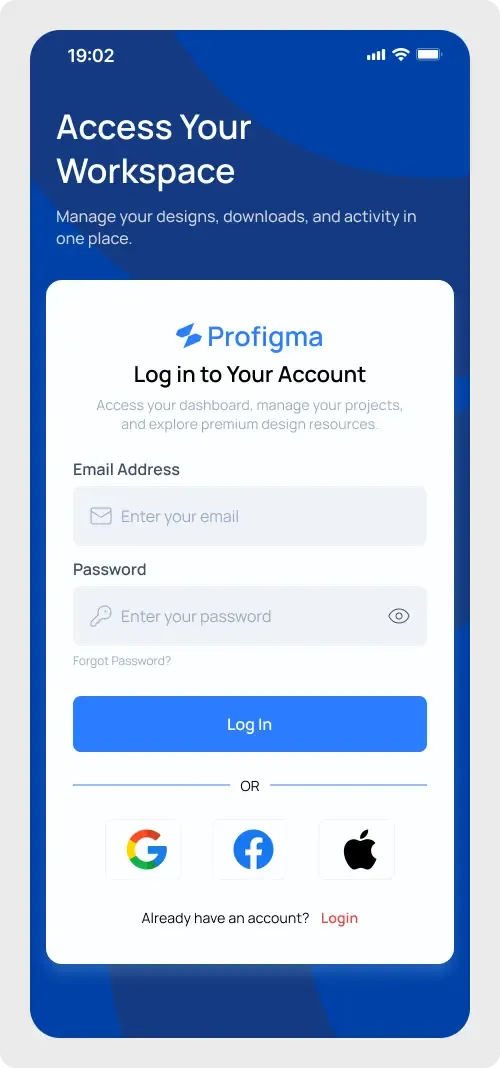
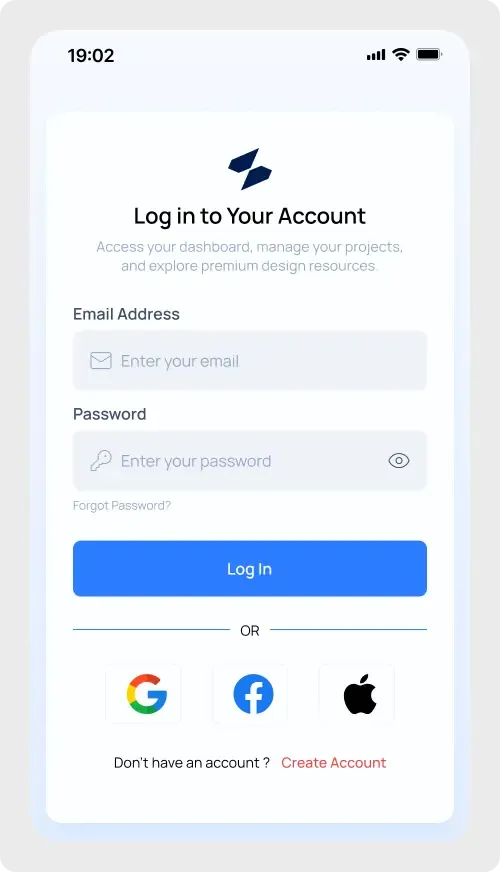
This mobile login screen UI gives you a finished sign-in screen for an app, ready to paste into Figma. It is a single light screen on a phone frame, so you can drop it into a flow and start editing in seconds.
A login screen is often the first thing a new user sees, so it needs to feel simple and safe. This one keeps the form short and the buttons large enough to tap with a thumb. The pale background and white card give the fields room to breathe. You can use it as a finished screen in a pitch, or as a base to build your own sign-in flow.
What you get
- A phone frame with a status bar and a white card on a soft blue background
- A logo mark, the heading "Log in to Your Account" and a short supporting line
- Email and password fields with icons, labels and a show-password eye
- A "Forgot Password?" link and a solid blue Log In button
- An "OR" divider with Google, Facebook and Apple buttons
- A "Don't have an account?" line with a Create Account link
How to use it in Figma
Press the copy button on this page, switch to Figma and paste with Ctrl + V on Windows or Cmd + V on a Mac. The screen lands as editable layers. Swap the logo, change the blue to your brand colour and adjust the text. The layers use auto layout, so the card keeps its spacing when you change the copy.
Best for
- Early prototypes of a mobile app
- Portfolio case studies about authentication
- Client pitches where you need a believable login in minutes
- Design critiques that start from a solid baseline
Customisation tips
- Remove the social buttons you do not support, then close the gap.
- Add an error state by turning a field border red and adding one line of helper text.
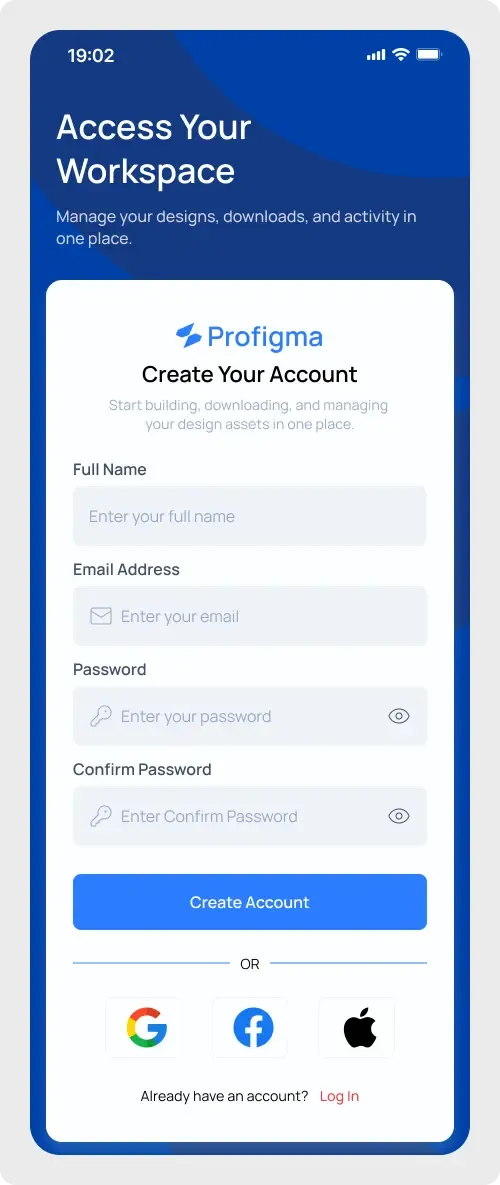
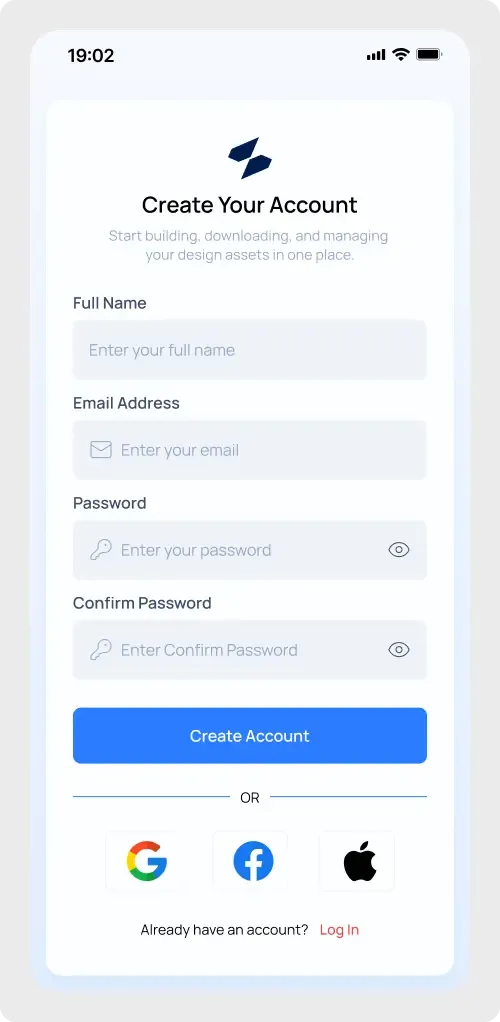
- Pair it with the matching mobile sign up screen so both screens share one style. More like it live in Login and Signup components.