How to use it in Figma, even if you have never used Figma
Four steps. You do not need to draw anything, and a free Figma account is enough (Pro components need a ProFigma Pro plan).
Fill
Export
- Press Copy to FigmaClick the button on this page. The design is copied, like text you copy with Ctrl + C.
- Paste it in FigmaOpen Figma, open any file and press Ctrl + V (Cmd + V on Mac). You get real, editable layers.
- Make it yoursDouble-click a text to type your own words. Click a shape and change its color under Fill. Drag your own photo onto an image box.
- Export itClick the design. In the right panel, scroll to Export, choose PNG, JPG, SVG or PDF, then click Export.
Tip: install the free Google Fonts used in the design (the name shows when you click a text) so the text looks the same on your computer.
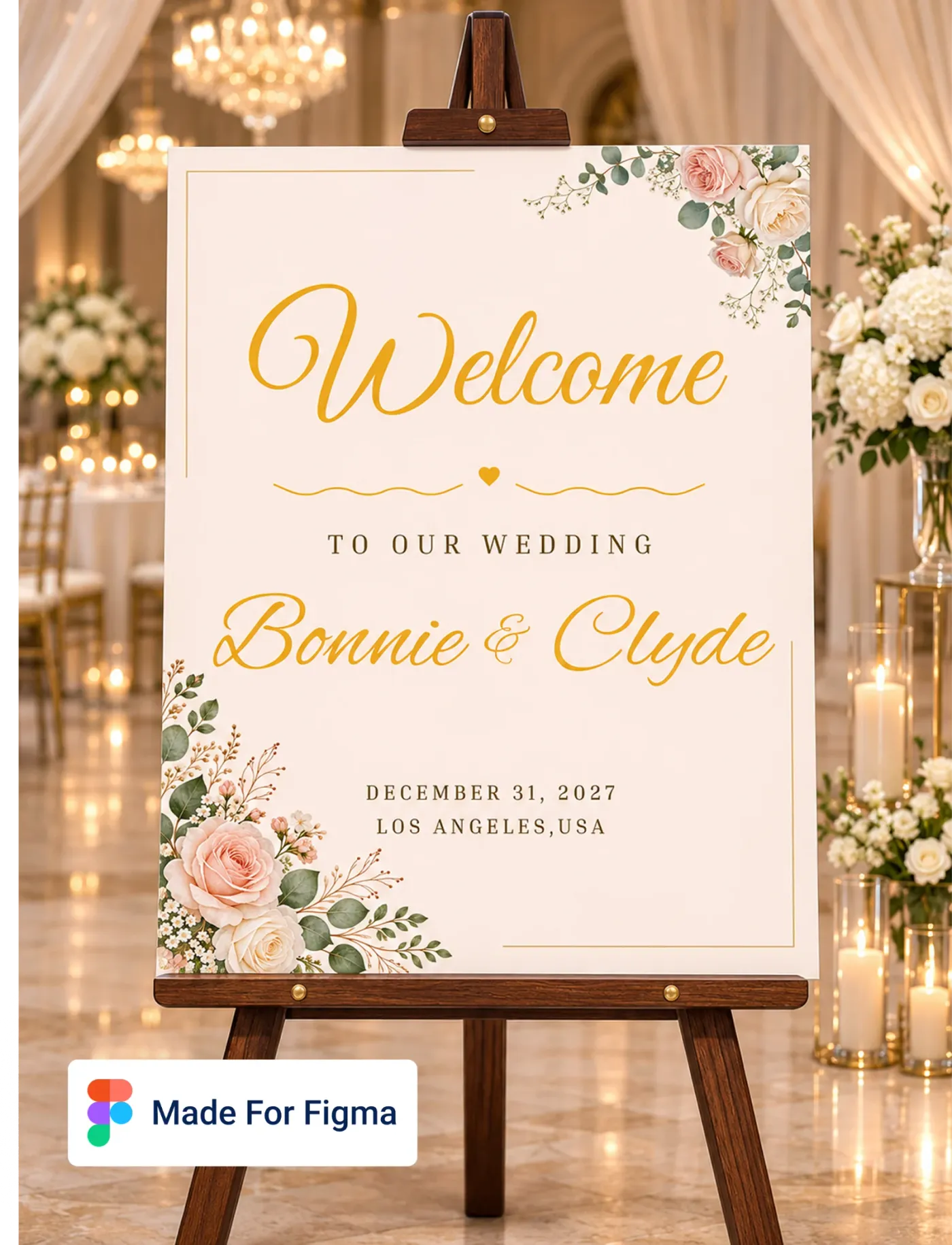
This wedding welcome sign UI for Figma is a floral print design shown on an easel in a wedding hall. It’s for designers creating wedding signage or building a print design portfolio.
What’s in the design
- A pale blush sign with a fine gold border
- Large gold script lettering that reads “Welcome”
- A small heart and wavy divider lines
- “To our wedding” in spaced uppercase lettering
- “Bonnie & Clyde” in gold script
- The date and location below the names
- Blush roses and greenery in the top right and lower left
The warm hall setting includes ivory draping, candles, flowers, and a dark wood easel. Use the wedding welcome sign UI for Figma as a starting point for a welcome board displayed near a venue entrance. The names, date, and location shown are part of the sample design.
How to use it
Click Copy to Figma, then paste it into your Figma file. The layers are fully editable, so you can adjust the design for your project.
You can find more Figma UI components and templates for invitations on ProFigma.