ClipDock app icon
ClipDockby ProFigma · for Windows 10 & 11

ClipDock: the Clipboard Manager for Windows that stacks your screenshots

ClipDock is a clipboard manager for Windows that keeps every screenshot, text and file you copy in a glass dock at the edge of your screen. Take all your screenshots first, then drop them into ChatGPT, Claude, Figma or any app in one go.

  • Free download
  • 7-day Pro trial
  • No subscription
  • Your data stays on your PC
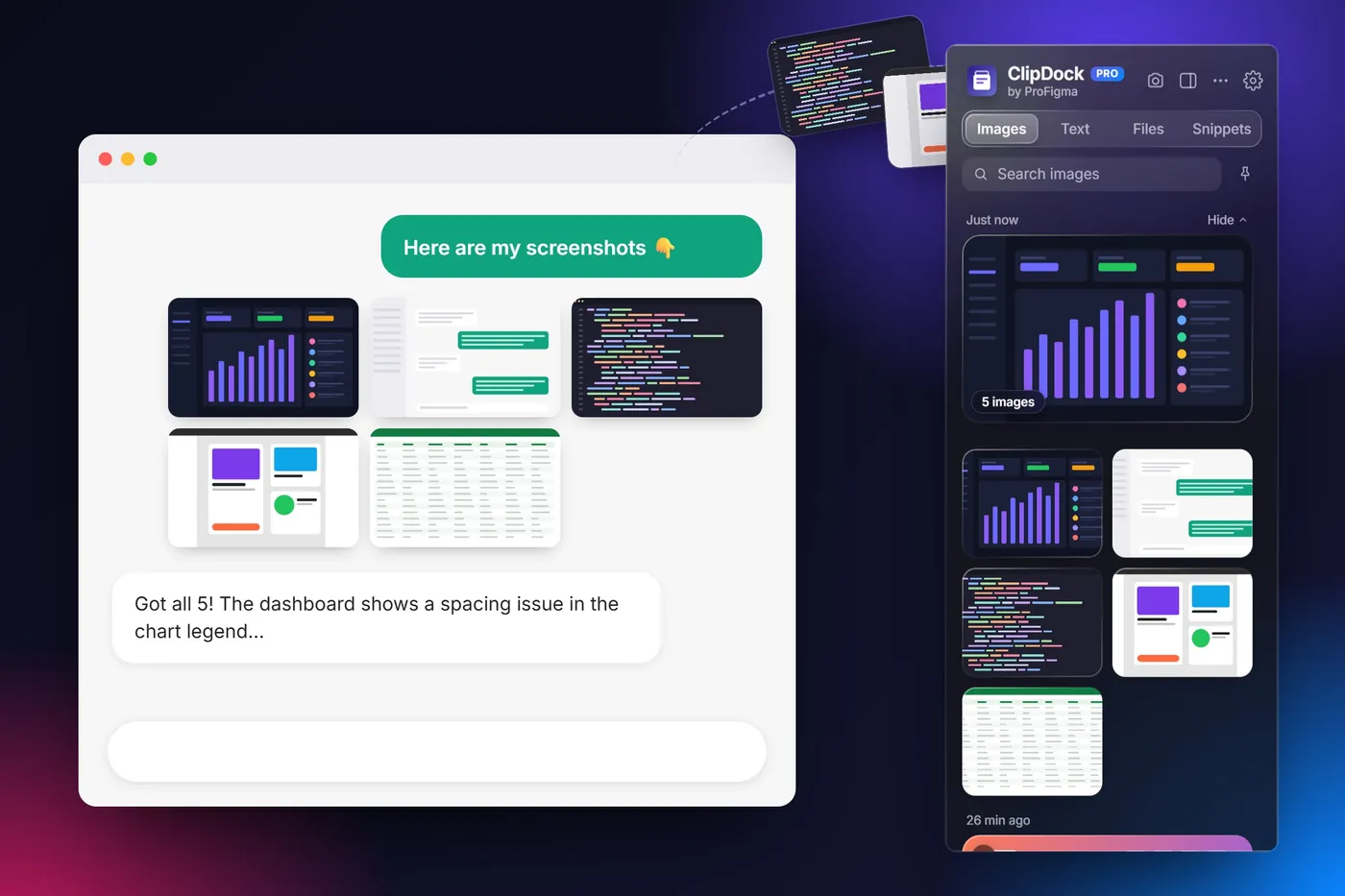
ClipDock clipboard manager for Windows dragging a stack of five screenshots into a chat window
How it works

How ClipDock Works in 3 Simple Steps

A clipboard manager built for screenshots: capture everything first, then paste or drag it where you need it. No more switching back and forth.

  1. Capture

    Press Alt+Shift+S or copy anything as usual. Screenshots, text, links and files land in the dock.

  2. Stack

    Screenshots you take in a row group into one neat stack, so ten captures stay together instead of getting lost.

  3. Drop

    Hover the dock, then drag the whole stack into ChatGPT, Claude, Figma or WhatsApp – or click a clip to paste it.

Features

Everything a Windows Clipboard Manager Should Do

A fast screenshot tool, a quick editor and a full clipboard history in one small dock.

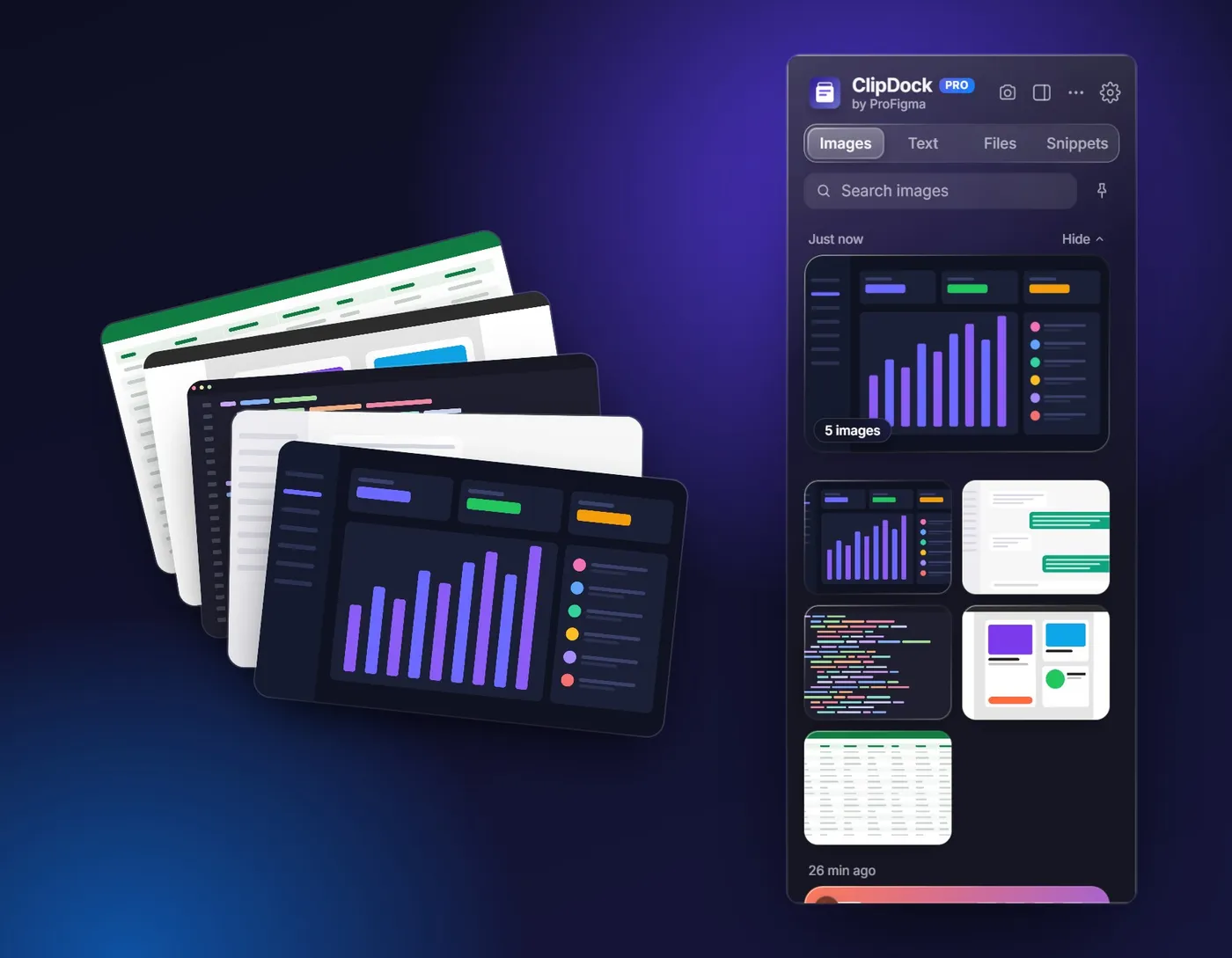
Screenshot stacks in the ClipDock clipboard manager for Windows, five captures grouped into one stack
Screenshots taken in a row stay together in one neat stack.

Take all your screenshots first, drop them in one go

Working with AI tools usually means: screenshot, switch, paste, switch back, repeat. ClipDock breaks that loop: unlike a plain clipboard manager, it groups every capture you take within a minute into the same stack.

  • Drag the whole stack into any app with one move
  • Open a stack to see, paste or drag single images
  • Merge a stack into one long imagePRO
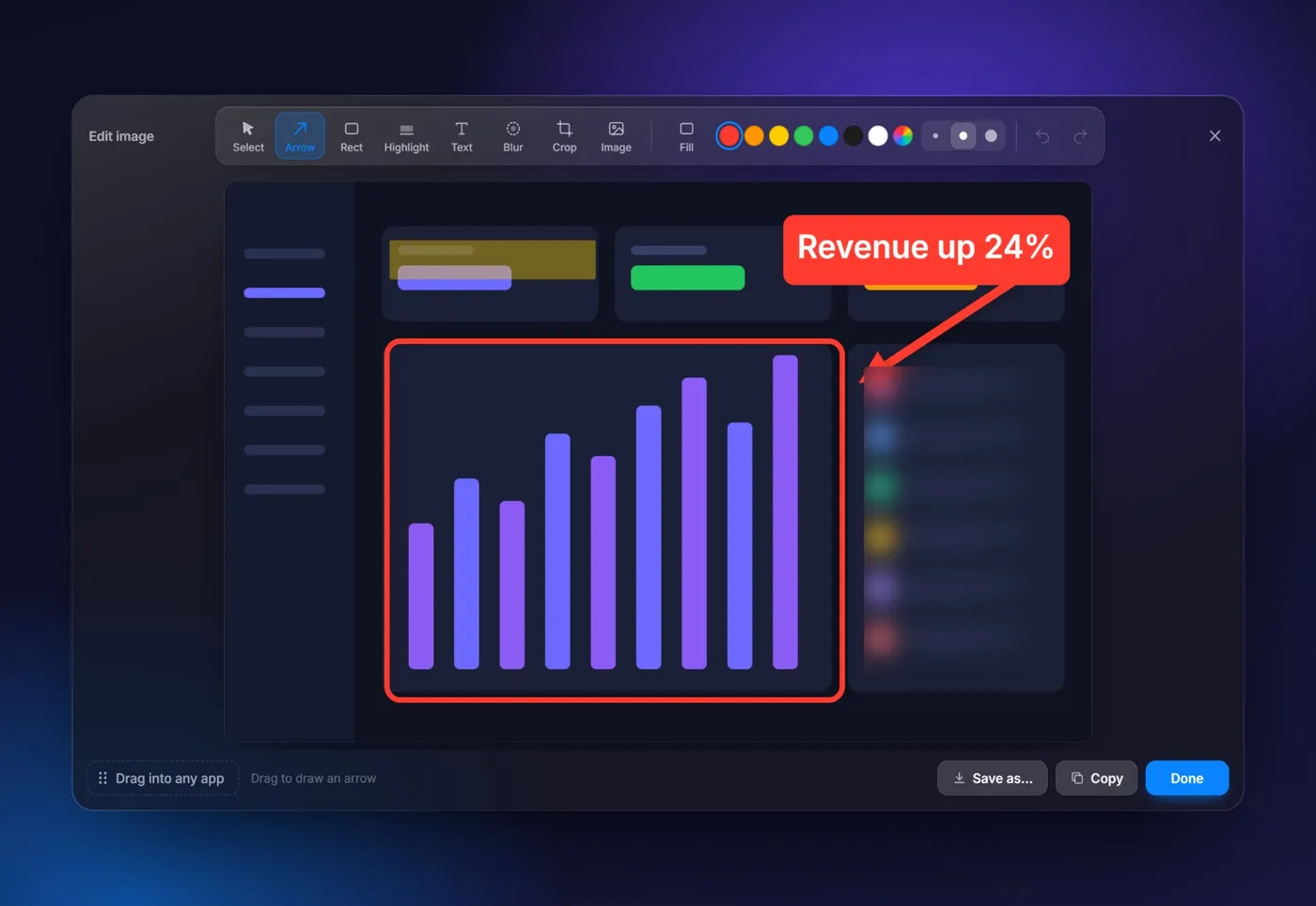
ClipDock screenshot tool for Windows with an editor showing arrow, box, highlight and blur on a dashboard
Mark up screenshots with arrows, boxes, highlights, text and blur.

A screenshot tool for Windows with a built-in editor

Capture an area, a window, the full screen or all your monitors. A small preview slides in, and one click on Edit opens the quick editor.

  • Arrow and crop in every plan
  • Box, highlight, text, blur and insert imagePRO
  • Copy, save as PNG or JPG, or drag the result straight out
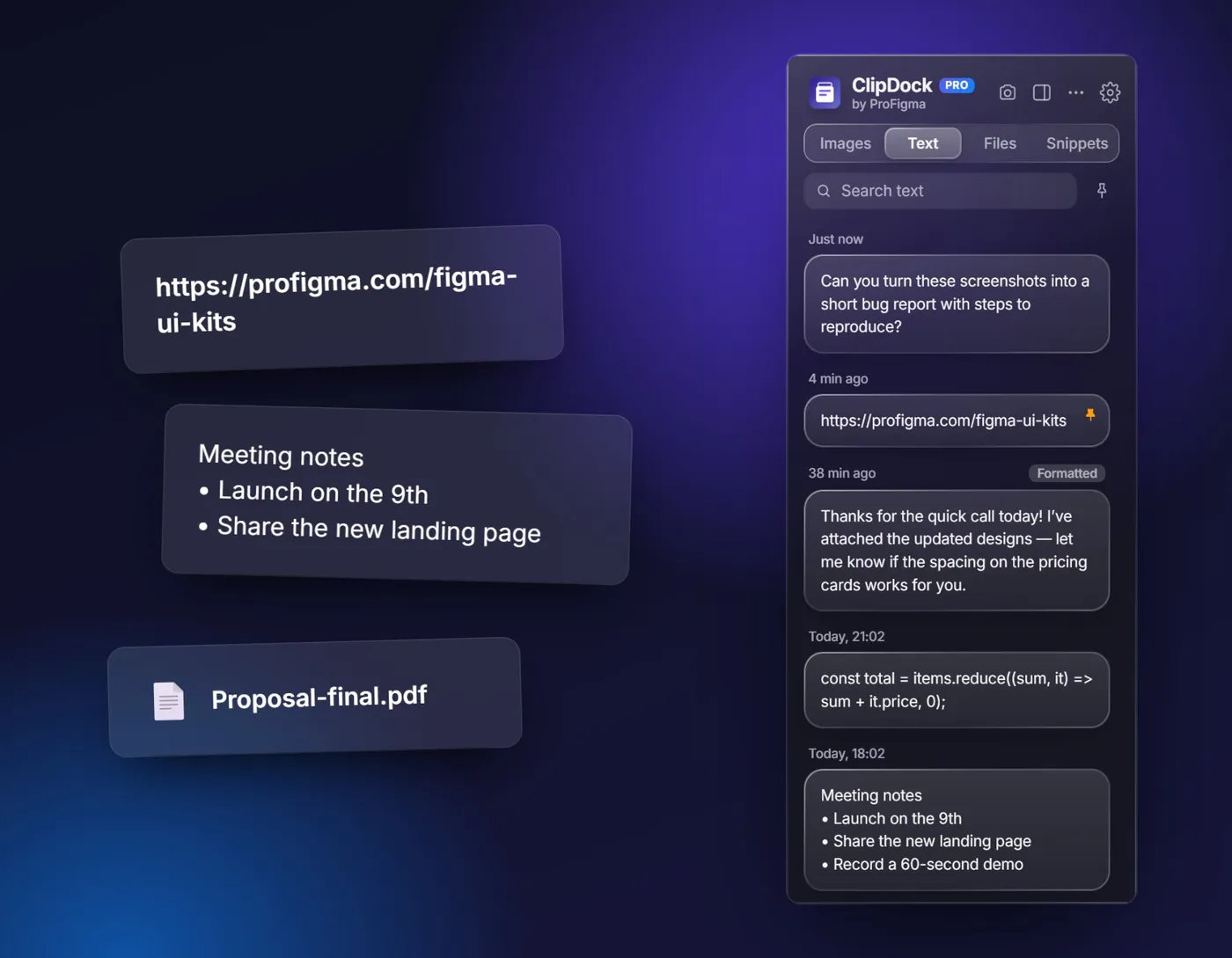
Clipboard history for text, links and files in the ClipDock clipboard manager for Windows
Every text, link and file you copy stays one click away.

Clipboard history for text, links and files

Like any good clipboard manager, ClipDock keeps everything you copy one click away. Click a clip and ClipDock pastes it into the app you were using – no need to switch windows.

  • Keep formatting, or paste as plain text
  • Copied files are saved as links, so big files use no space
  • Pins, search and snippets for replies you type every dayPRO
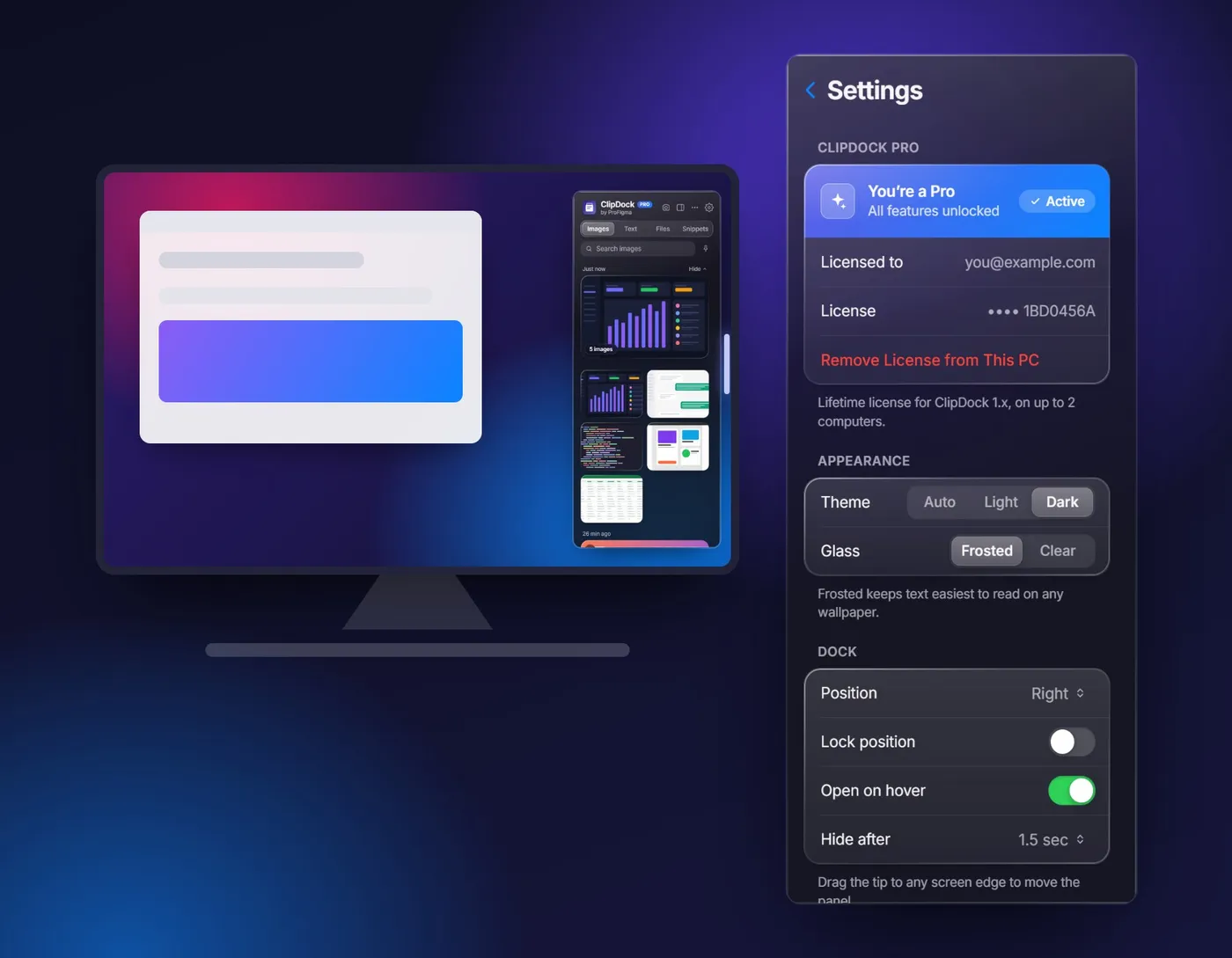
ClipDock docked on the right edge of a Windows desktop next to its settings panel
Dock it on any screen edge, in light or dark, frosted or clear glass.

Made for your desk, out of your way

ClipDock waits as a thin pill on the screen edge and opens when you hover it or press Alt+Shift+V.

  • Dock it on any screen edge and lock it in place
  • Follows your mouse across two or more monitors
  • Light, dark or automatic theme with frosted or clear glass
Built for speed

Small Details That Save Time

Click to paste

ClipDock pastes into the app you were using, so your hands never leave the task.

Capture preview

A small card shows each new screenshot with an Edit button, so you know it worked.

Pause anytime

Pause capturing for 15 minutes, an hour or until you resume – handy for private work.

Skips passwords

Passwords copied from password managers are never saved in your clipboard history.

Multi-monitor

Choose a monitor or let the dock follow your mouse. Capture one screen or all of them.

Keyboard shortcuts

Open the dock and take screenshots with shortcuts you can change in Settings.

Pricing

Free to Start, Pro for Life

Use the clipboard manager free forever. Every new install also gets all Pro features free for 7 days, then you can unlock Pro once.

Free

For everyday copy and paste.

Freeforever
  • 20 screenshots a day (small ClipDock badge)
  • Last 25 clips from the past 24 hours
  • 3 pins
  • Drag and drop into any app
  • Arrow and crop in the editor
Get it from Microsoft

Includes a 7-day Pro trial

Pro

For people who live in screenshots.

$19one-time
  • Unlimited screenshots, no watermark
  • Screenshot stacks and merge into one long image
  • Unlimited history, kept forever
  • Unlimited pins, search and snippets
  • Full editor and the Files tab
Buy ClipDock Pro

No subscription · lifetime license for 1.x · 2 PCs

Why Use a Clipboard Manager for Windows?

Windows only remembers the last thing you copied. As soon as you copy something new, the old item is gone. A clipboard manager keeps a history, so you can go back to anything you copied today.

That matters most when you work with screenshots. If you explain a bug to ChatGPT, review a design in Figma or send steps to a client, you often need five or ten images in a row. A clipboard manager turns that into one smooth flow instead of a long back-and-forth.

ClipDock vs Windows Clipboard History (Win+V)

Windows 10 and 11 include a basic clipboard history that opens with Win+V, as Microsoft explains here. It is great for a few quick items. Here is how it compares:

FeatureWindows (Win+V)ClipDock
Text and image historyYes (25 items)Yes
Drag clips into other appsNoYes
Drag many screenshots at onceNoYes (stacks)
Built-in screenshot tool and editorSeparate appYes
Copied files and snippetsNoYes
History kept after restartPinned items onlyYes

The Windows Snipping Tool is a solid screenshot tool, but each capture replaces the last one on your clipboard. ClipDock keeps every capture and lets you send them together.

How to Send Many Screenshots to ChatGPT or Claude

AI assistants understand screenshots well, but uploading them one by one is slow. With ClipDock the workflow looks like this:

  • Press Alt+Shift+S and capture each part of the problem.
  • Open the dock: your captures wait together in one stack.
  • Drag the stack into the chat box and type your question.

It works the same way for Figma comments, Slack threads, Jira tickets, WhatsApp and email. Need a whole web page instead of a window? Capture it with our full page screenshot extension, and shrink big images with the online image compressor.

Pro tip: set "Stack screenshots within" in Settings. With 1 minute, a burst of captures becomes one stack, while a screenshot taken later starts a new one.

Is ClipDock Safe and Private?

Yes. Your clipboard history and screenshots are stored only on your PC. ClipDock has no account, no ads and no tracking, and it only goes online to check a Pro license key. Read the full ClipDock privacy policy.

Who is ClipDock for?

Designers sharing feedback, developers and testers writing bug reports, students collecting notes, and anyone who uses ChatGPT, Claude or Gemini every day. If you copy and paste more than a few times an hour, a clipboard manager like ClipDock pays off quickly.

Download ClipDock free from the Microsoft Store and try every Pro feature for 7 days – the clipboard manager for Windows that finally keeps up with how you work.

Frequently Asked Questions

Is ClipDock free?

Yes. ClipDock is free to download from the Microsoft Store and the Free plan has no time limit. Every new install also gets all Pro features free for 7 days.

Is ClipDock Pro a subscription?

No. ClipDock Pro is a one-time payment. You get a lifetime license for ClipDock 1.x that works on up to 2 computers.

Which Windows versions does ClipDock support?

ClipDock is a clipboard manager for Windows 10 and Windows 11, on PCs with one or more monitors.

How is ClipDock different from Win+V?

Win+V shows a simple list of recent clips. ClipDock adds drag and drop into any app, screenshot stacks, a built-in screenshot tool and editor, copied files and snippets.

Can I drag screenshots into ChatGPT or Claude?

Yes. Drag a single screenshot or a whole stack from the dock into the chat box of ChatGPT, Claude, Gemini or any other app that accepts images.

Where is my clipboard history stored?

Only on your PC. ClipDock does not upload your clips or screenshots, and it skips passwords copied from password managers.

How do I activate ClipDock Pro?

Buy Pro on Gumroad, then open ClipDock, go to Settings, paste the license key from your email and click Activate.

What happens when the trial ends?

ClipDock switches to the Free plan. Nothing is deleted – older clips are hidden and come back as soon as you activate Pro.

Try ClipDock Free Today

Take all your screenshots first, then drop them anywhere in one go. Free download, 7-day Pro trial, no subscription.

FAQ

Frequently asked questions

Is ClipDock free?

Yes. ClipDock is free to download from the Microsoft Store and the Free plan has no time limit. Every new install also gets all Pro features free for 7 days. After the trial the app switches to the Free plan.

Is ClipDock Pro a subscription?

No. Pro is a one-time payment of $19 and gives a lifetime license for ClipDock 1.x on up to 2 computers. It adds unlimited screenshots, screenshot stacks, unlimited history and pins, and the full editor.

How is it different from Win+V?

Win+V shows a simple list of recent clips. ClipDock adds drag and drop into any app, screenshot stacks, a built-in screenshot tool and editor, copied files and snippets, and a longer history on Pro.

Can I drag screenshots into ChatGPT or Claude?

Yes. Drag a single screenshot or a whole stack from the dock into the chat box of ChatGPT, Claude, Gemini or any other app that accepts images. Screenshots taken within a minute group into one stack.

Where is my clipboard history stored?

Only on your PC. ClipDock does not upload your clips or screenshots, and it skips passwords copied from password managers. It supports Windows 10 and Windows 11, including PCs with several monitors.