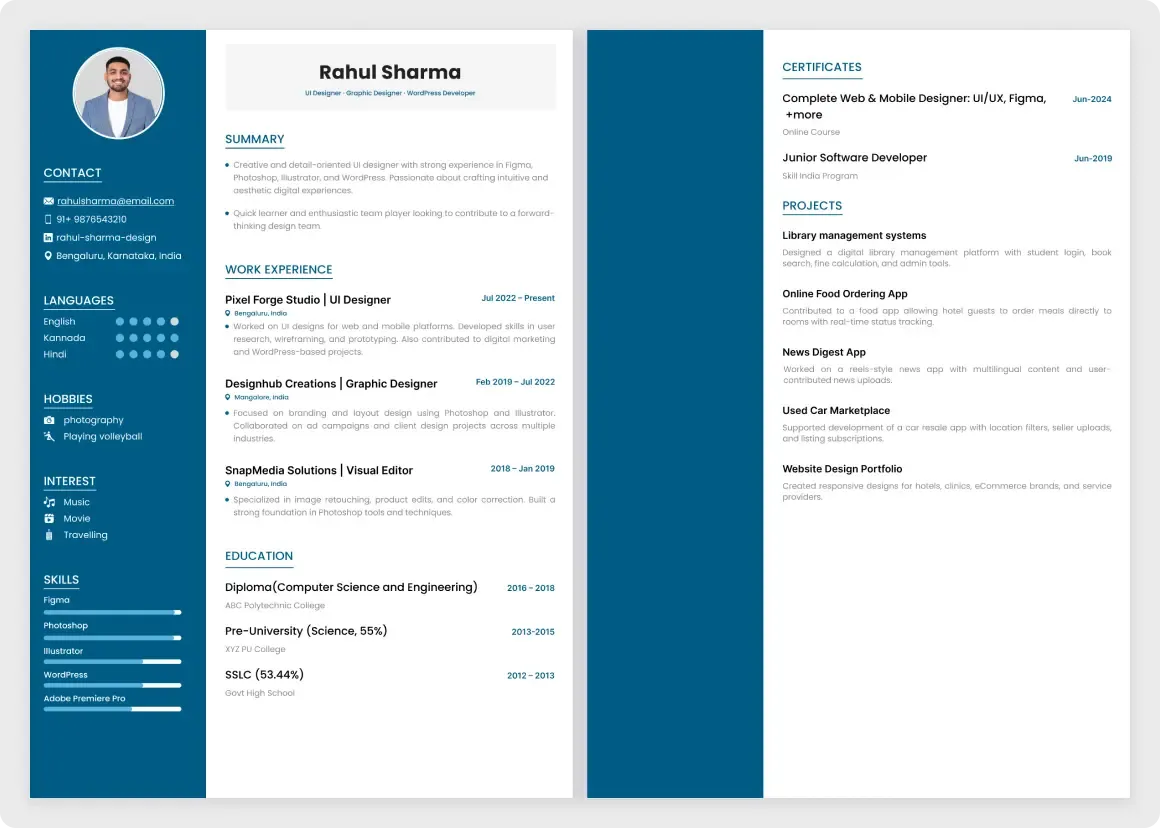
This professional Figma resume template is a two-page layout with a deep blue sidebar and a clean white main column. The sample content shows how each section should look when it is filled in.
A resume should be easy to scan in under a minute. This layout keeps contact details and skills in a narrow sidebar and puts the main story on the right. Section titles have a small underline, dates line up on the right, and the sample text shows how long each entry should be. Editing it in Figma lets you control spacing and type exactly.
What you get
- Page one with a round photo, contact details, languages, hobbies, interests and skill bars in the sidebar
- A name header with a job title line
- Summary, work experience and education sections with dates aligned to the right
- Page two with certificates and a projects list
- Small underlined section titles that make the page easy to scan
How to use it in Figma
Click the copy button and paste into Figma with Ctrl or Cmd + V. Replace the sample name and text with your own. Swap the photo, adjust the skill bars and delete sections you do not need. Export each page as a PDF when you are done.
Best for
- Designers and developers applying for jobs
- Students writing a first resume
- Career changers who want a clear layout
- Portfolio sites that link to a resume file
Customisation tips
- Keep to two pages. Cut older roles before you shrink the text.
- Use your own photo or remove it if the role does not need one.
- Change the blue to your own colour. Then browse other print layouts in Marketing and Print or shrink your photo first with the image compressor.