How to Turn an Excel Lead List Into a Calling List
· 2 min read · by the ProFigma team
Most lead lists arrive as an Excel file: exported from a directory, collected by a colleague or built by hand. The columns are in a strange order, some cells hold two phone numbers and the same shop appears three times. This guide shows how to get that file ready for calling and import it into a call tracker.
1. One lead per row, one title row
Each row should be one company or person. The first row should hold the column titles, such as Company name, Mobile, WhatsApp, Email, Contact person and Map link. Delete empty rows and any notes typed above the table.
2. Clean the phone numbers
- Keep numbers as text, so Excel does not turn them into 9.19E+11. In Excel, set the column format to Text before you paste.
- Write numbers the same way, ideally with the country code, for example +91 90000 12345.
- If a cell holds two numbers, separate them with a slash or comma. A good import tool splits them into Phone and Phone 2.
3. Remove duplicates
Two rows with the same phone number usually mean the same lead. In Excel, use Data > Remove Duplicates on the phone column, or leave it to your calling app if it can find and merge duplicates for you.
4. One tab per list
If you have leads from different areas or sources, keep each on its own tab: "Bakeries", "Gyms", "Mangalore". When you import, each tab can become its own category, and you can call one list at a time.
5. Save it as .xlsx or CSV
Old Excel files (.xls) are often not supported. Open them in Excel and use Save As > Excel Workbook (.xlsx). From Google Sheets, use File > Download > Microsoft Excel (.xlsx) to keep every tab, or Comma-separated values (.csv) for only the tab you are on.
Import the list into CallFlow CRM
CallFlow CRM reads your file as it is. Your columns can be in any order.
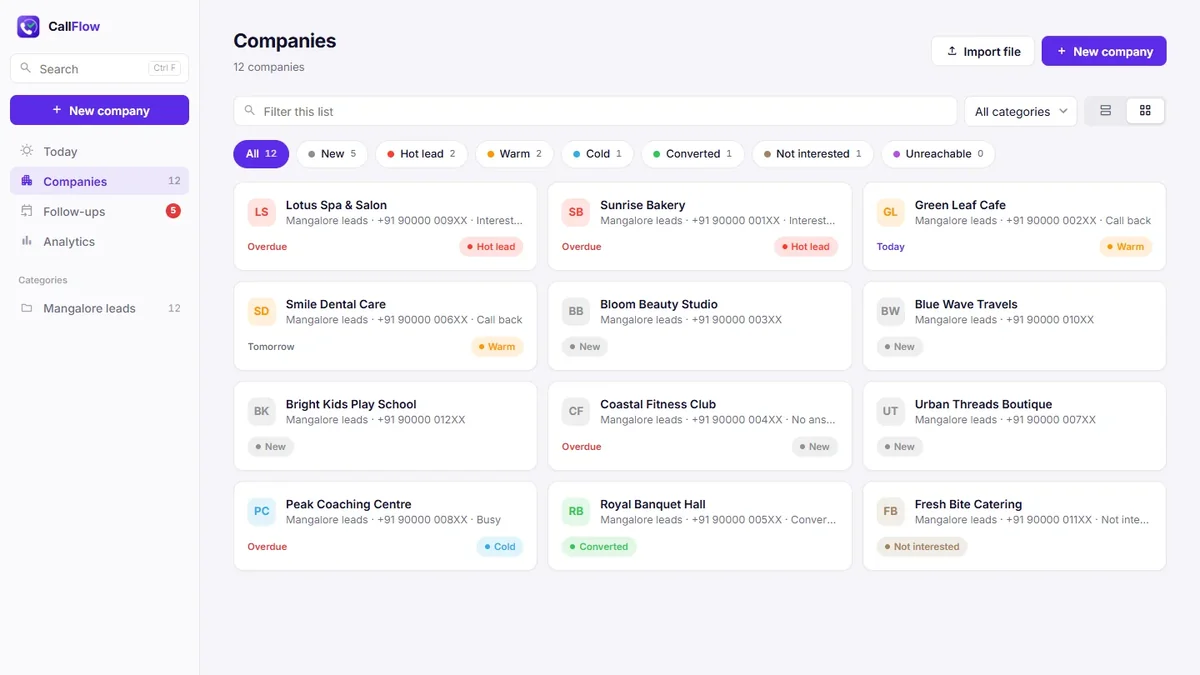
- Go to Companies and click Import file.
- Choose the .xlsx or .csv file, or drag it onto the box.
- Check the preview. Under each column title, CallFlow shows what it thinks the column holds. Fix a wrong guess with the dropdown.
- Choose what to do with extra columns: show them as a card on each company, or hide them.
- Check the category name. It starts as the file or tab name.
- Click Import.
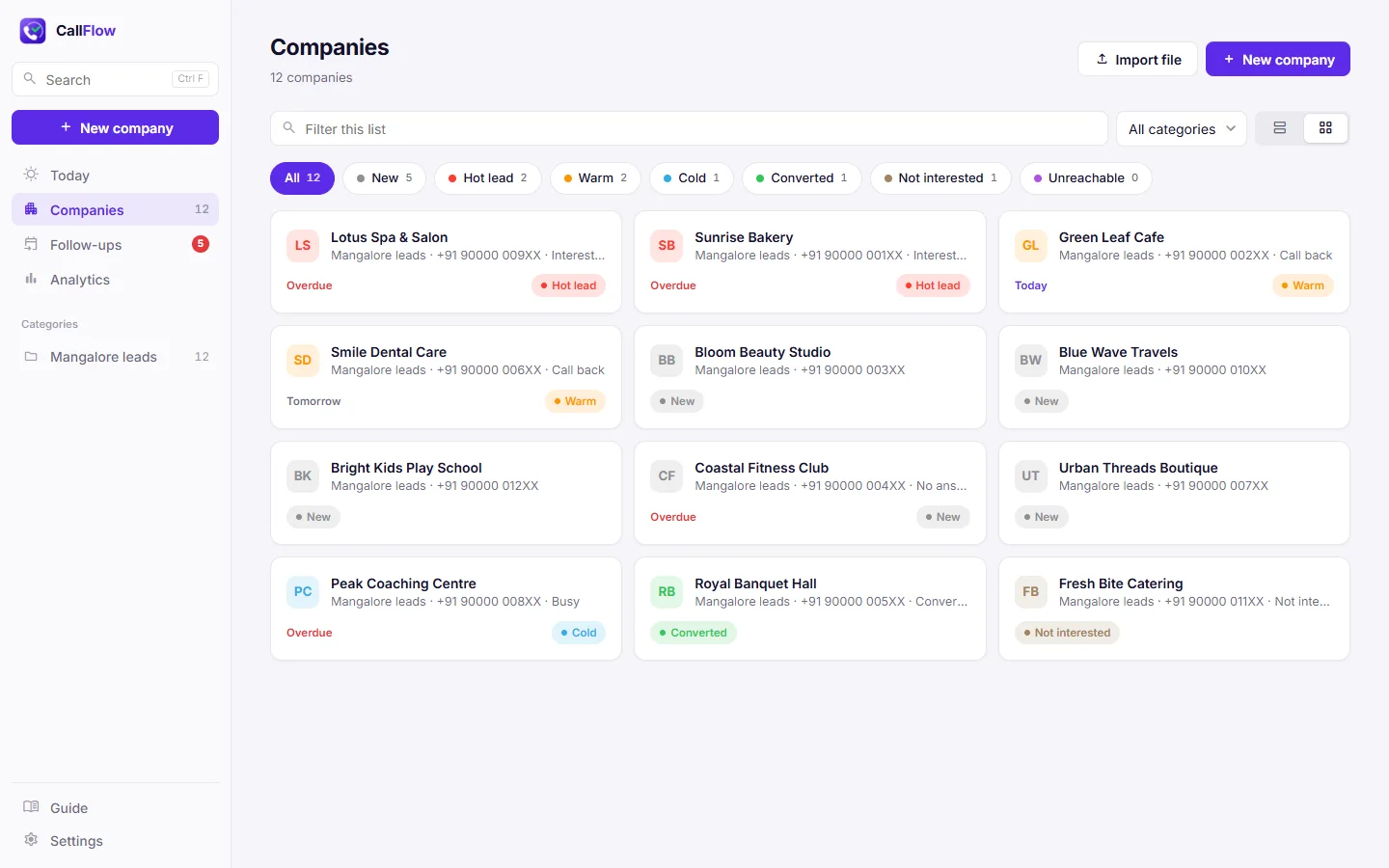
After the import, open the Duplicates page to merge companies that share a phone number. If a category's columns need changing later, open the category and click Columns.
Next step: how to track cold calls so no follow-up gets lost.