How to Share One Lead List With Your Sales Team in Google Sheets
· 2 min read · by the ProFigma team
When every caller has their own copy of the lead list, the same shop gets three calls in one week and nobody knows who promised a call back. Emailing an updated Excel file every evening does not fix it. One shared list does.
Why one Google Sheet works well
- It lives in your own Google account, so you keep control of the data.
- Everyone on the team sees the same leads at the same time.
- Google keeps a version history, so a mistake can be undone (File > Version history).
- You can still open it, sort it and paste new leads in a browser.
Rules that keep a shared list clean
- One tab per list. Bakeries on one tab, gyms on another. Do not mix.
- One lead per row, with a title row on top.
- Log who called. Every call should record the caller's name, so the team knows who to ask.
- Agree on the outcome words. "Call back" means the same thing for everyone.
Connect the sheet to CallFlow CRM
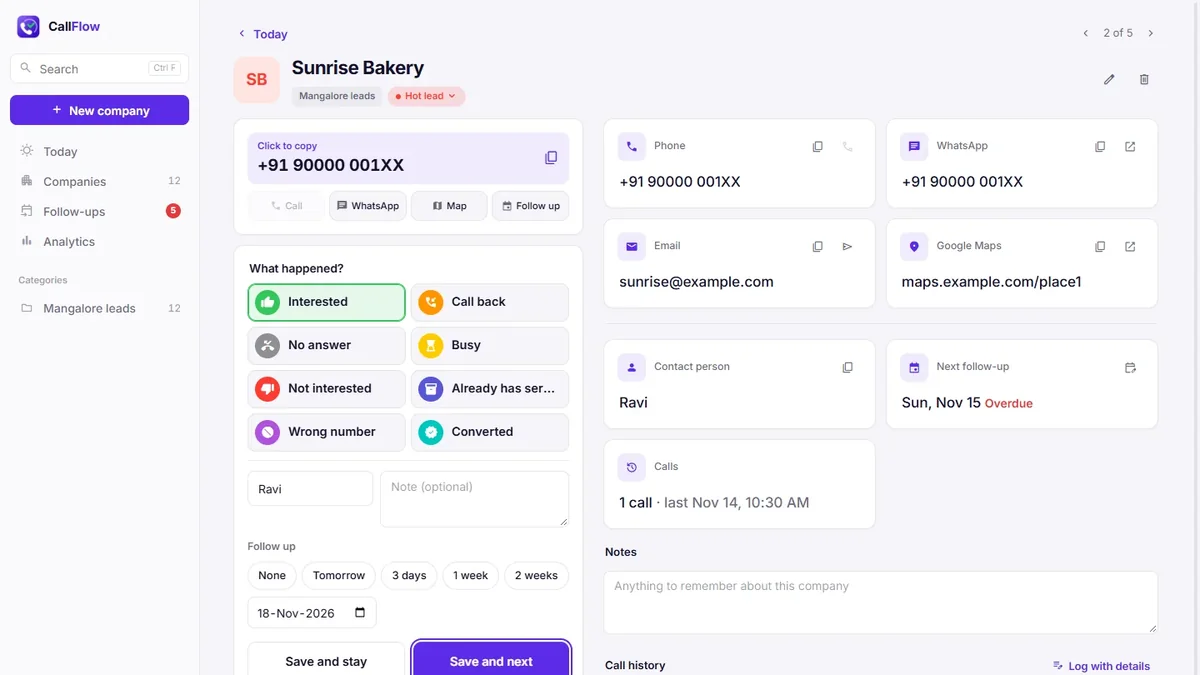
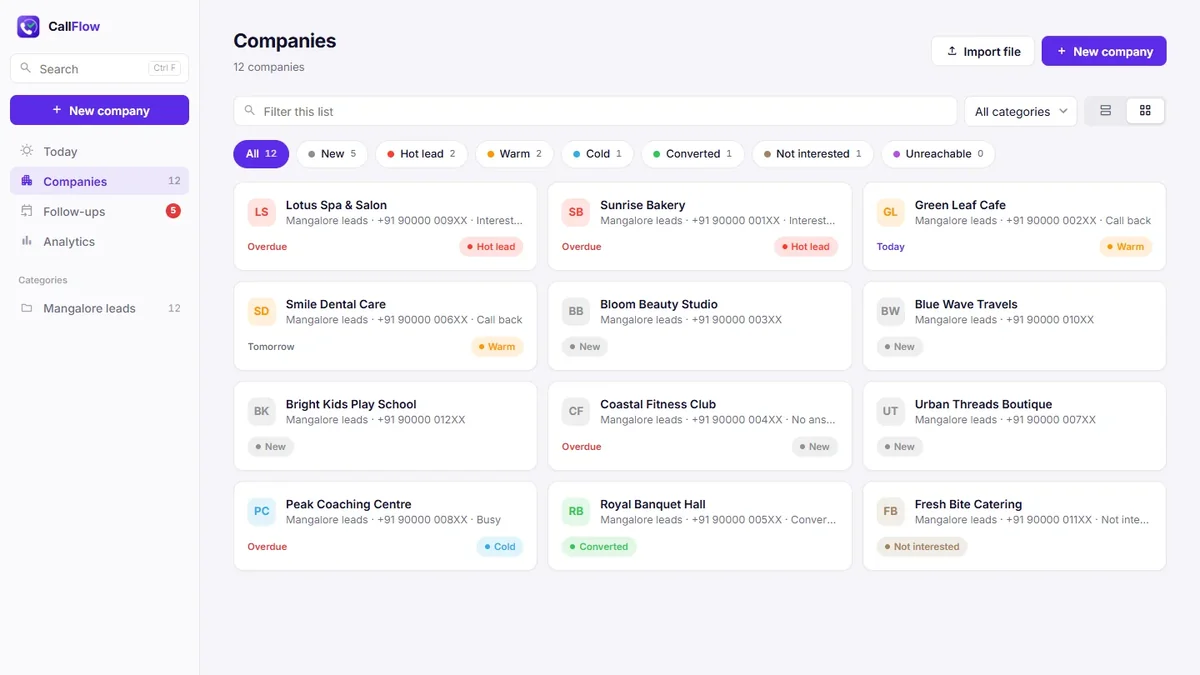
Typing every call into the sheet by hand is slow. CallFlow CRM has a team mode that reads and writes the sheet for you. Each tab of the sheet is a category in the app, and every call saves the caller's name. It needs no server and no developer.
One person sets up the sheet once (about five minutes):
- Open the Google Sheet, or create one with your leads.
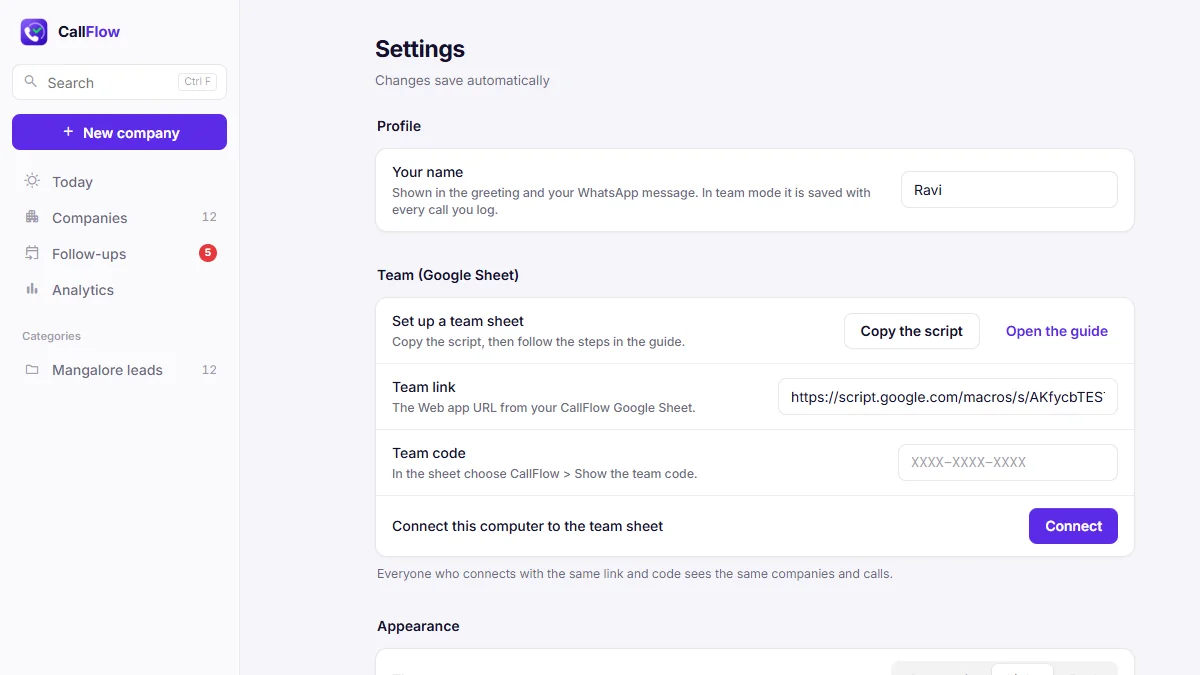
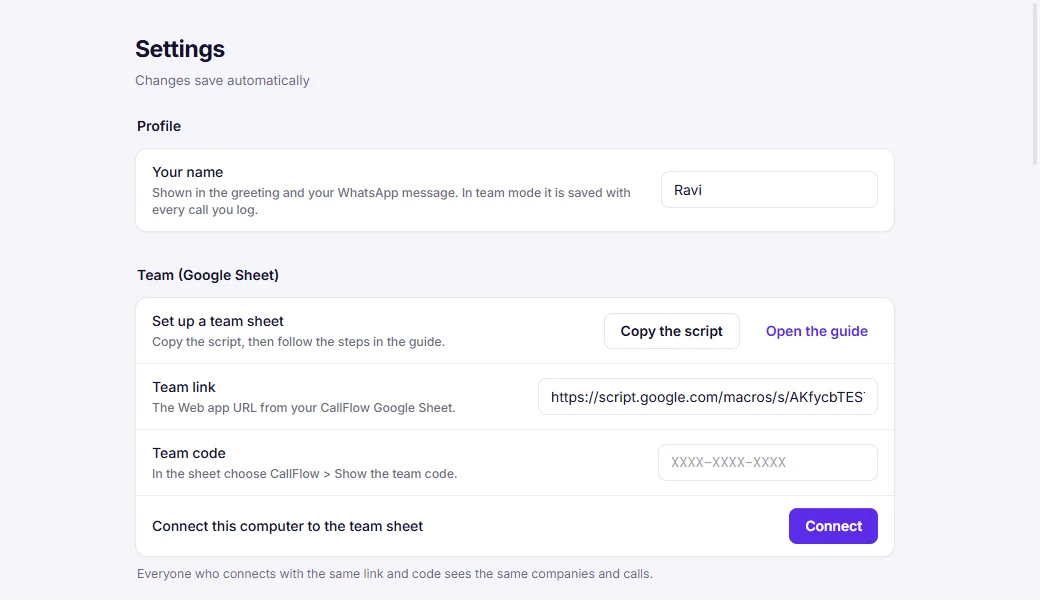
- Choose Extensions > Apps Script. In CallFlow, go to Settings > Team and click Copy the script, then paste it in Apps Script and save.
- Click Deploy > New deployment, choose Web app, set Execute as Me and Who has access Anyone, then Deploy and allow access.
- Copy the Web app URL. This is the team link.
- Reload the sheet and choose CallFlow > Show the team code.
Everyone on the team then connects:
- In CallFlow, type your name under Settings > Profile.
- Under Settings > Team, paste the team link and the team code, and click Connect.
Keep the list private
The team link alone opens nothing. CallFlow also needs the team code, so share both only with your team. If someone leaves, open the sheet and choose CallFlow > Make a new team code, then send the new code to the people who stay. The old code stops working right away.
How syncing works
Changes are sent within a few seconds, and teammates see them within about 30 seconds. If a computer goes offline, its changes stay on that computer and are sent when it is back online. Shared lists work best for small teams. A very large sheet takes longer to sync, so split big lists into tabs or separate sheets.
Before you share the list, get it in shape: how to turn an Excel lead list into a calling list.