Create Website Design in Figma: Step-by-Step Guide
· 3 min read · by the ProFigma team

Learning how to design a website in Figma comes down to a few habits: pick the right frame size and grid, build one section at a time, use auto layout, turn repeated parts into components and check the result at desktop and mobile widths. This guide walks through each step in order, so a beginner can go from a blank canvas to a clean homepage design. Start with a grid you trust, then reuse ready-made sections wherever they fit.
Key takeaways
- Set up frames, a layout grid and a small type scale before you draw any section.
- Build every section with auto layout so spacing stays consistent when content changes.
- Turn anything that repeats (buttons, cards, nav items) into a component.
- Design mobile from the same components, not from scratch.
- Check contrast and spacing before you hand the file to a developer.
What does it mean to design a website in Figma?
Figma is a design tool, not a website builder. You draw the pages, define the spacing, colors and type, and prototype how they behave. A developer (or a no-code tool) then turns that design into a live site.
A website design in Figma usually contains a few pages (home, about, services, contact), each shown at desktop and mobile widths. Behind them sit shared styles and components so every page looks like it belongs to the same site. If you can organize that, you can design a website, whatever your experience level.
Step 1: Set up your frames, grid and type scale before drawing anything
Skipping setup is the most common beginner mistake. Ten minutes here saves hours of nudging boxes later.
- Create the frames. Press F and pick a desktop preset or type a width. A common starting point is 1440 px wide for desktop, around 768 px for tablet and around 375 px for mobile. Choose sizes that match your audience's devices and keep them consistent across the project.
- Add a layout grid. Select the frame, add a layout grid in the right panel and choose columns. Twelve columns is a popular desktop choice because it divides evenly into halves, thirds and quarters. Mobile layouts often use fewer columns, for example four.
- Choose a type scale. Pick one heading font and one body font, then define a handful of sizes, such as body at 16 px, a larger intro size and three heading sizes. Save them as text styles.
- Pick a spacing scale. Many designers use multiples of 8 (8, 16, 24, 32, 48, 64). Using only these values makes the page feel orderly without much effort.
If you would rather generate grid values than calculate them, the UI Grid Maker for Figma layout grids works out column widths and gutters for you.
Step 2: Build each section with auto layout instead of manual spacing
Work top to bottom, one section at a time: navigation, hero, features, social proof, call to action and footer. Do not try to finish the whole page at once.
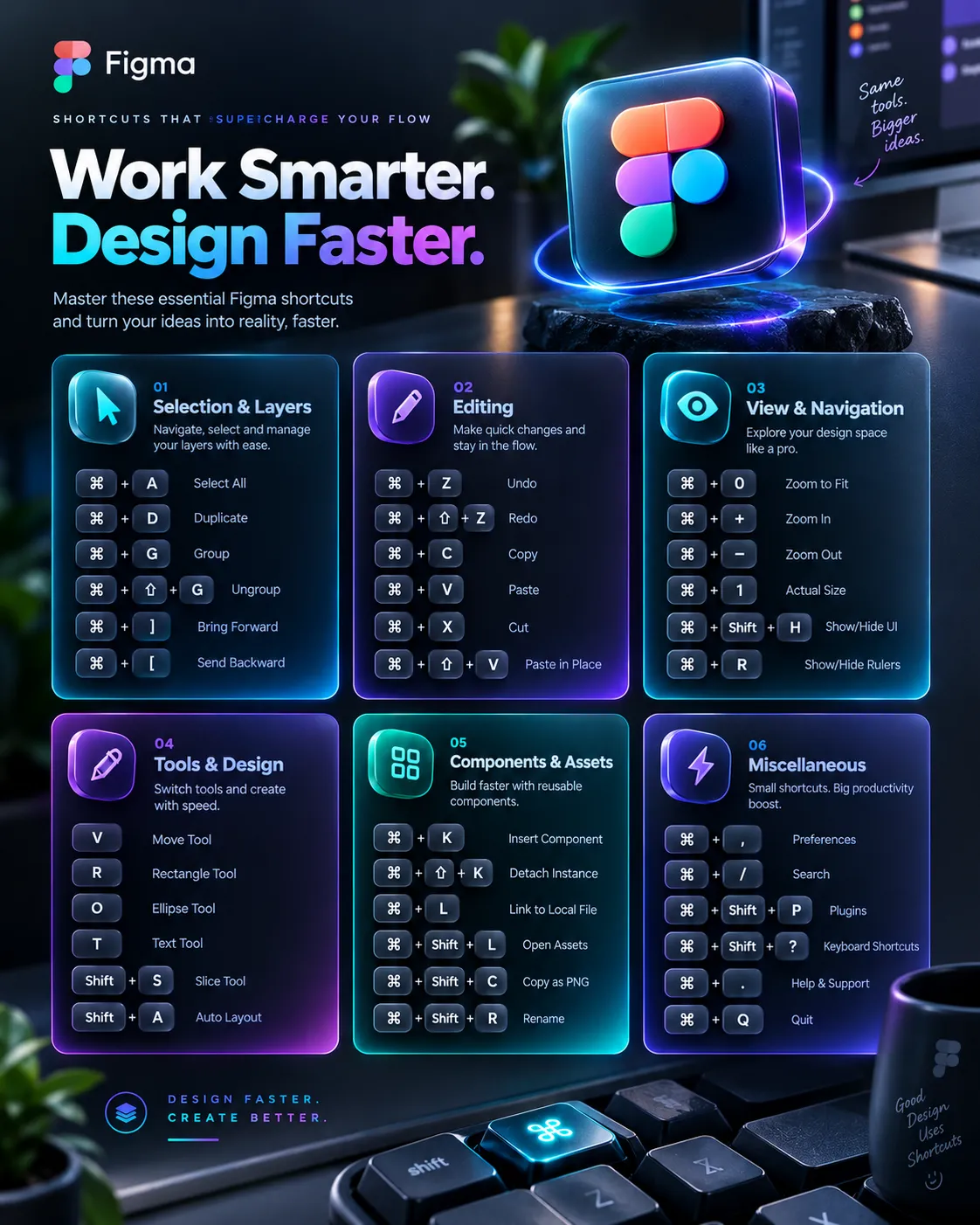
Inside each section, select your layers and press Shift + A to wrap them in an auto layout frame. Then set direction (horizontal or vertical), gap between items and padding in the right panel. Because spacing is now a rule rather than a position, you can edit a heading or add a card and the layout adjusts itself.
A simple order for the homepage
- A navigation bar with logo, links and one primary button.
- A hero with a clear headline, one supporting sentence, one main action and a visual.
- A features or services section with three to four cards.
- Proof, such as testimonials, logos or numbers you can actually back up.
- A closing call to action and a footer with links.
You do not have to draw all of these from zero. A SaaS hero section UI for Figma or a responsive navbar UI kit for Figma can be copied in and adapted, which is a fast way to see how a well-built auto layout section is structured. Pairing them with a services section and a footer gives you most of a landing page.
Step 3: Turn repeated elements into components and variables
If you copy and paste the same button five times, you will eventually change four of them and forget one. Components prevent that.
- Select a button, card or navigation item and press Ctrl + Alt + K (Option + Cmd + K on Mac) to create a component.
- Add variants for states such as default, hover and disabled, or for sizes such as small and large.
- Use the component everywhere. Edit the main component once and every instance updates.
Variables take this further. Store your brand colors, spacing values and corner radius as variables, and you can switch a whole page between light and dark modes by changing one setting. Start with colors only; add the rest as you get comfortable.
Step 4: Design the mobile version from the same components
Duplicate your desktop frame, resize it to your mobile width and rework the layout. Cards that sat in three columns usually stack into one. Horizontal navigation typically collapses into a menu icon.
Because you used auto layout and components, many elements will reflow on their own. Fix what does not, keeping text at a comfortable size (16 px for body copy is a reliable floor) and making tap targets large enough to hit with a thumb. WCAG 2.2 sets a minimum target size of 24 by 24 CSS pixels, and bigger is friendlier.
Use constraints and resizing options (hug, fill, fixed) to control how each layer responds. Then open prototype mode, drag the preview window narrower and check what breaks.
Step 5: Check color contrast and spacing before developer handoff
Before you share the file, run two checks. First, contrast: normal body text should reach a 4.5:1 ratio against its background to meet WCAG AA, and large text needs 3:1. You can test pairs with the WCAG color contrast checker, and the criteria are listed in the WCAG 2.2 quick reference.
Second, consistency: look for stray values such as a 13 px gap or a slightly different grey. If you used styles, variables and auto layout, there should be very few.
Handoff checklist
- Name pages and frames clearly (for example Home / Desktop, Home / Mobile).
- Rename layers that developers will inspect, such as Hero, Feature card and CTA button.
- Use shared text and color styles instead of local values.
- Mark the frames that are ready, so developers do not build from drafts.
- Add short notes for behavior that cannot be seen, like hover states or menu animations.
Figma's own help center documents Dev Mode and inspection if your team uses them.
Common mistakes to avoid
- Designing only the desktop view. Mobile often carries most of the traffic, so design it early.
- Using too many fonts or sizes. One or two typefaces and a short scale look more professional.
- Placeholder text everywhere. Layouts break when real headlines are longer than "Lorem ipsum". Write rough real copy.
- Flattening everything. Keep layers editable and organized; developers and your future self will thank you.
Conclusion
A good website design in Figma is mostly preparation: frames, a grid, a type scale, auto layout and reusable components. Once those are in place, each new section takes minutes instead of hours, and mobile follows naturally. Practise by designing a simple five-section homepage for an imaginary business, then check it against the handoff list above.
If you want to see how finished sections are put together, browse the free Figma components on ProFigma and copy a few into your own file to study their structure.
FAQ
Is Figma free for website design?
Figma has a free plan, but its limits are set by Figma and can change, so check Figma's current pricing page. For learning and small personal projects the free plan is usually enough to design and prototype a full website.
What frame size should I use for a website design?
A common desktop starting point is a 1440 px wide frame, with a tablet frame around 768 px and a mobile frame around 375 px. Choose sizes that match your audience's devices and keep one consistent grid across them.
How do I make a Figma website design responsive?
Use auto layout for sections and components, set constraints and resizing rules, and design separate frames for desktop, tablet and mobile. Preview them in prototype mode to check how content reflows at each width.
Can developers use my Figma design directly?
Yes. Developers can inspect spacing, colors and type in Dev Mode or the Inspect panel. Clean layer names, shared styles and components make handoff faster and reduce questions during build.
Where can I find ready-made website sections for Figma?
You can start from component libraries and UI kits instead of drawing every section. ProFigma has hero sections, navbars, footers and service cards you can copy straight into your Figma file and adapt.