The Ultimate Guide to Figma Time-Saving Shortcuts
· 8 min read · by the ProFigma team
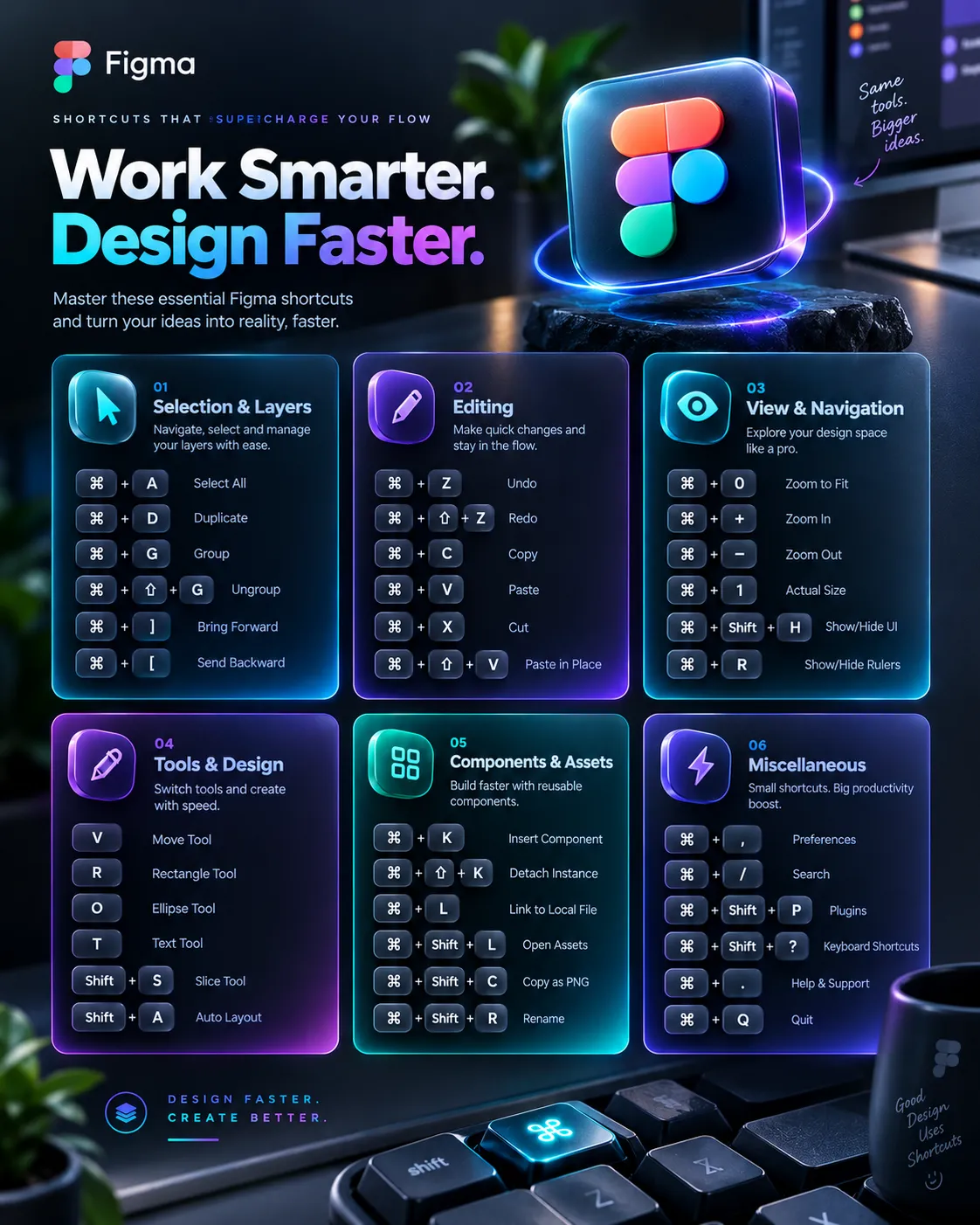
A handful of Figma shortcuts can remove hundreds of clicks from your week. This guide covers five that save the most time: quick search, copy and paste properties, measuring distances, auto layout and renaming multiple layers, with both Windows and Mac keys. Learn one at a time and practise it in a real file.
Key takeaways
- Quick Actions (Ctrl or Cmd + /) lets you search for any command instead of hunting through menus.
- Copy and paste properties moves styling between layers without recreating it.
- Holding Alt or Option shows exact distances, which makes spacing checks quick.
- Shift + A adds auto layout in one keystroke.
- Ctrl or Cmd + R renames many layers at once.
Quick reference: Windows and Mac keys for the five shortcuts
| Action | Windows | Mac |
|---|---|---|
| Quick Actions search | Ctrl + / | Cmd + / |
| Copy properties | Alt + Ctrl + C | Option + Cmd + C |
| Paste properties | Alt + Ctrl + V | Option + Cmd + V |
| Measure distance | Hold Alt, then hover | Hold Option, then hover |
| Add auto layout | Shift + A | Shift + A |
| Rename selected layers | Ctrl + R | Cmd + R |
The five shortcuts, step by step
1. Quick Actions: find any command by typing
Press Ctrl + / on Windows or Cmd + / on Mac, then type what you want, such as "outline stroke" or the name of a plugin. Quick Actions searches commands, plugins and components, so you can run something without remembering where it lives.
It is the best shortcut to learn first, because it also helps you discover features you did not know existed.
2. Copy and paste properties
- Select the layer whose look you want to reuse.
- Press Alt + Ctrl + C (Option + Cmd + C on Mac).
- Select the target layer or layers.
- Press Alt + Ctrl + V (Option + Cmd + V on Mac).
Fill, stroke, effects and text styling move across. It is handy for matching a new card to an existing one or applying a text style to many labels. It works best when both layers are the same kind of object.
3. Measure distances
Select a layer, then hold Alt (Option on Mac) and hover over another layer. Figma draws the distances between them in pixels. Use it to check that padding is equal on all sides, that gaps match your spacing scale and that elements line up.
It is much faster than eyeballing, and it catches small inconsistencies before a developer does.
4. Auto layout with Shift + A
Select one or more layers and press Shift + A. Figma wraps them in an auto layout frame, and you can adjust direction, gap and padding in the right panel. Add it to buttons, cards, lists, navigation bars and form fields.
Once a section uses auto layout, adding or deleting an item no longer breaks the spacing. To see what a well-built set looks like, inspect the Figma button component set built with auto layout and note how padding and text work together.
5. Rename multiple layers
Select several layers and press Ctrl + R (Cmd + R on Mac). A dialog lets you set a new name, add numbering and find and replace parts of existing names. Use it to clean up a messy file before handoff, so developers see "Card / Product" instead of "Frame 1284".
Five more shortcuts for frames, components and zoom
| Action | Windows | Mac |
|---|---|---|
| Frame selection | Ctrl + Alt + G | Cmd + Option + G |
| Create component | Ctrl + Alt + K | Cmd + Option + K |
| Duplicate | Ctrl + D | Cmd + D |
| Zoom to fit all | Shift + 1 | Shift + 1 |
| Zoom to selection | Shift + 2 | Shift + 2 |
Frame selection wraps layers in a frame, which is usually better than a group when you want to clip content or add auto layout. Creating components with a shortcut makes it easy to turn a button into a reusable asset the moment you finish it. Zoom to selection keeps you focused on one section while you work.
How to see and customize shortcuts inside Figma
Figma shows its full shortcut list in the help menu, so you can search it when a key combination does not work or when you want to learn more. Look in the main menu under Help and account. Figma's help center also documents keyboard shortcuts and which ones differ in the browser.
You can get a good deal of the benefit of custom keys through Quick Actions, which lets you reach any command by name even when it has no easy shortcut.
A 7-day practice plan to build muscle memory
Do not try to memorize all ten shortcuts at once. Use one per day in real work and keep a note of keys beside you.
- Day 1: Quick Actions. Use it for every command you would normally click.
- Day 2: Shift + A. Add auto layout to every button and card you build.
- Day 3: Alt or Option measuring. Check spacing in three screens.
- Day 4: Copy and paste properties. Restyle a set of labels.
- Day 5: Ctrl or Cmd + R. Rename every layer in one finished screen.
- Day 6: Frame selection and create component.
- Day 7: Zoom shortcuts and duplicate, then repeat the week.
Common mistakes to avoid
- Learning too many at once. A shortcut you use daily beats ten you forget.
- Forgetting browser conflicts. In the browser, some keys may be intercepted. Check the shortcut list if one fails.
- Pasting properties onto the wrong layer type. Check the result after pasting.
- Using shortcuts but skipping structure. Speed does not help if layers are unnamed and spacing is manual.
Where shortcuts fit in a larger workflow
Shortcuts save seconds; systems save hours. Once you work comfortably, set up reusable styles, components and variables, or generate a base system with the Figma design system generator plugin. Plugins can add further speed, and our list of the best Figma plugins for UI/UX designers covers a few worth trying.
Conclusion
Start with Quick Actions, add Shift + A for auto layout, then fold in measuring, copy and paste properties and bulk renaming. Practise each in real files for a few days and they will become automatic.
To apply your new speed on real building blocks, copy a few layouts from the free Figma components library and rebuild them with auto layout.
FAQ
What is the quickest way to find any Figma command?
Use Quick Actions with Ctrl + / on Windows or Cmd + / on Mac, then type what you want. It searches commands, plugins and components so you do not need to hunt through menus.
How do I add auto layout with a shortcut?
Select one or more layers and press Shift + A. Figma wraps them in an auto layout frame, and you can adjust spacing and padding in the right panel.
How do I copy styling from one layer to another?
Select the layer, copy its properties with Alt + Ctrl + C on Windows or Option + Cmd + C on Mac, select the target and paste properties with Alt + Ctrl + V or Option + Cmd + V.
Do these shortcuts work in the browser version?
Most shortcuts work in both the desktop app and the browser, though a few browser shortcuts can conflict with Figma's. Check the keyboard shortcuts list in the Figma help menu if one does not respond.
Can I change Figma's shortcuts?
Figma does not offer fully custom key mapping, but you can view the full list in the help menu and use Quick Actions as a fast alternative for commands without an easy shortcut.