Canva Resume Template – Stop Getting Ghosted with a Professional CV
· 3 min read · by the ProFigma team
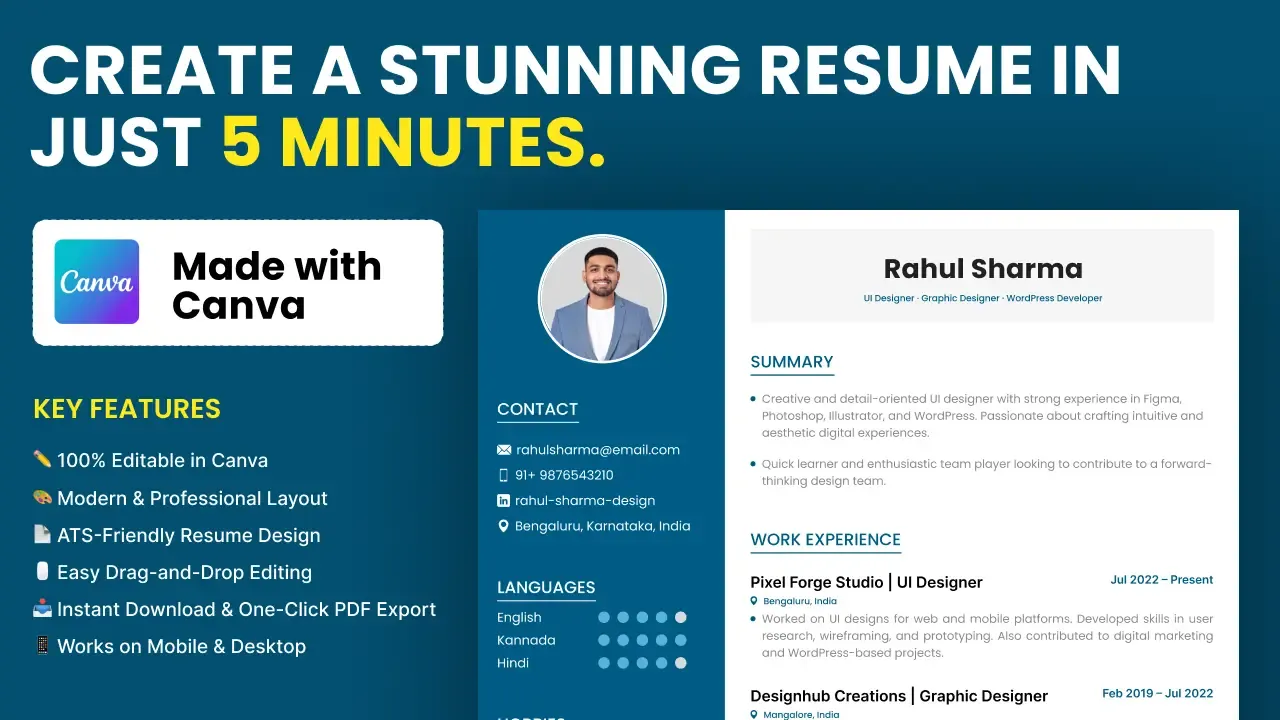
Learning how to make a resume in Canva is quick if you start from a good layout and keep the content focused: most people can finish a clean, professional version in about an hour. This guide shows how to choose a template, edit each section, keep the text readable for recruiters and export a PDF. A free Canva resume template is linked below if you want a ready starting point.
Key takeaways
- Pick a simple template with a clear reading order and enough white space.
- Edit one section at a time and keep text as real, selectable text.
- Fresher and experienced resumes lead with different sections.
- One page is usually enough early in your career; two pages can suit longer histories.
- Proofread, export a PDF and test it on another device before sending.
Step by step: open the template, edit sections, change colors and fonts, download PDF
- Open the template. Start from the free Canva resume template or search "resume" inside Canva. Make a copy so the original stays untouched.
- Replace the placeholder text. Click each text box and type your own details. Start with name, contact information and a two-line summary.
- Fill the main sections. Add experience, education, projects and skills, in the order that suits your situation (see the next section).
- Adjust colors and fonts. Keep to one accent color and no more than two fonts. Use bold or size for emphasis rather than extra colors.
- Remove what you do not need. Delete empty sections and extra icons. A resume should look finished, not like a form with blanks.
- Download as PDF. Use Share, then Download, and choose PDF. Open the file and check that spacing, fonts and links look right.
What to include in a fresher resume vs an experienced resume
The same template can serve both, but the order of sections changes.
If you are a fresher or career switcher
- Lead with a short summary, then education.
- Follow with projects, internships and training, describing what you built or did.
- Add skills and tools that relate to the role.
- Include links to a portfolio, GitHub or LinkedIn if they are relevant and up to date.
If you have work experience
- Lead with a summary and then work experience in reverse chronological order.
- Under each role, list two to four bullets covering results, not just duties. Use numbers only when you have real ones.
- Place education and certifications after experience.
- Keep skills to those that match the job description.
How to write the summary and bullet points
The template gives you the structure, but the words are yours. A strong summary is two or three sentences: who you are, what you do best and what you are looking for. For example, "Marketing graduate with two internships in social media and email campaigns, seeking a junior content role."
For bullets, start with a verb and finish with the outcome. "Designed weekly Instagram posts that the team reused across campaigns" says more than "Worked on social media". Keep each bullet to one or two lines, and cut any bullet that does not help you get this particular job.
Read each line and ask: would a recruiter learn something useful from this? If not, replace it or remove it.
Keeping a Canva resume readable for applicant tracking systems
Many employers use applicant tracking systems (ATS) to collect and search resumes. Systems differ, and no template can guarantee how a particular one will parse your file, so the aim is to remove obvious obstacles.
- Use standard headings such as Experience, Education and Skills.
- Keep key text as real text, not images or icons.
- Prefer a simple one- or two-column layout. Complicated tables and overlapping shapes can scramble reading order.
- Export as PDF with selectable text, unless the employer asks for another format.
- Test by opening the PDF and trying to select and copy the text. If it copies in a sensible order, that is a good sign.
If an employer specifies a file type or an online form, follow that instruction.
One page or two pages: how to decide
Use one page when you have under roughly five years of experience, or when much of your history is not relevant to the job. It forces you to select the best material. Two pages can be justified when you have a long, relevant career, many projects or publications.
Whatever length you choose, make sure the most important information is on the first half of page one. If a second page only repeats old jobs in detail, cut it. If you are close to a page break, adjust spacing and wording rather than shrinking text below a readable size (10 to 11 pt is a sensible lower limit).
Resume mistakes to fix before sending
- Typos and inconsistent formatting. Check dates, capitalization and bullet styles. Ask a friend to read it.
- Vague bullets. Replace "Responsible for social media" with what you did and what changed.
- Dense blocks of text. Use short bullets and white space.
- Low contrast. Light grey text on a pastel panel looks stylish but is hard to read when printed. Verify with the color contrast checker.
- The same resume for every job. Adjust the summary, skills and bullets to match the role.
- A heavy file. Large photos can bloat the PDF. Keep it small enough to email.
A template improves presentation, but it cannot replace strong content. Specific achievements and relevant skills do the real work.
Canva or Figma for your resume?
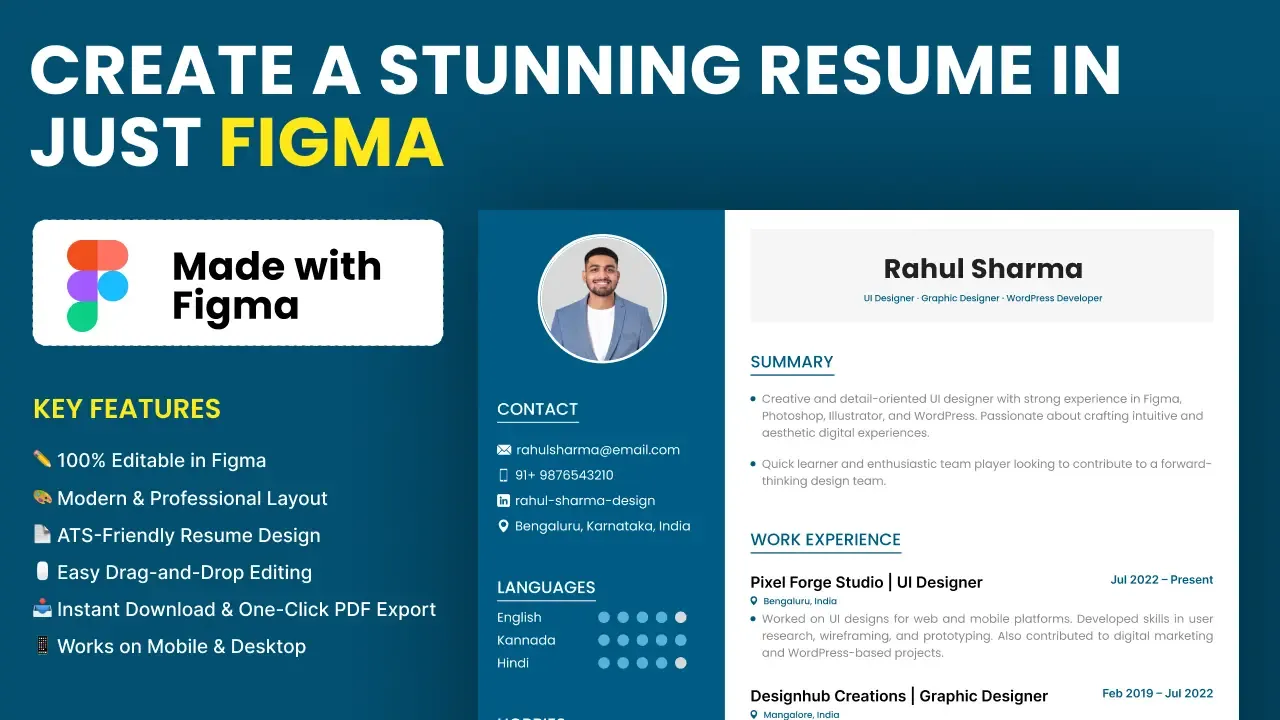
Canva is faster for beginners: drag, type and download. Figma gives finer control over layout, auto layout for growing sections and easy versioning, which suits designers and developers who already use it. Both export to PDF, so pick whichever tool you are comfortable in.
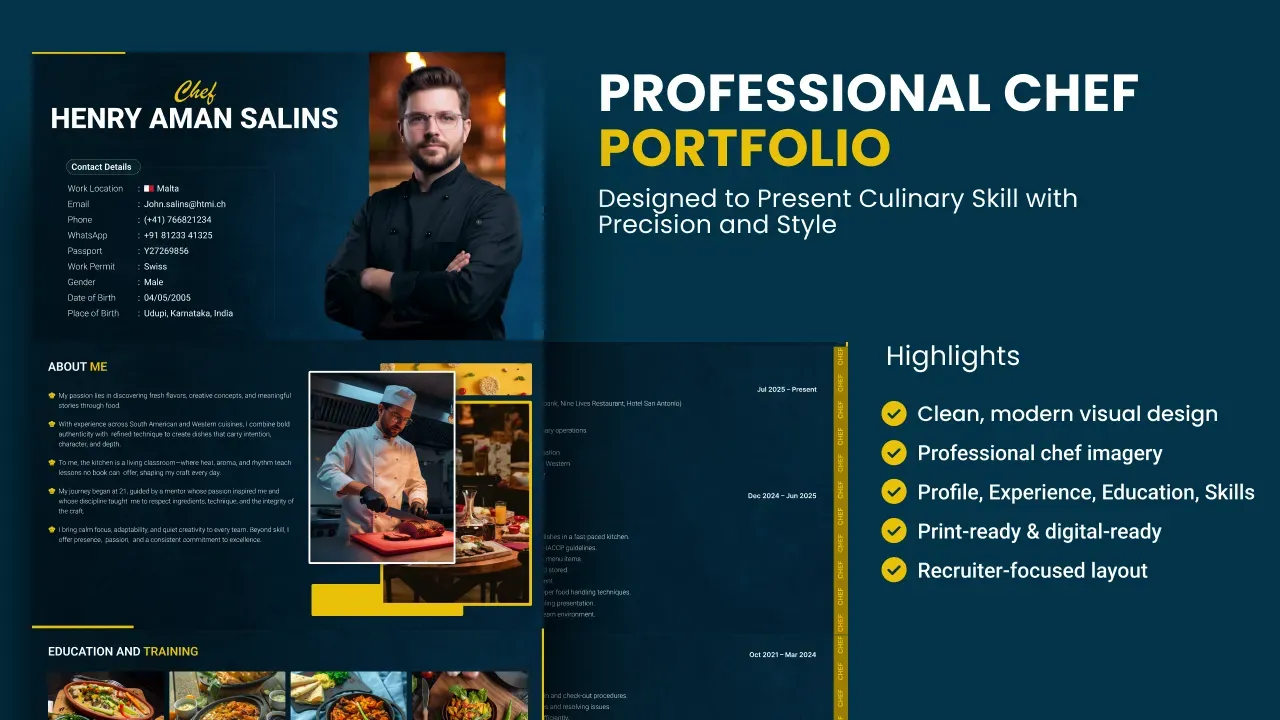
If you prefer Figma, try the free Figma resume template, or the professional two-page Figma resume template for a longer layout.
Conclusion
A good Canva resume is simple, consistent and honest. Choose a clean layout, put your strongest material first, keep text selectable and proofread before you export. Save a master copy and make a tailored version for each application.
When you are ready to begin, open the free Canva resume template, replace the placeholders and export your first PDF.
FAQ
Is a Canva resume template free?
Canva has free and paid templates and elements. A free resume template can be fully edited in a free Canva account, but some stock photos or elements in Canva's library may require Canva Pro, so check before you export.
Can I download my Canva resume as a PDF?
Yes. Use Share, then Download, and choose PDF. Keep text as real text instead of images so recruiters can select, copy and search it, and check the file on another device before sending.
Are Canva resumes ATS friendly?
Applicant tracking systems read text best from simple layouts with standard headings. Avoid putting key text in images, keep columns simple and export a PDF with selectable text. If an employer asks for a specific format, follow it.
Should a fresher resume be one page?
Usually yes. Put education, projects, skills and internships first, add measurable results where you have them and cut anything that does not support the role you are applying for.
Can I use a Figma resume instead?
Yes. A Figma resume gives more layout control and exports to PDF, while Canva is quicker for beginners. Pick the tool you are comfortable with and keep the design clean.